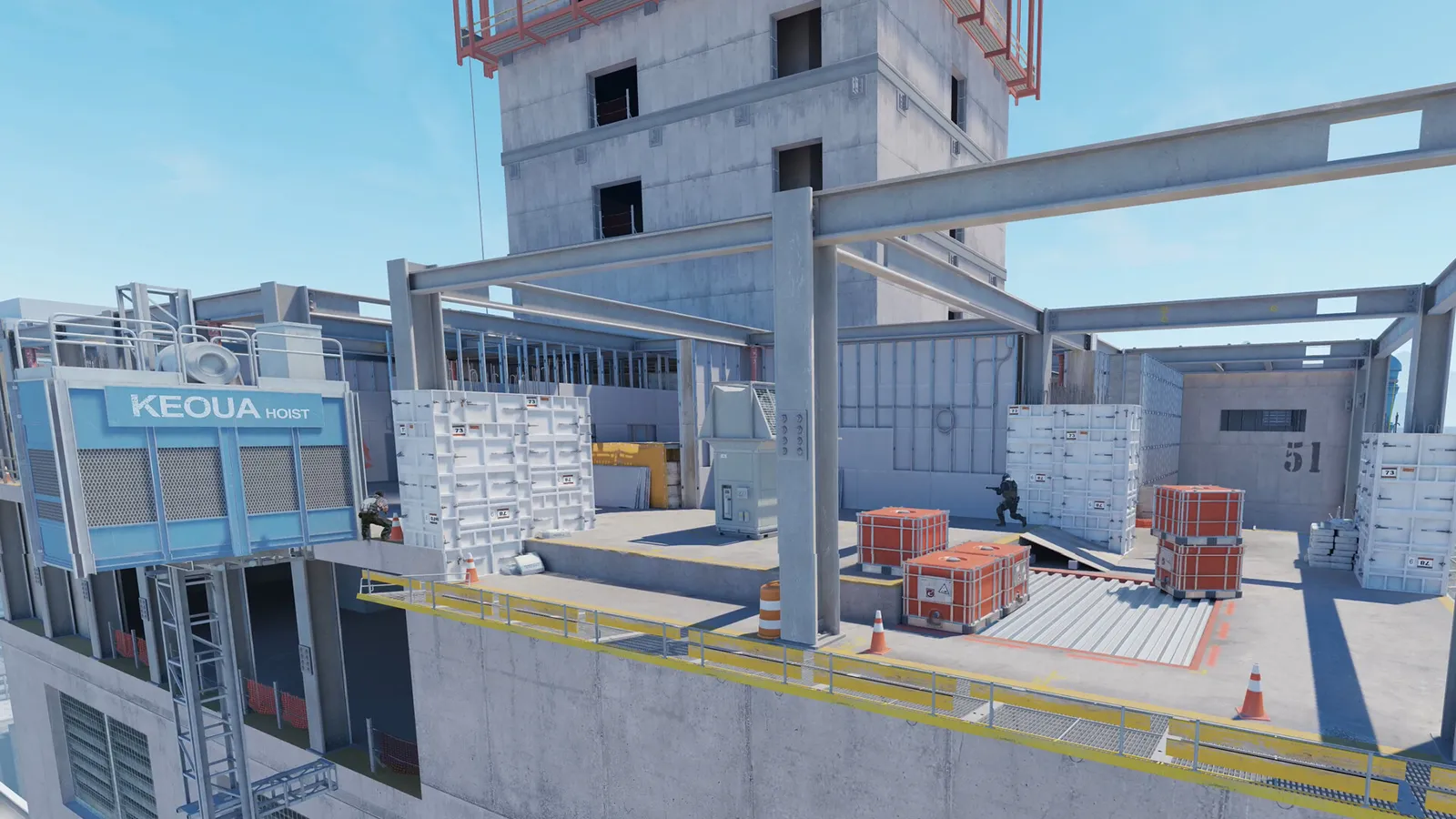
Valve's free-to-play 5v5 tactical shooter on Source 2 (the successor to CS:GO). Very CPU-heavy: frame rate depends more on your processor and RAM speed than on your graphics card, and visibility matters more than looks.
What limits performance in Counter-Strike 2
Counter-Strike 2 runs on Source 2 (Tactical shooter, 2023). Official and researched system requirements:
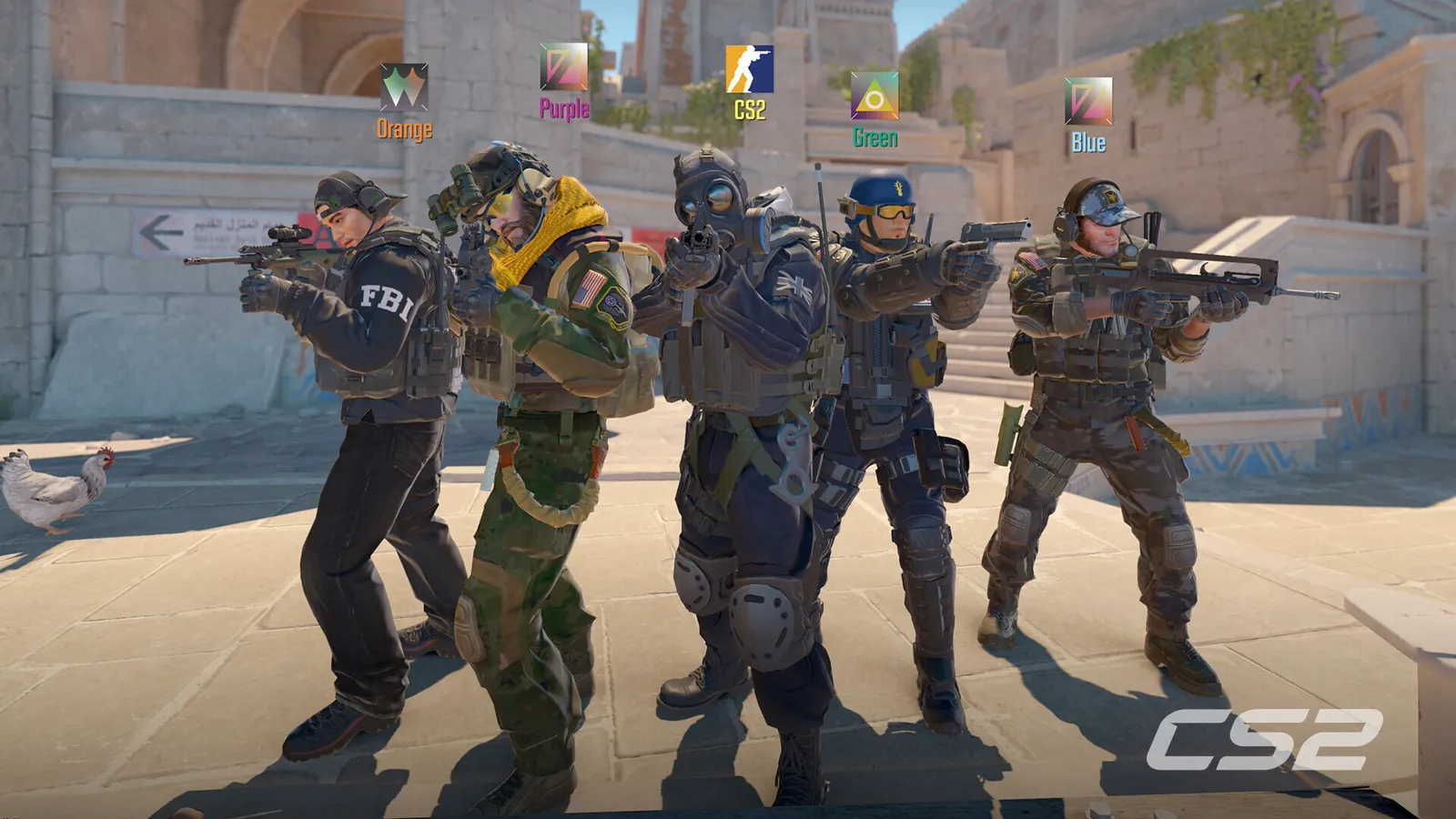
Lower settings help most in busy rounds.
- Minimum: OS Windows 10; CPU 4 hardware CPU threads, Intel Core i5 750 or higher; RAM 8 GB; GPU Video card with 1 GB or more, DirectX 11 compatible with Shader Model 5.0; Storage 85 GB
The settings that cost the most frames
Menu names and sections below are the ones in the game. Start here, test after each change, and keep the ones that give a clear gain.
- Resolution (Video): native resolution, or lower for more frames. Many pros play 4:3 stretched, but native gives the clearest image and best FSR-free sharpness.
- V-Sync (Advanced Video): Disabled. V-Sync adds noticeable input lag.
- Multisampling Anti-Aliasing Mode (Advanced Video): CMAA2. Smooths edges so distant players are easier to spot. CMAA2 is nearly free; guides split between None and CMAA2, and 4x or 8x MSAA costs real frames.
- Global Shadow Quality (Advanced Video): Low. Most competitive guides run Low (pros are split) and rely on Dynamic Shadows set to All to keep enemy shadows visible; higher values mostly cost frames.
- Shader Detail (Advanced Video): Low. Low removes some visual clutter and gains frames.
- Particle Detail (Advanced Video): Low. Fewer particles mean less clutter during fights and smoother frame times.
- Ambient Occlusion (Advanced Video): Disabled. Adds soft contact shadows; nice to look at, no competitive value.
- Max FPS (console: fps_max) (Console): 0 (unlimited). CS2 has no frame cap slider in the menu: set it with the console command fps_max or the +fps_max launch option.
Smaller options
| Setting | Where | Recommended |
|---|---|---|
| Display Mode | Video | Fullscreen |
| Boost Player Contrast | Advanced Video | Enabled |
| Dynamic Shadows | Advanced Video | All |
| Model / Texture Detail | Advanced Video | Low on the Low preset up to High on Ultra |
| Texture Filtering Mode | Advanced Video | Bilinear |
| High Dynamic Range | Advanced Video | Performance |
Upscaling and frame generation
Upscalers: FSR. No frame generation is listed. Latency reduction: NVIDIA Reflex.
- FidelityFX Super Resolution (Advanced Video). Options: Disabled (Highest Quality), FidelityFX Super Resolution. CS2 only offers this spatial upscaler, which blurs fine detail. Only use it if your GPU can't keep up.
- NVIDIA Reflex Low Latency (Advanced Video). Options: Disabled, Enabled, Enabled + Boost. Cuts system latency on NVIDIA GPUs.
How to show the FPS counter
- Open Settings (gear icon) > Game and scroll to Telemetry.
- Set "Show frame time and FPS" to "Always" ("If conditions are poor" only shows it when frame time worsens).
- Alternative: enable the developer console (Settings > Game > Enable Developer Console (~)) and type cl_showfps 1 (0 turns it off). The Telemetry section also has a "Show ping" option.
Launch options for Counter-Strike 2
+fps_max 0: Starts the game with an uncapped frame rate.+cl_showfps 1: Shows the FPS counter from the first frame without opening the console.
More Counter-Strike 2 tips
Enable the developer console
- Settings > Game > "Enable Developer Console (~)" > Yes.
- Press the ~ key (below Esc) in the menu or in a match to open it.
Uncap or cap your FPS
- Open the console and type fps_max 0 to remove the limit.
- With G-Sync/FreeSync, a cap 3 below your refresh rate (e.g. fps_max 141 on 144 Hz) gives smooth frame pacing.
NVIDIA driver settings
- NVIDIA app > Graphics > Program settings > Counter-Strike 2.
- Set "Power management mode" to "Prefer maximum performance".
- Leave "Low Latency Mode" off when you use the in-game Reflex setting (Advanced Video > NVIDIA Reflex Low Latency).
Quick checks that help in any game
Before you spend an hour in the menus, rule out the common system-level causes of low FPS and stutter in Counter-Strike 2:
- Update your graphics driver and restart. Game-ready drivers often include fixes for new releases.
- Set the Windows power plan to Balanced or High performance, and turn on Game Mode.
- Enable the XMP or EXPO memory profile in your BIOS. Many PCs run RAM below its rated speed, which costs frames in CPU-limited games.
- Install the game on an SSD, not a hard drive, to avoid hitching when assets stream in.
- Close browsers, launchers and overlays you do not need. Each one takes CPU time and memory.
- Watch your temperatures. A CPU or GPU that overheats lowers its clocks, and the result is lower, uneven frame rates.
- Match the frame cap to your monitor, or use adaptive sync so a steady frame rate does not tear.
How to test a change properly
Change one setting at a time and repeat the same short test, ideally in the same place or mode, while watching both the average and the lowest frame rates. The 1% lows tell you more about smoothness than the average does. If a setting changes the picture a lot but the frame rate barely moves, put it back; if it moves the frame rate a lot and the picture barely changes, keep it lower. Check whether the GPU or CPU is the one running at 95 to 100 percent: lowering resolution-related settings only helps when the GPU is the bottleneck, while lowering view distance, crowd and physics options is what helps when the CPU is.
Best settings for your hardware
Every PC is different, so the best choice depends on your CPU, graphics card and monitor. On DontLag you can find recommended settings for each hardware tier on the Counter-Strike 2 settings page.