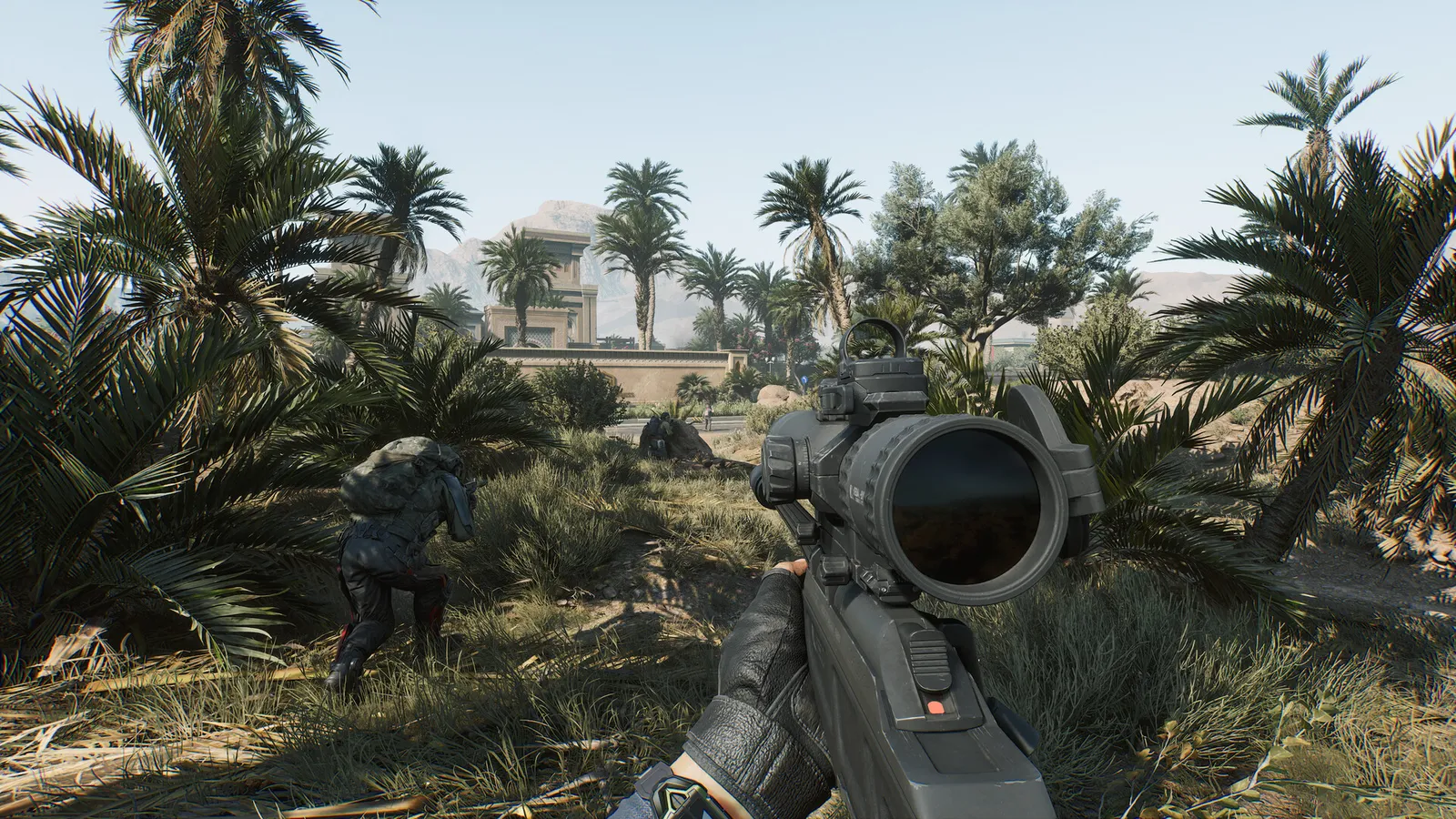
Delta Force is moving from Unreal Engine 4 to Unreal Engine 5 in stages. The Black Hawk Down campaign was built on UE5, and Warfare maps now carry UE5 features. The Season Aurora update, which went live on 10 November 2026, added a "Full Verity Mode" on PC that renders global illumination (Lumen), geometry (Nanite), virtual shadow maps, water and vegetation at higher quality. Large Operations and Warfare matches load the CPU heavily either way.
What limits performance in Delta Force
Delta Force is both CPU- and GPU-limited. Warfare mode with many players and vehicles loads the CPU, while high resolution loads the GPU. VRAM matters for textures. Installing on an SSD is advisable for a large game of this size (88 GB).
The settings that cost the most frames
Start with these, test after each change, and keep the ones that give a clear gain. Menu path: Settings, Graphics, which is split into Display, Super Resolution, Basic Graphics and Advanced Graphics.
- Global Illumination Quality: Low. Some guides report Ultra performing better than Medium or High, so compare Low and Ultra on your PC and avoid the middle steps.
- Shadows, Volumetric Fog, Reflections and Particles: Low for busy fights.
- Ambient Occlusion: Off. Depth of Field: Off.
- Texture Quality: High if your VRAM allows, lower if you run out.
- V-Sync: Off.
- In Match Frame Cap: set it to your refresh rate, and set the Out of Match cap as well, since the Extraction menu and the Range count as out of match.
If you have Full Verity Mode on, test with it off first. Team Jade has not published performance figures for it, so compare your 1% lows with and without it in the same Warfare map.
Upscaling and frame generation
The upscaler is chosen under Settings, Graphics, Super Resolution, Super Resolution Mode (the path Team Jade itself points to when blurry graphics need resetting), with DLSS on NVIDIA RTX, FSR on AMD and XeSS on Intel Arc. Use Quality or Balanced and turn off the separate Anti-Aliasing option while an upscaler is active. Team Jade rolled FSR 3 back to FSR 2 in July 2025 while it finished the integration. DLSS Frame Generation is available on supported RTX cards; leave it off for competitive Operations because it adds input lag, and consider it only for casual play with a solid base frame rate. NVIDIA Reflex Low Latency sits under Display.
How to show the FPS counter
Delta Force has a built-in performance readout: go to Settings, Screen, General and switch on Show Performance Parameters. The Steam in-game FPS counter (Steam Settings, In Game) or your GPU overlay also work.
Network and latency tips
Choose the region with the best ping and use Ethernet. High packet loss makes fights feel inconsistent.
Quick checks that help in any game
Before you spend an hour in the menus, rule out the common system-level causes of low FPS and stutter in Delta Force:
- Update your graphics driver and restart. Game-ready drivers often include fixes for new releases.
- Set the Windows power plan to Balanced or High performance, and turn on Game Mode.
- Enable the XMP or EXPO memory profile in your BIOS. Many PCs run RAM below its rated speed, which costs frames in CPU-limited games.
- Install the game on an SSD, not a hard drive, to avoid hitching when assets stream in.
- Close browsers, launchers and overlays you do not need. Each one takes CPU time and memory.
- Watch your temperatures. A CPU or GPU that overheats lowers its clocks, and the result is lower, uneven frame rates.
- Match the frame cap to your monitor, or use adaptive sync so a steady frame rate does not tear.
How to test a change properly
Change one setting at a time and repeat the same short test, ideally in the same place or mode, while watching both the average and the lowest frame rates. The 1% lows tell you more about smoothness than the average does. If a setting changes the picture a lot but the frame rate barely moves, put it back; if it moves the frame rate a lot and the picture barely changes, keep it lower. Check whether the GPU or CPU is the one running at 95 to 100 percent: lowering resolution-related settings only helps when the GPU is the bottleneck, while lowering view distance, crowd and physics options is what helps when the CPU is.
Best settings for your hardware
Every PC is different, so the best choice depends on your CPU, graphics card and monitor. On DontLag you can find recommended settings for each hardware tier on the Delta Force settings page.
Sources
- Delta Force on Steam (system requirements)
- Delta Force Season Aurora notes (7 November 2026): Full Verity Mode, UE5
- Delta Force update 24 April 2025: Super Resolution menu path
- Delta Force update 9 July 2025: FSR 3 rolled back to FSR 2
- Delta Force: Black Hawk Down campaign built on Unreal Engine 5 (Steam announcement)