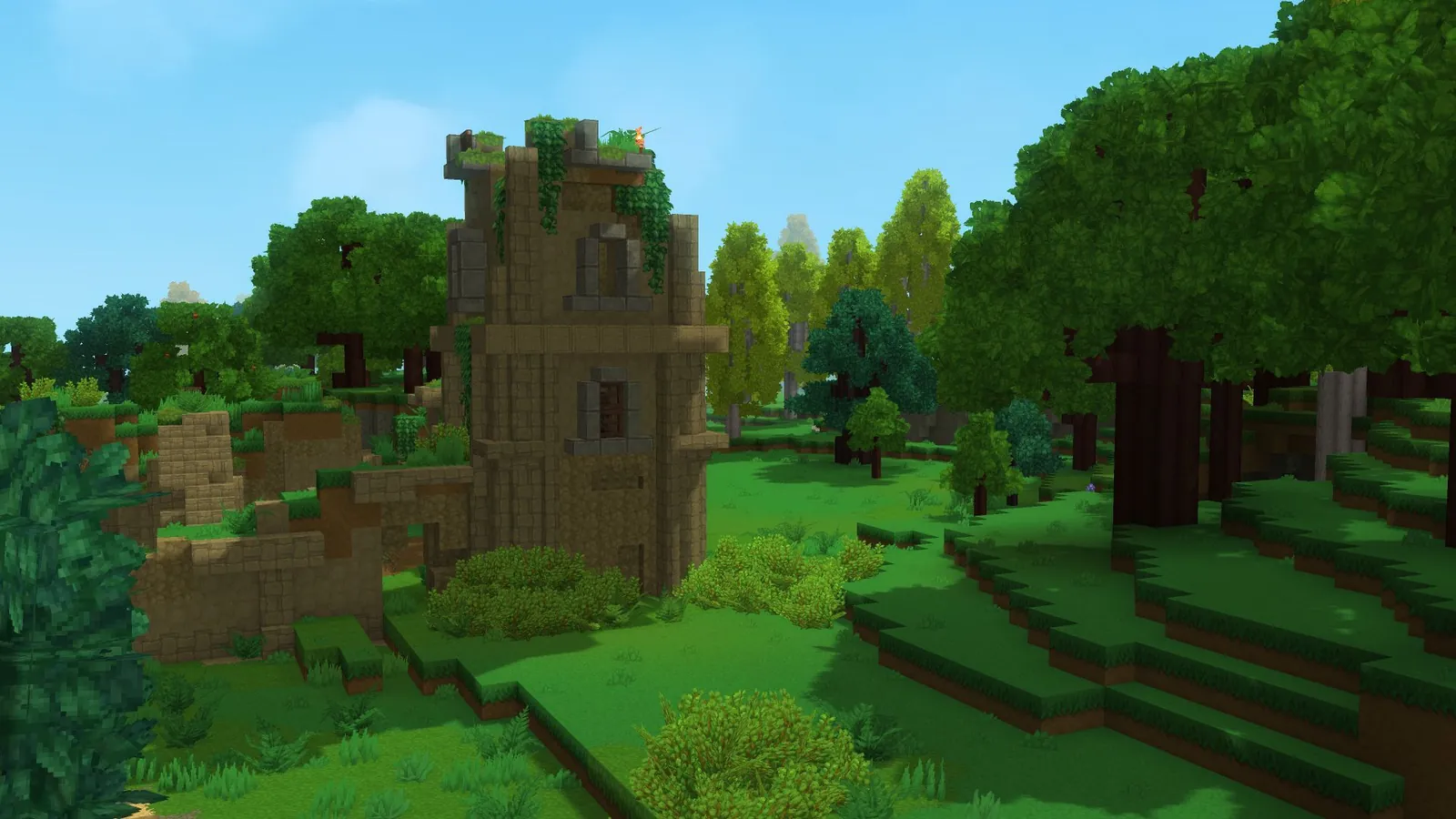
Hytale lets you open your singleplayer world to friends directly, without renting a dedicated server. Turn on Online Play, share the code it generates, and the game works out the connection on its own. According to Hypixel Studios, this feature is still maturing and will not work flawlessly for everyone yet.
How to host a world
- Load into your singleplayer world.
- Press Esc to open the pause menu.
- Click Online Play.
- Toggle Allow Other Players to Join to On.
- Optionally set a password, and optionally toggle Include Password in Share Code to embed it.
- Click Save.
Hytale then sets up the connection, which takes a few seconds, and shows one of four results in the Connection section: Friends can join (nothing more to do), Friends outside your home need extra setup (depends on your friend's network too), Only players on your home network can join, or Your world is not open to friends (setup failed, check your firewall and retry). A share code appears once the world is open; copy it and send it to the people you want to play with.
How to join a friend's world
- From the main menu, go to Servers.
- Click Join via Code.
- Paste the share code.
- Enter the password if one is required and was not embedded in the code.
- Click Connect.
Add each other as friends first
Hytale can only use its full set of connection methods, including relaying traffic when nothing else works, between players who are friends inside Hytale. If you are not friends, the game can only use the addresses already inside the share code, and the join fails if your friend cannot reach one of those directly. Adding each other as friends before sharing a code is the single most reliable fix for connection problems.
Why a connection can fail
Hytale uses ICE, the same connection standard used by video calls, to find the best route between two players automatically. Several common home network setups get in the way of a direct connection:
| Problem | What it means | Fix |
|---|---|---|
| Router does not forward ports | Hytale cannot open a path in from outside | Forward the named port, or use a VPN such as Tailscale |
| Symmetric NAT | Router blocks the specific kind of connection Hytale needs | Forward the named port, or use Tailscale |
| Double NAT | Traffic passes through two routers, usually an ISP box plus your own | Forward the port on both routers, enable UPnP on both, or set the ISP box to bridge mode |
| CGNAT | Your internet provider shares one public address across many homes | Port forwarding cannot work; use Tailscale or ask your provider for a public IP |
To check for CGNAT, compare your router's WAN IP address (shown in the router's admin panel) with your public IP address from a "what is my IP" search. If the two addresses do not match, you are behind CGNAT. On Windows, running tracert -d 8.8.8.8 and checking whether the first hop is a public address gives the same answer.
When joins fail even though hosting says it is fine
If Online Play reports that friends can join but a specific friend still cannot connect, work through these causes in order: confirm you are actually friends inside Hytale and generate a fresh share code, allow Hytale through the Windows Firewall for both private and public networks, temporarily disable antivirus software or add Hytale as an exception, and check whether the network itself blocks Hytale's traffic, which some school, office and public networks do. Share codes also expire, so an old one simply failing is not unusual; generate a new one and try again.
When nothing outside your home can connect
If Hytale reports that only players on your home network can join, check in this order: that your internet connection is actually working, that Hytale is allowed through Windows Firewall, that your network is not one of the ones that blocks Hytale entirely, and finally fall back to a VPN such as Tailscale, which routes around port forwarding and NAT problems entirely.
Quick tips
- Never post a share code publicly or show it on stream. It contains your IP address.
- Try the join before changing router settings. Many connections succeed through relaying even when the hosting screen reports extra setup is needed.
- The Copy Network Report button on the Online Play screen contains no IP addresses, so it is safe to paste into a public support request if you get stuck.
FAQ
Do I need to rent a server to play Hytale with friends?
No. Online Play opens your existing singleplayer world directly to friends with a share code.
Why does adding someone as a friend in Hytale matter for multiplayer?
Hytale can use every connection method, including relaying traffic, only between players who are friends. Without that, the join depends entirely on the raw addresses in the share code.
What is CGNAT and why does it block port forwarding?
Carrier-Grade NAT means your internet provider shares one public IP address across many homes, so forwarding a port on your own router has no effect; a VPN like Tailscale or a public IP from your provider is the only fix.
Once you can play together, see our Hytale performance page for keeping view distance smooth in a shared world, and the Hytale game page for our other guides as more go up.