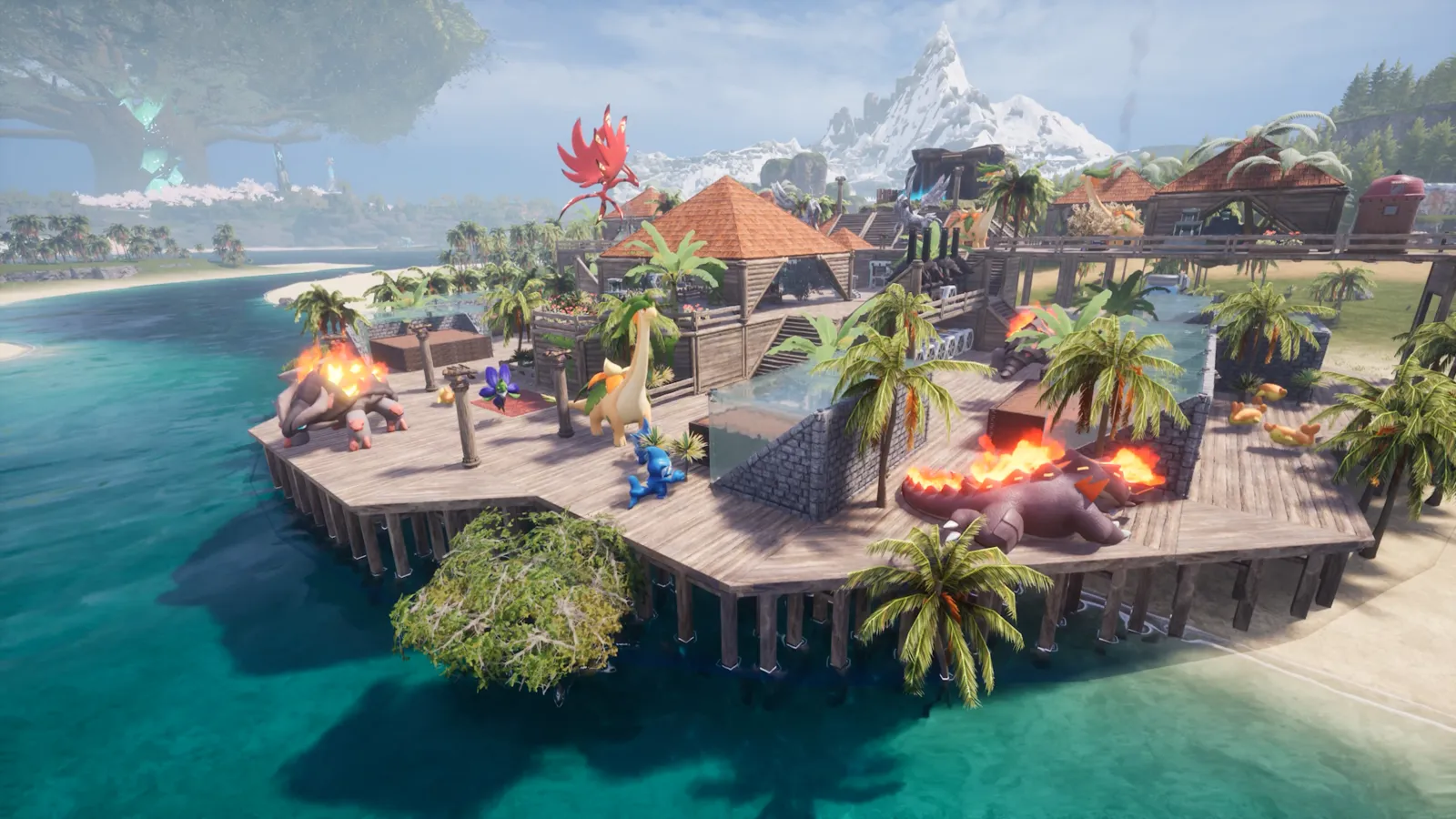
Palworld is an open-world survival game built on Unreal Engine 5, in which large bases and many Pals create heavy CPU load.
What limits performance in Palworld
Palworld is CPU-limited at large bases and GPU-limited at high settings. VRAM use is moderate. An SSD helps with streaming, and 16 GB of RAM is the minimum. Pocketpair said at launch that the game is made in Unreal Engine 5.
Version 1.0 (10 July 2026) changed the graphics: Pocketpair revised water, coastlines, lighting and environment rendering, adjusted the grass and tree draw distance at High and above, adjusted shadow density across the field, and added optimisations for grass, trees and gatherable objects. Later patches kept trimming load: 1.0.2 reduced the processing load in Sunreach, and 1.0.4 (7 September) reduced load from some rendering, foliage and effects and cut stutter when some passive skills trigger. Patch 1.0.5 fixed terrain and building textures that loaded at much lower resolution for some players, so update before you judge your settings.
The settings that cost the most frames
Start with these, test after each change, and keep the ones that give a clear gain. Everything is under Options, Graphics.

Water and foliage like this are demanding on the GPU.
- Shadows: Medium or Low.
- View Distance and Grass Details: Medium. They matter most after the 1.0 draw-distance changes at High and above.
- Building Drawing Distance: lower it in large bases.
- Effects Quality: Low or Medium.
- Texture Quality: High, dropping to Medium if VRAM is under pressure.
- Motion Blur: Off.
- Max FPS: the menu offers 30, 60, 90, 120 and unlimited. Since patch 1.0.4 the default cap on PC is 120. Choose one cap your PC can hold steadily.
- Base size: keep bases tidy, since many structures and Pals increase CPU load.
Upscaling and frame generation
Palworld offers DLSS on NVIDIA RTX cards; start with Quality. If you do not use DLSS, Temporal Super Resolution (TSR) is the upscaling and anti-aliasing option, and it is what AMD and Intel GPUs use. Community documentation lists only DLSS and TSR as the game's upscaling technologies. The settings also list Frame Generation and NVIDIA Reflex on supported cards; test with Frame Generation off first and enable it only if the base frame rate is already comfortable. Version 1.0 fixed a bug where the whole screen went blurry after leaving the game idle with DLSS on.
How to show the FPS counter
Use the Steam in-game FPS counter (Steam Settings, In Game) or your GPU overlay.
Network and latency tips
For multiplayer or dedicated servers, use Ethernet and choose servers close to you. Server performance matters for base activity.
Quick checks that help in any game
Before you spend an hour in the menus, rule out the common system-level causes of low FPS and stutter in Palworld:
- Update your graphics driver and restart. Game-ready drivers often include fixes for new releases.
- Set the Windows power plan to Balanced or High performance, and turn on Game Mode.
- Enable the XMP or EXPO memory profile in your BIOS. Many PCs run RAM below its rated speed, which costs frames in CPU-limited games.
- Install the game on an SSD, not a hard drive, to avoid hitching when assets stream in.
- Close browsers, launchers and overlays you do not need. Each one takes CPU time and memory.
- Watch your temperatures. A CPU or GPU that overheats lowers its clocks, and the result is lower, uneven frame rates.
- Match the frame cap to your monitor, or use adaptive sync so a steady frame rate does not tear.
How to test a change properly
Change one setting at a time and repeat the same short test, ideally in the same place or mode, while watching both the average and the lowest frame rates. The 1% lows tell you more about smoothness than the average does. If a setting changes the picture a lot but the frame rate barely moves, put it back; if it moves the frame rate a lot and the picture barely changes, keep it lower. Check whether the GPU or CPU is the one running at 95 to 100 percent: lowering resolution-related settings only helps when the GPU is the bottleneck, while lowering view distance, crowd and physics options is what helps when the CPU is.
Best settings for your hardware
Every PC is different, so the best choice depends on your CPU, graphics card and monitor. On DontLag you can find recommended settings for each hardware tier on the Palworld settings page.
Sources
- Palworld on Steam (system requirements)
- Palworld 1.0 official changelog (10 July 2026)
- Palworld v1.0.4 patch notes
- Palworld v1.0.5 patch notes
- Palworld Early Access launch FAQ (Unreal Engine 5)