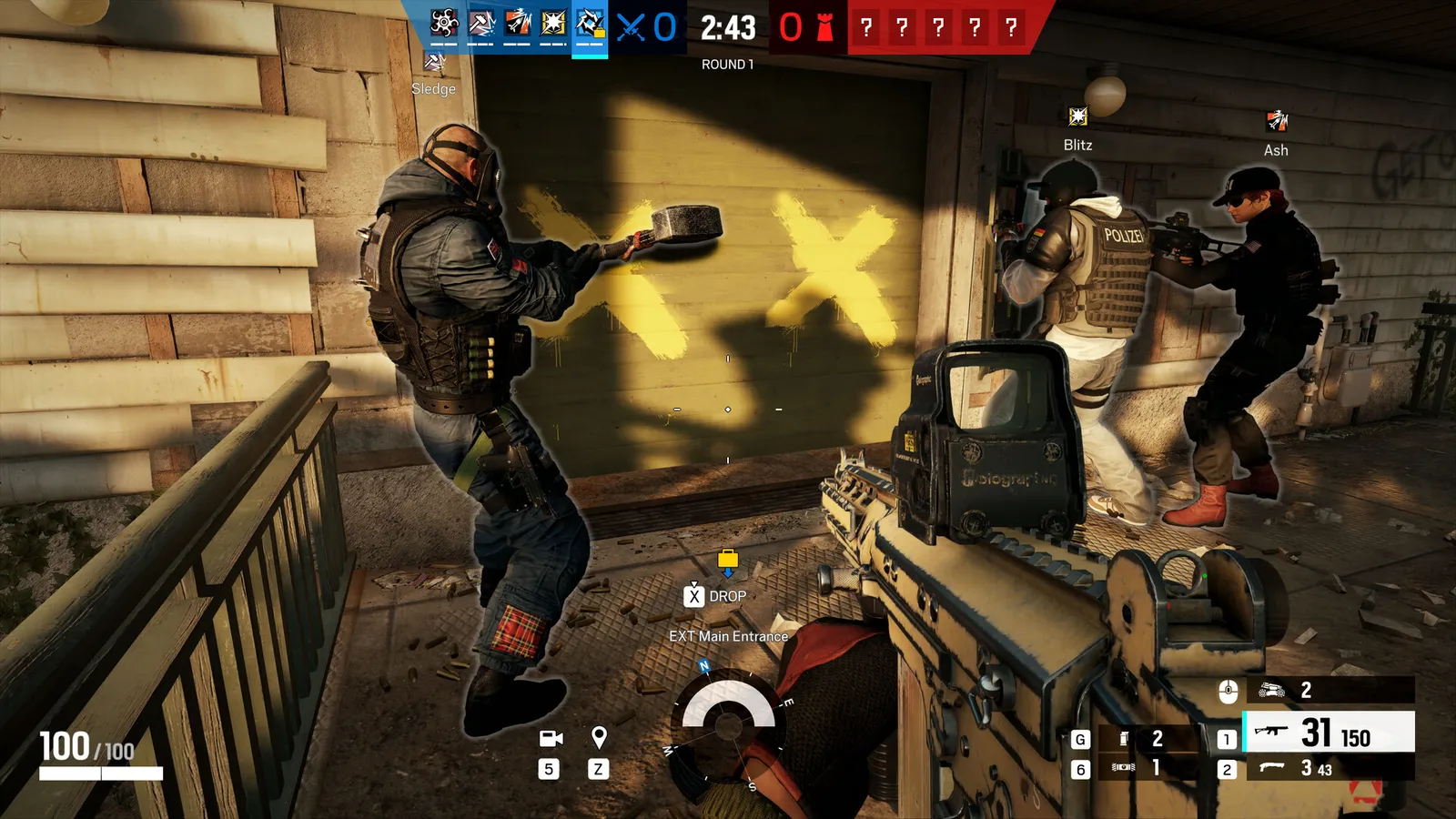
Ubisoft's 5v5 tactical shooter, relaunched as Siege X in 2025 with DirectX 12. Lightweight enough for very high frame rates; the options that matter most are texture and LOD quality for spotting enemies and ambient occlusion for FPS.
What limits performance in Rainbow Six Siege X
Rainbow Six Siege X runs on AnvilNext 2.0 (Tactical shooter, 2025 (Siege X)). Official and researched system requirements:
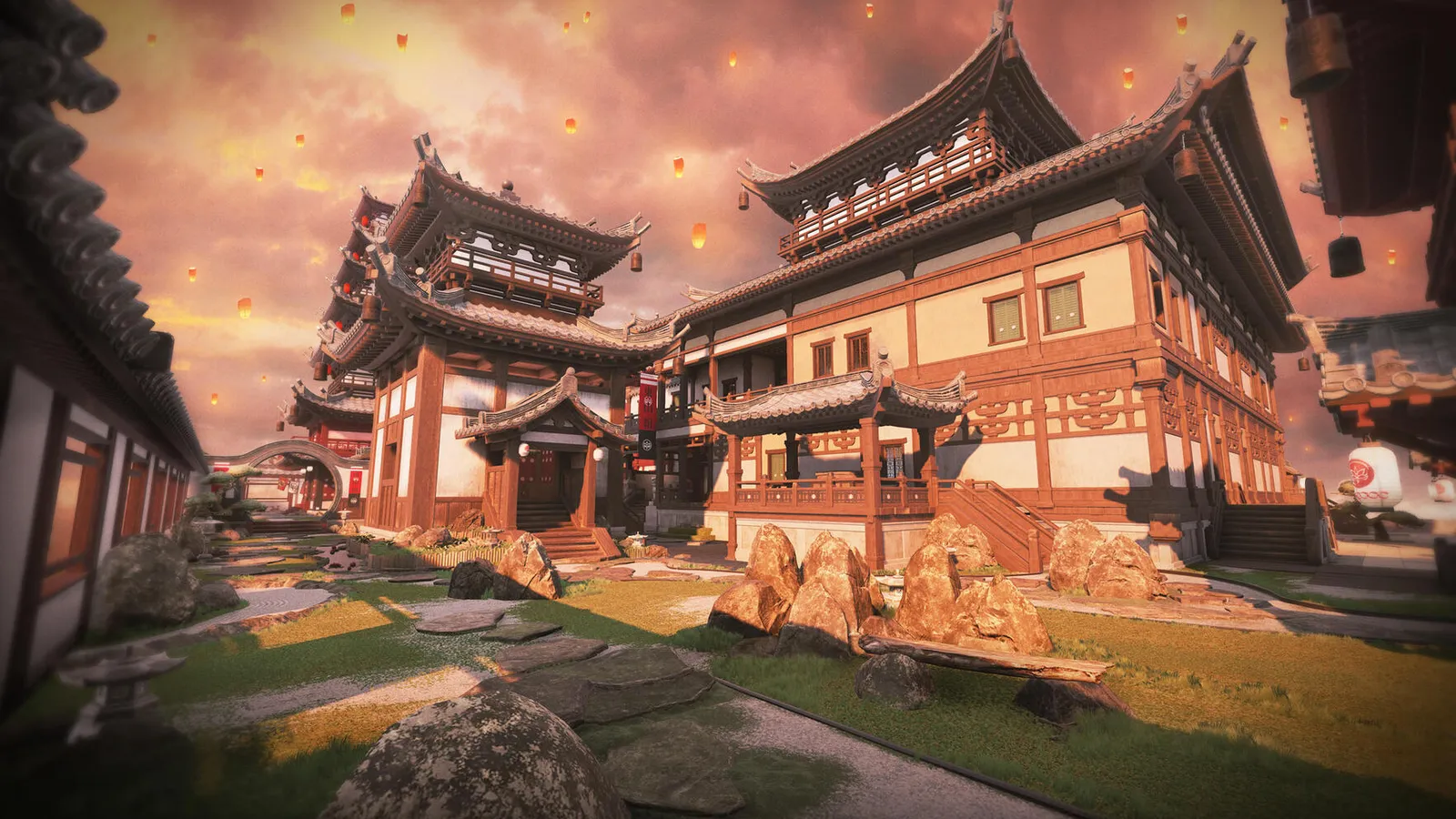
Detailed maps are demanding on the graphics card and the CPU.
- Minimum: OS Windows 10 or Windows 11 (64-bit); CPU AMD Ryzen 3 3100 or Intel Core i3-8100; RAM 8 GB; GPU NVIDIA GTX 1650 4GB, AMD RX 5500 XT 4GB or Intel Arc A380 6GB; DirectX Version 12; Storage 65 GB
- Recommended: OS Windows 11 (64-bit); CPU AMD Ryzen 5 3600 or Intel Core i5-10400; RAM 8 GB (16 GB for the 1440p and 4K tiers); GPU NVIDIA RTX 2060 6GB or AMD RX 6600 8GB; DirectX Version 12; Storage 65 GB
The settings that cost the most frames
Menu names and sections below are the ones in the game. Start here, test after each change, and keep the ones that give a clear gain.
- Resolution (Display): native resolution, or lower for more frames. Use your monitor's native resolution; 4K is very demanding in Siege X.
- VSync (Display): Off. V-Sync adds input lag.
- LOD Quality (Quality): Very High. Controls how far objects keep their detail; guides split on Low for FPS or Very High for seeing details like gadgets at range.
- Shading Quality (Quality): Low. Low is the standard competitive choice for FPS.
- Shadow Quality (Quality): Medium. Medium keeps useful shadow cues; Low is the fastest.
- Reflection Quality (Quality): Low. Reflections cost FPS and give little competitive information.
- VFX Quality (Quality): Low. Smoke, fire and explosions; Low reduces clutter.
- Ambient Occlusion (Quality): Off. Has a real FPS cost; Off in competitive play, SSBC+ if you have headroom.
- Adaptive Render Scaling Target fps (Quality): 0. Any value above 0 lets the game drop the render resolution to hold that frame rate, which blurs the image; 0 disables it.
- Render Scaling (Quality): 100. Keep 100 for a sharp image. Set Adaptive Render Scaling Target fps to 0 to disable dynamic scaling.
Smaller options
| Setting | Where | Recommended |
|---|---|---|
| Display Mode | Display | Fullscreen |
| Texture Quality | Quality | Low on the Low preset up to Very High on Ultra |
| Texture Filtering | Quality | Linear on the Low preset up to Anisotropic 16X on Ultra |
| Lens Effect | Quality | Off |
| Zoom-In Depth of Field | Quality | Off |
| Anti-Aliasing | Quality | T-AA |
| Field of View | Display | 90 |
Upscaling and frame generation
Upscalers: DLSS, FSR. No frame generation is listed. Latency reduction: NVIDIA Reflex.
- Nvidia Reflex Low Latency (Display). Options: Off, On, On + Boost. Lowers input latency on NVIDIA GPUs; On + Boost is the competitive pick.
- NVIDIA DLSS / AMD FSR (Quality). Options: Off, NVIDIA DLSS, AMD FSR 2.0. Presets are Quality, Balanced, Performance and Ultra Performance. Start at Quality; any upscaler softens the image.
How to show the FPS counter
- Open the gear icon (top right) > Options.
- Go to the Gameplay tab and tick "Display Game Info".
- Alternative: Steam > Settings > In Game > "In-game FPS counter", or the NVIDIA app overlay.
More Rainbow Six Siege X tips
Siege X needs DirectX 12
- Ubisoft lists DirectX 12 for every tier, so keep your GPU driver up to date.
- Keep Render Scaling at 100 and use DLSS or FSR for extra frames instead.
BattlEye anti-cheat
- The Steam page states that the game contains BattlEye anti-cheat. If it refuses to start, restart your PC and verify the game files in Steam.
Render scale vs upscaler
- Guides disagree: some use DLSS Quality at 100% Render Scaling, others drop Render Scaling to about 75% for more frames.
- The upscaler gives a cleaner image at the same speed on RTX cards.
Quick checks that help in any game
Before you spend an hour in the menus, rule out the common system-level causes of low FPS and stutter in Rainbow Six Siege X:
- Update your graphics driver and restart. Game-ready drivers often include fixes for new releases.
- Set the Windows power plan to Balanced or High performance, and turn on Game Mode.
- Enable the XMP or EXPO memory profile in your BIOS. Many PCs run RAM below its rated speed, which costs frames in CPU-limited games.
- Install the game on an SSD, not a hard drive, to avoid hitching when assets stream in.
- Close browsers, launchers and overlays you do not need. Each one takes CPU time and memory.
- Watch your temperatures. A CPU or GPU that overheats lowers its clocks, and the result is lower, uneven frame rates.
- Match the frame cap to your monitor, or use adaptive sync so a steady frame rate does not tear.
How to test a change properly
Change one setting at a time and repeat the same short test, ideally in the same place or mode, while watching both the average and the lowest frame rates. The 1% lows tell you more about smoothness than the average does. If a setting changes the picture a lot but the frame rate barely moves, put it back; if it moves the frame rate a lot and the picture barely changes, keep it lower. Check whether the GPU or CPU is the one running at 95 to 100 percent: lowering resolution-related settings only helps when the GPU is the bottleneck, while lowering view distance, crowd and physics options is what helps when the CPU is.
Best settings for your hardware
Every PC is different, so the best choice depends on your CPU, graphics card and monitor. On DontLag you can find recommended settings for each hardware tier on the Rainbow Six Siege X settings page.
Sources
- store.steampowered.com: Tom_Clancys_Rainbow_Six_Siege_X
- news.ubisoft.com: rainbow six siege pc and console specs updating june 10
- ubisoft.com: r6 siege x launch all you need to know