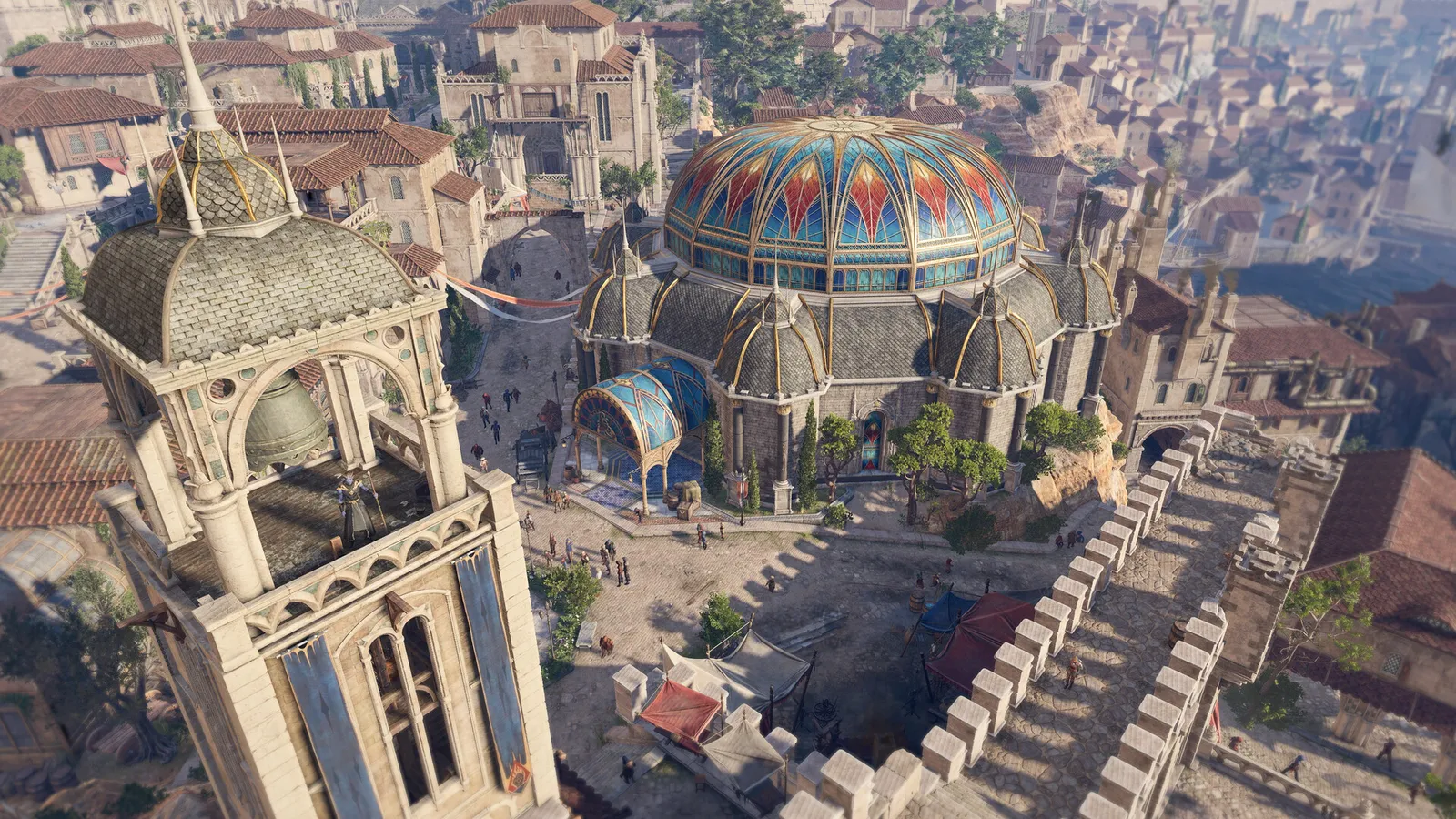
Larian's turn-based RPG. It is an isometric game that mostly leans on the CPU and VRAM: Act 3's big city is where frame rate drops, while shadows, fog and cloud quality are the cheap wins on the GPU side.
What limits performance in Baldur's Gate 3
Baldur's Gate 3 runs on Divinity Engine (Larian) (CRPG, 2023). Official and researched system requirements:
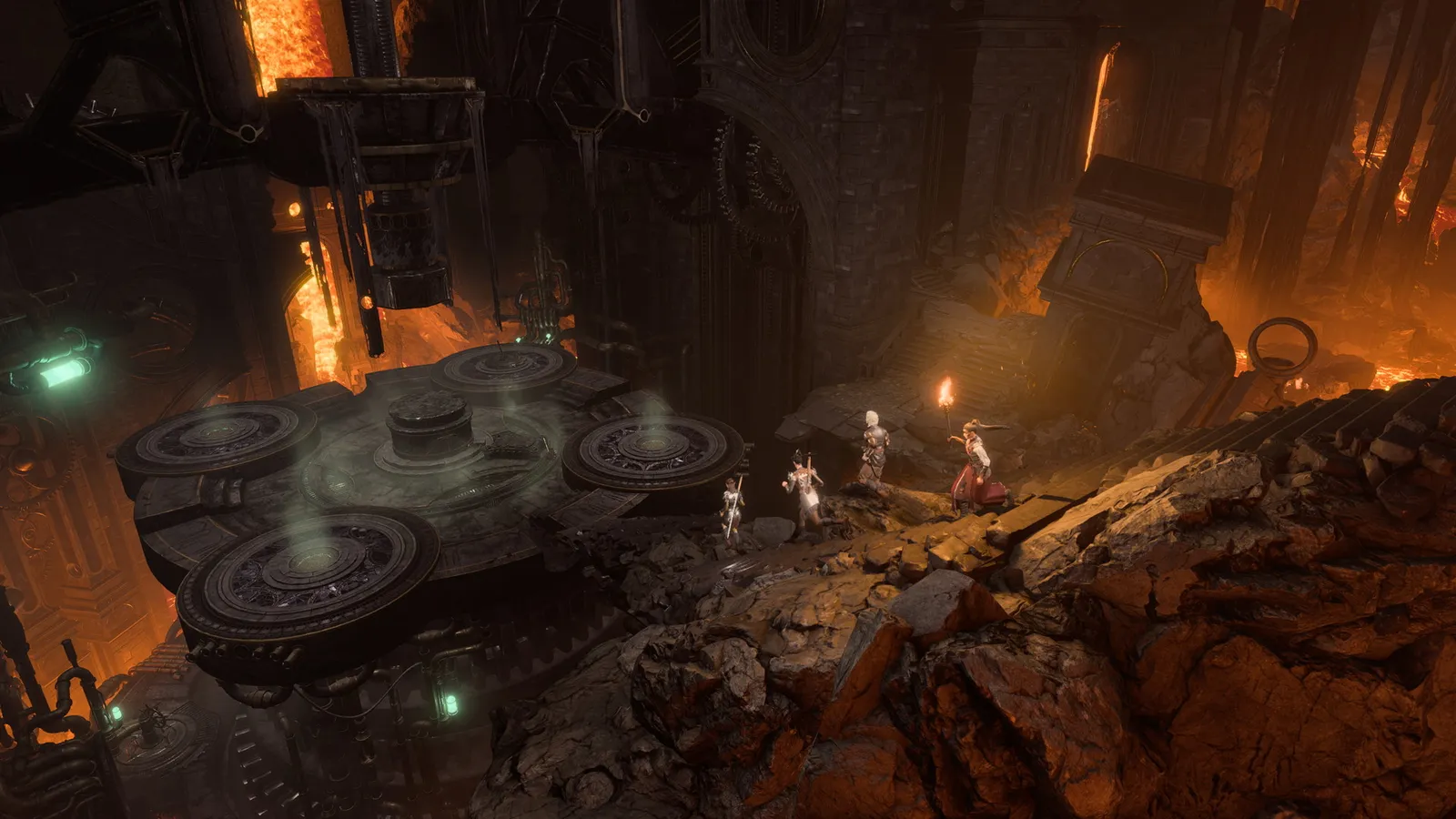
Large caves and city districts are the heaviest areas to run.
- Minimum: OS Windows 10 64-bit; CPU Intel i5 4690 / AMD FX 8350 / Snapdragon X Elite; RAM 8 GB; GPU Nvidia GTX 970 / RX 480 / Intel Arc A380 / Qualcomm Adreno X1 (4 GB+ VRAM); DirectX Version 11; Storage 150 GB, SSD required
- Recommended: OS Windows 10 64-bit; CPU Intel i7 8700K / AMD Ryzen 5 3600; RAM 16 GB; GPU Nvidia RTX 2060 Super / RX 5700 XT / Intel Arc A580 (8 GB+ VRAM); DirectX Version 11; Storage 150 GB, SSD required
The settings that cost the most frames
Menu names and sections below are the ones in the game. Start here, test after each change, and keep the ones that give a clear gain.
- API (Options > Video): DirectX 11. Guides consistently recommend DirectX 11; Vulkan can be faster on some AMD setups, so test it if you have a Radeon.
- V-Sync (Options > Video): Use G-Sync/FreeSync with a frame cap instead.
- Maximum Frame Rate (Options > Video): A cap just below refresh keeps adaptive sync active and saves heat.
- Model Quality (Options > Video): Low on the Low preset up to High on Ultra. One of the two options worth keeping high (with textures).
- Detail Distance (Options > Video): Low on the Low preset up to High on Ultra. How far detailed models are drawn; CPU and GPU cost.
- Instance Distance (Options > Video): Low on the Low preset up to High on Ultra. Draw distance for small objects such as grass.
- Dynamic Crowds (Options > Video): Disabled on the Low preset up to Enabled on Ultra. Extra background NPCs in cities; guides turn it off on weaker hardware.
- Shadow Quality (Options > Video): Low on the Low preset up to Ultra on Ultra. The biggest GPU-side cost; Medium is a good compromise.
- Fog Quality (Options > Video): Low on the Low preset up to High on Ultra. Resolution of volumetric effects.
Smaller options
| Setting | Where | Recommended |
|---|---|---|
| Texture Quality | Options > Video | Low on the Low preset up to High on Ultra |
| Texture Filtering | Options > Video | Trilinear on the Low preset up to Anisotropic x16 on Ultra |
| Animation Level of Detail | Options > Video | Low on the Low preset up to High on Ultra |
| Cloud Quality | Options > Video | Low on the Low preset up to High on Ultra |
| Ambient Occlusion | Options > Video | Disabled on the Low preset up to Enabled on Ultra |
| Depth of Field | Options > Video | Off |
| God Rays | Options > Video | Disabled on the Low preset up to Enabled on Ultra |
| Bloom | Options > Video | Enabled |
| Subsurface Scattering | Options > Video | Disabled |
Upscaling and frame generation
Upscalers: DLSS, FSR, XeSS, DLAA. No frame generation is listed. No Reflex or Anti-Lag 2 option is listed.
- Upscaling (DLSS / FSR / XeSS) (Options > Video). Options: Off, NVIDIA DLSS, AMD FSR 2.2, Intel XeSS, DLAA. The game supports DLSS, FSR 2.2 and XeSS; there is no frame generation. DLAA is available as an anti-aliasing option.
How to show the FPS counter
- Open Steam > Settings > In Game and set "In-game FPS counter" to a corner.
- Test in the busy Act 3 city and in a big fight, not in the character creator.
More Baldur's Gate 3 tips
Skip the launcher and choose the API
- The Larian launcher lets you start the game with DirectX 11 or Vulkan.
- To skip it, add --skip-launcher to the launch options (Steam library > right-click > Properties > General).
- Community guides report DirectX 11 as the stable choice; try Vulkan only if you see low GPU usage on a Radeon.
Behaviour of launch options can change with patches; community-reported.
Act 3 is CPU-heavy
- Frame rate drops in the Lower City are usually a CPU limit, so GPU settings change little there.
- Turn off Dynamic Crowds and lower Detail Distance and Instance Distance to help.
- Make sure your RAM runs at its rated XMP/EXPO speed.
Based on community reports; the game's own benchmark tests use the opening area.
Install it on an SSD
- The game needs about 150 GB and lists an SSD as required.
- On a hard drive expect long loads and texture pop-in.
Quick checks that help in any game
Before you spend an hour in the menus, rule out the common system-level causes of low FPS and stutter in Baldur's Gate 3:
- Update your graphics driver and restart. Game-ready drivers often include fixes for new releases.
- Set the Windows power plan to Balanced or High performance, and turn on Game Mode.
- Enable the XMP or EXPO memory profile in your BIOS. Many PCs run RAM below its rated speed, which costs frames in CPU-limited games.
- Install the game on an SSD, not a hard drive, to avoid hitching when assets stream in.
- Close browsers, launchers and overlays you do not need. Each one takes CPU time and memory.
- Watch your temperatures. A CPU or GPU that overheats lowers its clocks, and the result is lower, uneven frame rates.
- Match the frame cap to your monitor, or use adaptive sync so a steady frame rate does not tear.
How to test a change properly
Change one setting at a time and repeat the same short test, ideally in the same place or mode, while watching both the average and the lowest frame rates. The 1% lows tell you more about smoothness than the average does. If a setting changes the picture a lot but the frame rate barely moves, put it back; if it moves the frame rate a lot and the picture barely changes, keep it lower. Check whether the GPU or CPU is the one running at 95 to 100 percent: lowering resolution-related settings only helps when the GPU is the bottleneck, while lowering view distance, crowd and physics options is what helps when the CPU is.
Best settings for your hardware
Every PC is different, so the best choice depends on your CPU, graphics card and monitor. On DontLag you can find recommended settings for each hardware tier on the Baldur's Gate 3 settings page.