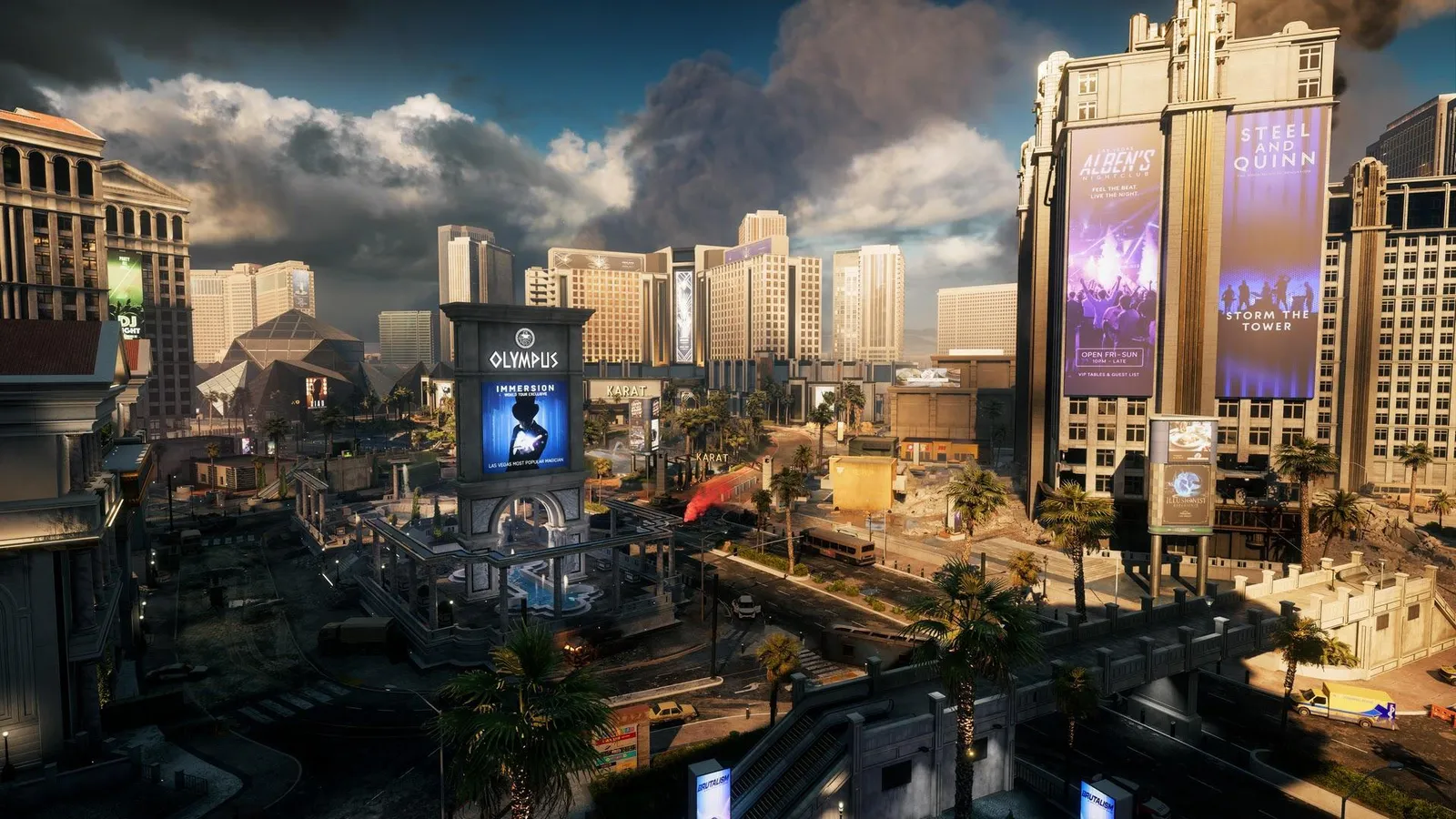
EA's 2025 large-scale military shooter on Frostbite. Large 64-player matches with vehicles and destruction make it hard on the CPU as well as the GPU, and it needs Secure Boot and TPM 2.0 for its anti-cheat.
What limits performance in Battlefield 6
Battlefield 6 runs on Frostbite (Military shooter, 2025). Official and researched system requirements:
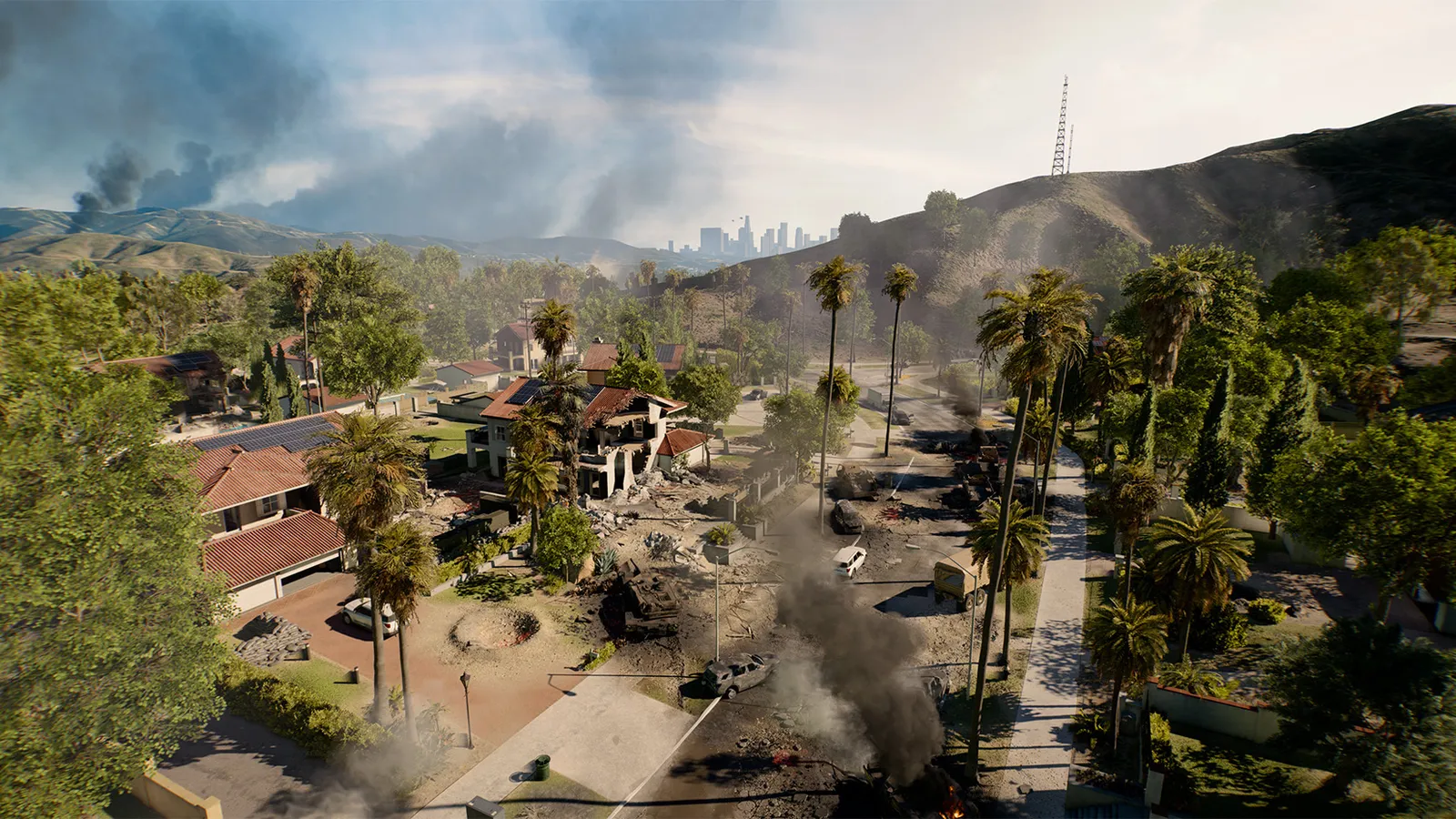
Big open maps are demanding on the CPU as well as the GPU.
- Minimum: OS Windows 10; CPU Intel Core i5-8400 or AMD Ryzen 5 2600; RAM 16 GB; GPU NVIDIA GeForce RTX 2060, AMD Radeon RX 5600 XT 6 GB or Intel Arc A380; Storage 55 GB; Other DirectX 12, TPM 2.0, UEFI Secure Boot, HVCI and VBS capable
- Recommended: OS Windows 11; CPU Intel Core i7-10700 or AMD Ryzen 7 3700X; RAM 16 GB; GPU NVIDIA GeForce RTX 3060 Ti, AMD Radeon RX 6700 XT or Intel Arc B580; Storage 80 GB; Other DirectX 12, TPM 2.0, UEFI Secure Boot, HVCI and VBS capable
The settings that cost the most frames
Menu names and sections below are the ones in the game. Start here, test after each change, and keep the ones that give a clear gain.
- Fullscreen Resolution (Display): native resolution, or lower for more frames. Keep native resolution and use the upscaler to gain frames.
- Vertical Sync (Display): Off. V-Sync adds input lag; use G-Sync/FreeSync with a frame limit instead.
- Dynamic Resolution Scale (Advanced): Off. Keeps a fixed 100 resolution scale so the image does not blur during busy moments.
- Frame Rate Limiter (Advanced): Off. Turn it on and cap just under your refresh rate if the frame rate is inconsistent.
- Mesh Quality (Graphics): Low. CPU-heavy in big 64-player matches; Low helps when the CPU is the limit.
- Terrain Quality (Graphics): Low. Ground detail; Low if you need frames, Medium is the usual balance.
- Effects Quality (Graphics): Low. Explosions and smoke cost both CPU and GPU time.
- Volumetric Quality (Graphics): Low. Fog and light shafts are one of the first things to turn down when GPU-bound.
- Lighting Quality (Graphics): Low. Global lighting cost scales strongly with the setting.
- Sun Shadow Quality (Graphics): Low. Large outdoor shadows are expensive on big maps.
- Local Light & Shadow Quality (Graphics): Low. Shadows from lamps and muzzle flashes.
- Screen Space Reflections (Graphics): Off. Costs frames and the look is subtle in motion.
- Screen Space AO & GI (Graphics): Off. Adds depth but costs frames; turn on only if you have GPU headroom.
Smaller options
| Setting | Where | Recommended |
|---|---|---|
| Future Frame Rendering | Advanced | Off |
| Texture Quality | Graphics | Low on the Low preset up to Ultra on Ultra |
| Texture Filtering | Graphics | High |
| Post Process Quality | Graphics | Low |
| World Motion Blur | Camera | 0 |
| Field of View | Camera | 110 |
Upscaling and frame generation
Upscalers: DLSS, FSR, XeSS. Frame generation: DLSS. Latency reduction: NVIDIA Reflex.
- Upscaling Technique (Advanced). Options: Off, DLSS, FSR, XeSS. The biggest frame rate lever when the GPU is the limit. Set Upscaling Quality alongside it.
- Nvidia Frame Generation (Advanced). Options: Off, On. Only worth it when your base frame rate is already high; it adds input latency.
- Nvidia Reflex Low Latency (Advanced). Options: Disabled, Enabled, Enabled + Boost. Cuts system latency on NVIDIA GPUs.
How to show the FPS counter
- Press Esc to pause, then open Graphics > Advanced and click Modify.
- Scroll to "Performance Overlay" and pick Simple (FPS only), Extra (adds hardware and thread usage) or Advanced (full stats). Some guides call this entry "Performance Display".
- Alternative: press ~ to open the console and type PerfOverlay.DrawFps 1 (0 turns it off).
More Battlefield 6 tips
Secure Boot and TPM 2.0 are required
- Battlefield 6 will not start without UEFI Secure Boot (EA's Javelin anti-cheat), plus TPM 2.0.
- Enable Secure Boot in your motherboard BIOS and make sure Windows reports it as On in System Information.
See EA's Secure Boot help page for per-motherboard steps.
Switch both presets to Custom
- Open the Graphics tab and set Performance Preset and Graphics Quality to Custom.
- Then tune individual options; with Frostbite many options barely move FPS, so prioritise Volumetric, Lighting, Shadows and Effects.
- The top preset is called Overkill and is much heavier than Ultra: testing measured 124 fps against 160 on an RTX 5090 at 4K.
If the CPU is the limit in big 64-player matches
- Lower Mesh Quality and Effects Quality; they load the CPU most.
- Make sure your RAM runs at its rated XMP/EXPO speed in dual channel.
Quick checks that help in any game
Before you spend an hour in the menus, rule out the common system-level causes of low FPS and stutter in Battlefield 6:
- Update your graphics driver and restart. Game-ready drivers often include fixes for new releases.
- Set the Windows power plan to Balanced or High performance, and turn on Game Mode.
- Enable the XMP or EXPO memory profile in your BIOS. Many PCs run RAM below its rated speed, which costs frames in CPU-limited games.
- Install the game on an SSD, not a hard drive, to avoid hitching when assets stream in.
- Close browsers, launchers and overlays you do not need. Each one takes CPU time and memory.
- Watch your temperatures. A CPU or GPU that overheats lowers its clocks, and the result is lower, uneven frame rates.
- Match the frame cap to your monitor, or use adaptive sync so a steady frame rate does not tear.
How to test a change properly
Change one setting at a time and repeat the same short test, ideally in the same place or mode, while watching both the average and the lowest frame rates. The 1% lows tell you more about smoothness than the average does. If a setting changes the picture a lot but the frame rate barely moves, put it back; if it moves the frame rate a lot and the picture barely changes, keep it lower. Check whether the GPU or CPU is the one running at 95 to 100 percent: lowering resolution-related settings only helps when the GPU is the bottleneck, while lowering view distance, crowd and physics options is what helps when the CPU is.
Best settings for your hardware
Every PC is different, so the best choice depends on your CPU, graphics card and monitor. On DontLag you can find recommended settings for each hardware tier on the Battlefield 6 settings page.