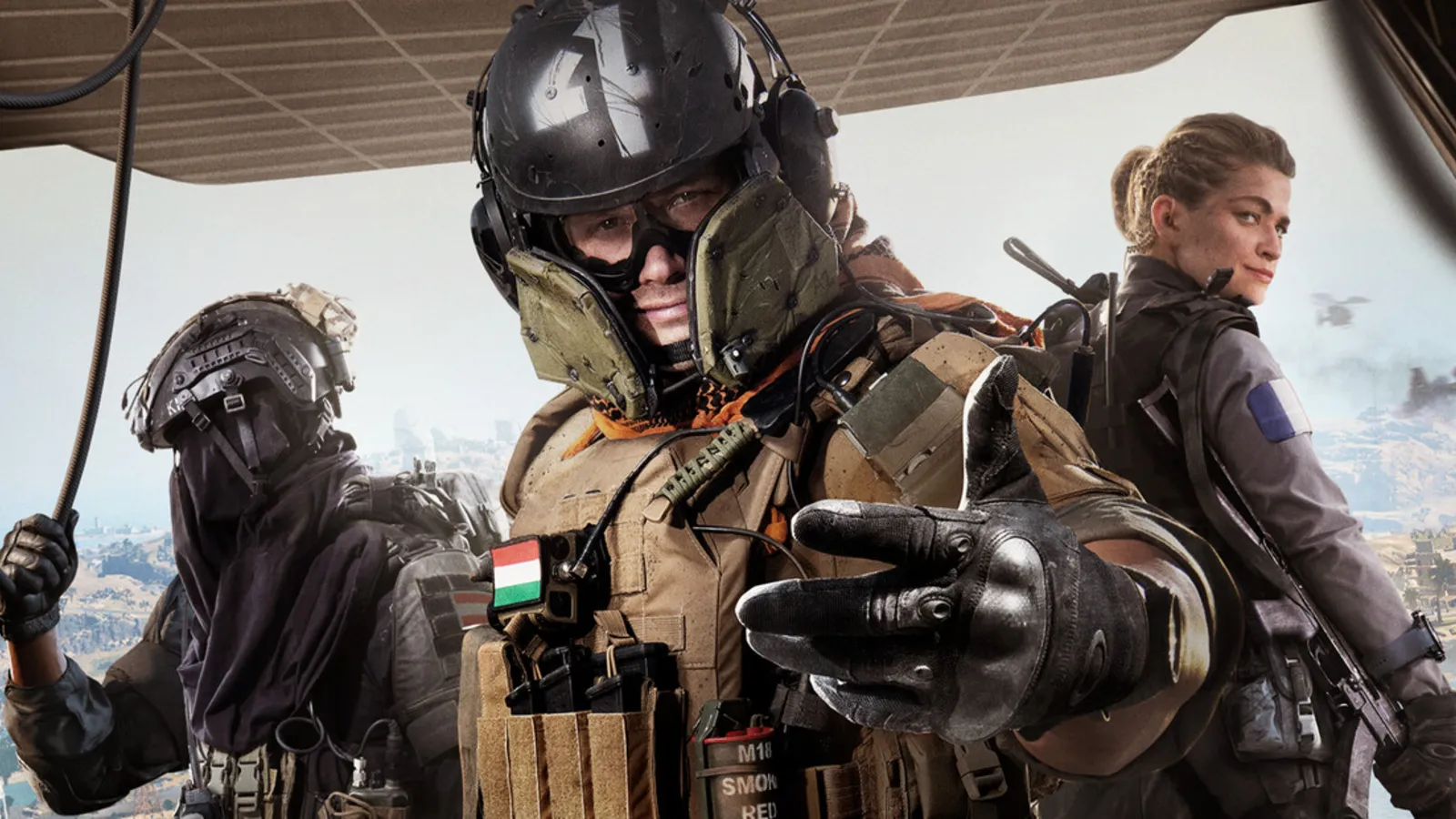
To hear footsteps in Warzone, play with headphones, turn music down to zero, keep effects volume high and use the Hunter perk to sense nearby enemies. Season 1 also improved footstep audio, and the Zodiac map in particular. Updated for Season 1, November 2026.
What Season 1 changed
The Season 1 update improved visibility, lighting and footstep audio, and Zodiac has better footstep audio and ambient occlusion. On 7 November a patch also lowered the volume of teammate footsteps so enemy movement is easier to pick out. No detailed list of audio menu changes has been published, so use the menu in your game as the guide, and treat the specific values below as a starting point to test, not as official numbers.
The audio menu
Open Settings and then the Audio tab.
- Music volume: set it to 0. Music covers sound cues and adds nothing in a match.
- Effects volume: set it high. Footsteps, doors and gunfire belong here.
- Dialogue volume: set it to a medium level, around 40 to 50, so squad voice and operator lines do not bury footsteps.
- Audio mix preset: try the presets your menu offers. Choose the one where you can tell the direction and distance of footsteps best, usually a headphone preset if you wear headphones. Test each one in a quiet moment, such as the start of a Resurgence match.
- Extra processing: if your menu has an enhanced headphone option, test it off first. It helps some people and confuses the direction for others.
Many guides recommend turning the master volume up, but protect your hearing. A moderate level you can listen to for hours beats a loud one.
Hardware
- Use closed-back or good gaming headphones. TV or laptop speakers lose the direction of a sound.
- Turn off any extra sound effect in the operating system or headset software that adds bass or echo.
- If you use a stereo headset, keep its software on a flat, plain setting.
- Play in a quiet room when you can.
Perks that change what you can hear and be heard
| Perk | What it does |
|---|---|
| Hunter (slot 1) | Shows enemy footprints, senses nearby enemies and warns you when you are aimed at. |
| Incognito (slot 1) | Shortens how long enemies reveal you on radar and Hunter outlines, blocks standard enemy pings except Danger Pings, and delays enemy trap activation. It does not hide you from a UAV. |
| Phantom (Elite) | Hides you from enemy recon killstreaks, equipment and perks. Advanced UAVs still show a last known position but not your heading. |
Ghost, which many players remember, is not one of the Season 1 perks. We found no perk in Season 1 that dedicates itself to silencing footsteps, so assume your steps are heard whenever you sprint. Walk or crouch when you want to be quiet.
Using sound in a match
- Stop moving for a second at a corner and listen before you peek.
- Do not sprint through buildings you want to ambush from. Enemies can hear you.
- Learn what each floor sounds like. Metal, stairs and water are louder than carpet.
- Ping enemies you hear so your squad knows.
- Use a UAV ($8,000) when the sound says players are near but you cannot see them.
Quick tips
- Lower the volume of voice chat from teammates when a fight starts.
- Rain and wind on Hajin make it harder to hear, so slow down in bad weather.
- Test settings in Resurgence, where a mistake is cheaper.
FAQ
Do I need a surround sound headset? No. A good stereo headset with a steady, flat setting is enough.
Do audio settings change FPS? Not noticeably. For frame rate, see the FPS and lag guide.