
Skip to content
Set up my rig
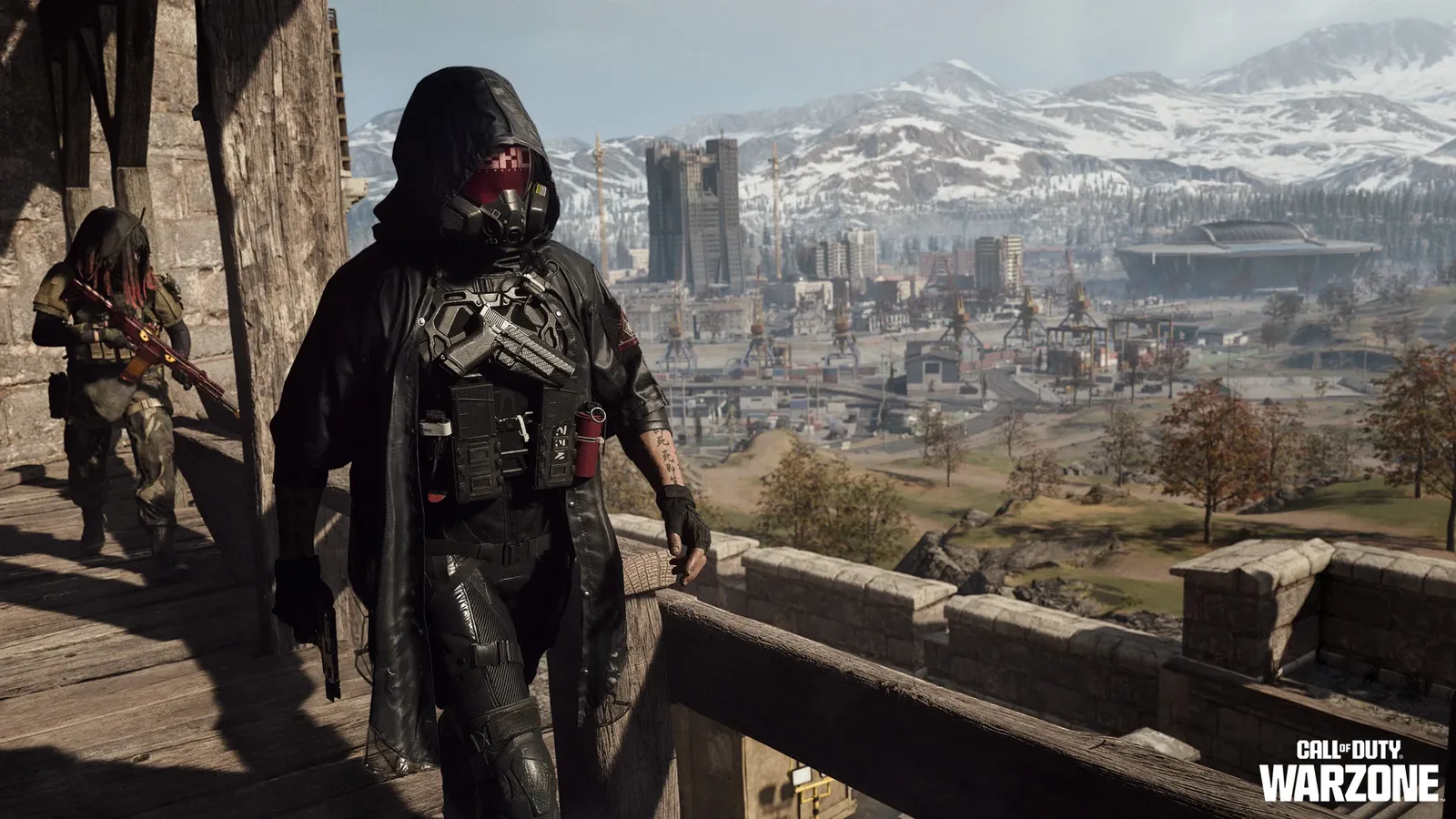
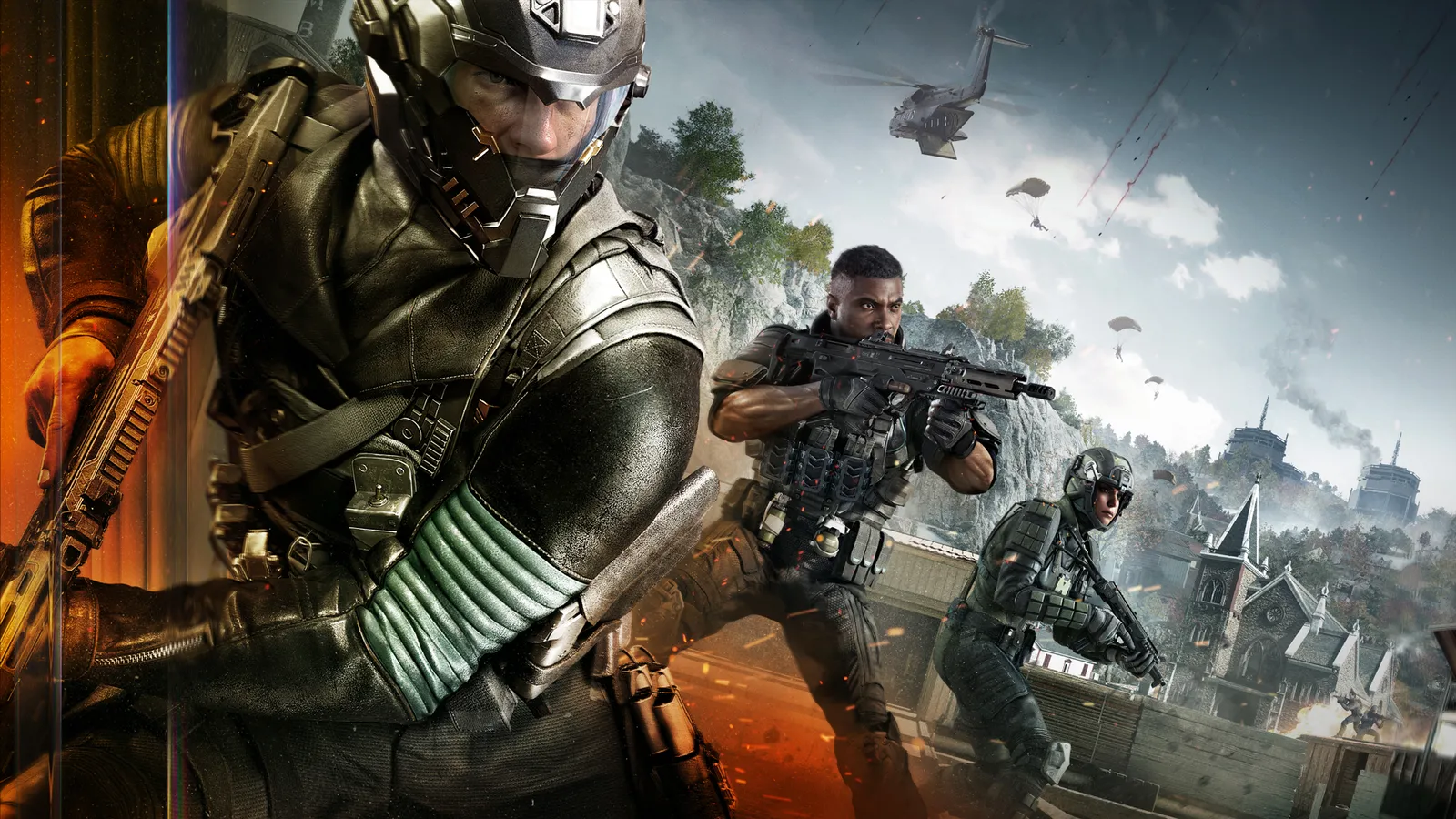
Call of Duty: Warzone, official artwork

Best Call of Duty: Warzone settings

Call of Duty's free-to-play battle royale. Big maps and many players make it heavy on both VRAM and CPU, and the Quality tab has dozens of options where a handful (shadows, textures, VRAM target) decide your frame rate.

Best Call of Duty: Warzone settings at 1080p for an RTX 4060 + Ryzen 5 7600: Ultra with DLSS Quality, lowering Shadow Quality first. Modelled: that PC gets about 195 fps, an RTX 3060 + Ryzen 5 5600 160 fps (Ultra), a GTX 1650 + Core i5-10400 130 fps (High). Calibrated against 14 measured benchmarks. How we estimate this

Updated . Game data researched November 2026. Loadout data: Season 1.

  • PEGI 18
  • Free to play
  • Competitive
Genre
Battle royale
Developer
Raven / Infinity Ward / Activision
Released
2020 (free to play)
Platforms
PC, Xbox, PlayStation
Engine
IW engine
Researched
Nov 2026

Current meta

All Warzone loadouts

What are the best Call of Duty: Warzone graphics settings?

The setting for every preset, from Low to Ultra. Save your hardware to get one tuned list.

Tell us your hardware once and every game page shows settings for it. Set up my rig

Set up your rig to see which column fits your PC, with an estimate of your frames. The competitive column is what we recommend for max FPS.

Call of Duty: Warzone graphics settings per preset
SettingLowMediumHighUltra Competitive
Display Mode Fullscreen ExclusiveFullscreen ExclusiveFullscreen ExclusiveFullscreen Exclusive Fullscreen Exclusive
Display Resolution Your monitor's native resolution; scale with the upscaler instead
NVIDIA Reflex Low Latency On with NVIDIA Reflex on GeForce
V-Sync (Gameplay) Off; use G-Sync or FreeSync with an FPS cap instead
Custom Frame Rate Limit 3 below your refresh rate (141 on 144 Hz); uncapped for max FPS
Upscaling/Sharpening Native; DLSS Quality on RTX, FSR Quality on AMD and older GeForce, XeSS on Intel Arc
Frame Generation OffOffOffOff Off
VRAM Scale Target 75757575 75
Texture Resolution LowNormalHighHigh Low
Shadow Quality Very LowLowNormalHigh Low
Particle Resolution Very LowLowNormalHigh Very Low
Shader Quality LowLowNormalHigh Low
On-Demand Texture Streaming MinimalMinimalMinimalMinimal Minimal
Screen Space Reflections OffOffOffOff Off
Occlusion and Screen Space Lighting OffOffOffOff Off
World Motion Blur OffOffOffOff Off
Film Grain 0000 0

How much FPS will I get in Call of Duty: Warzone?

Modelled frame rates on the High preset at native resolution, without upscaling or frame generation. Your own rig can differ: check your exact PC.

Estimated Call of Duty: Warzone FPS by graphics card, High preset, with a Ryzen 7 7800X3D and 16 GB RAM
Graphics card 1080p1440p4K
RTX 4090 335 fps315 fps165 fps
RTX 4070 275 fps175 fps90 fps
RTX 4060 165 fps105 fps55 fps
RTX 3060 12GB 135 fps85 fps45 fps
GTX 1650 60 fps40 fps20 fps
RX 7800 XT 285 fps180 fps95 fps
RX 7600 165 fps105 fps55 fps
RX 6600 130 fps80 fps45 fps

These are estimates from our model, not measurements; real results vary with the scene, drivers and background load. Orange numbers are below 60 fps. How we estimate this

What are the best Warzone tips for more FPS?

How do I show FPS in Warzone?

  1. In Warzone, click the gear icon in the main menu to open Settings.
  2. In Warzone, open the Interface tab.
  3. In Warzone, in the Telemetry section select "Show More" and switch on "FPS Counter".
  4. In Warzone, close the menu: the counter shows in the top-left corner. Fallback: Steam > Settings > In Game > In-game FPS counter.
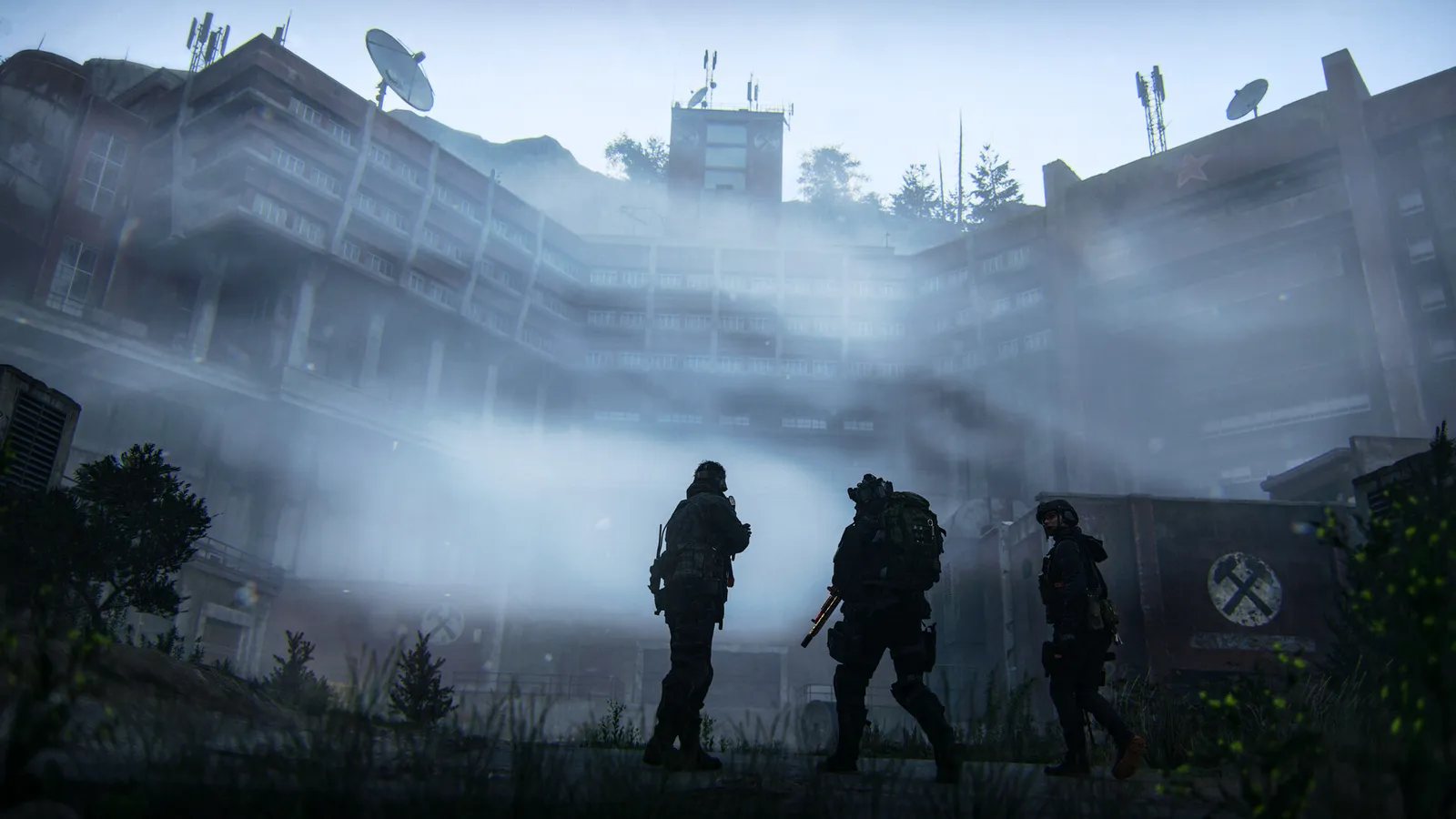
Warzone: Finish shader preloading before you drop in

  1. In Warzone, after every update or driver change, wait for the shader compilation to complete before joining a match.
  2. In Warzone, skipping it is the most common cause of stutter in the first match after an update.

Warzone: Use Custom and a fixed render resolution

  1. In Warzone, in the Quality tab set Graphic Preset to Custom.
  2. In Warzone, keep render resolution at 100 and Dynamic Resolution off, then use DLSS, FSR or XeSS Quality instead if you need more FPS.

Warzone: Check Hardware-Accelerated GPU Scheduling

  1. In Warzone, open Windows Settings > System > Display > Graphics > Default graphics settings.
  2. In Warzone, test with "Hardware-accelerated GPU scheduling" On, then Off, and keep whichever gives smoother frame times.

In Warzone, guides recommend On; results vary per system, so compare both.

Meta loadouts

All loadouts

Warzone news

All news

Guides