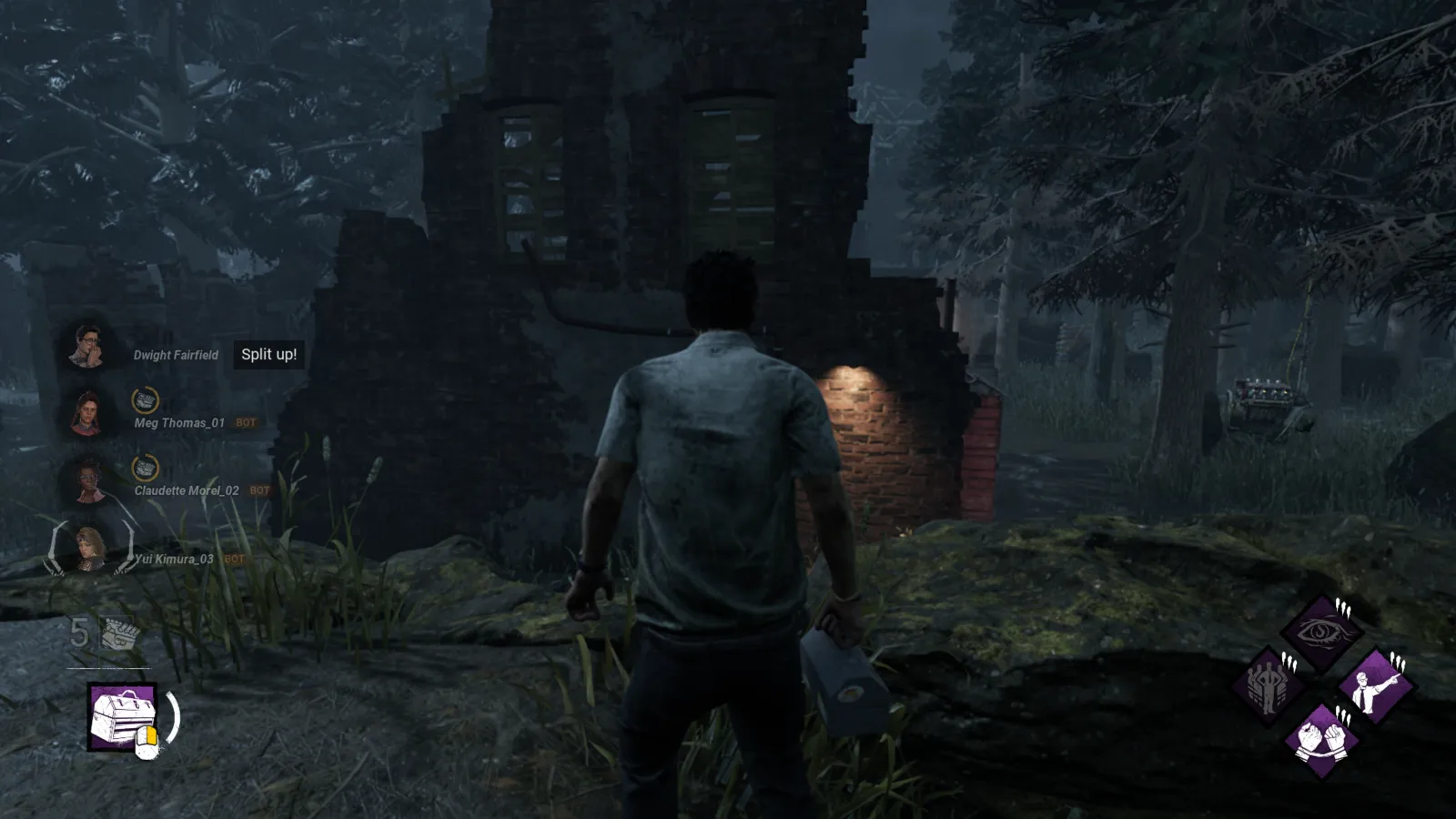
Dead by Daylight is not very heavy, but stutter and lag affect both killers and survivors. The game runs on Unreal Engine 5: Behaviour moved it from Unreal Engine 4 in patch 7.7.0 (April 2024) and engine updates have shipped since, for example with patches 9.1.0 and 9.6.0.
What limits performance in Dead by Daylight
Dead by Daylight is mostly CPU-limited at high frame rates and light on the GPU. VRAM use is moderate. Stutter can come from shader compilation or background apps.
The settings that cost the most frames
Start with these, test after each change, and keep the ones that give a clear gain. Menu names below are the ones used in the Options menu (Display and Graphics tabs); Behaviour adds options in patches, so a label can differ slightly on your build.
- Quality (Graphics): Low or Medium is the main lever. Turn Auto Adjust off so the game does not change it for you.
- Screen Res (Display): keep 100% unless your GPU is the limit. Lowering it is the strongest GPU-side lever the game has.
- Fullscreen Mode: use Windowed Fullscreen or Fullscreen rather than a small window.
- VSync: Off. Behaviour added the VSync toggle in patch 7.2.0.
- FPS Limit: choose a steady cap. Patch 7.2.0 added the setting, and the list tops out at 120 FPS.
- Anti Aliasing: Off or TAA. Patch 7.2.0 added the on/off switch; Off is sharper and a little cheaper, TAA is smoother but softer.
- Brightness (Video category, added in May 2025): adjusts gamma. It does not change performance, but it is the right way to make dark maps readable instead of raising Quality.
Upscaling and frame generation
Behaviour has added two upscalers in patch notes. FSR 1.0 arrived in patch 7.4.0 (November 2023) on all platforms, and patch 7.5.0 fixed its FSR Sharpness slider. Intel XeSS for PC arrived in patch 8.2.0 (August 2024). Both are off by default. Community testing notes that turning on XeSS switches off FSR, anti-aliasing and Screen Res, and that FSR and anti-aliasing switch XeSS off.
Neither is needed on a PC that already holds a steady frame rate. If your GPU is the limit, lower Screen Res first, then switch on FSR or XeSS to win some sharpness back. None of Behaviour's patch notes lists DLSS or frame generation, and players are still asking for DLSS on Behaviour's forum, so do not expect either option in the menu.
How to show the FPS counter
The game does not have its own FPS counter. Use the Steam in-game FPS counter (Steam Settings, In Game, FPS counter) or your GPU overlay. Measure during a chase in the main building of a large map, because the lobby gives much higher numbers than a loaded match.
Network and latency tips
Dead by Daylight uses dedicated servers. Choose the region with the lowest ping, and use Ethernet. High ping affects hit detection and vaults, so a stable connection matters.
Quick checks that help in any game
Before you spend an hour in the menus, rule out the common system-level causes of low FPS and stutter in Dead by Daylight:
- Update your graphics driver and restart. Game-ready drivers often include fixes for new releases.
- Set the Windows power plan to Balanced or High performance, and turn on Game Mode.
- Enable the XMP or EXPO memory profile in your BIOS. Many PCs run RAM below its rated speed, which costs frames in CPU-limited games.
- Install the game on an SSD, not a hard drive, to avoid hitching when assets stream in.
- Close browsers, launchers and overlays you do not need. Each one takes CPU time and memory.
- Watch your temperatures. A CPU or GPU that overheats lowers its clocks, and the result is lower, uneven frame rates.
- Match the frame cap to your monitor, or use adaptive sync so a steady frame rate does not tear.
How to test a change properly
Change one setting at a time and repeat the same short test, ideally in the same place or mode, while watching both the average and the lowest frame rates. The 1% lows tell you more about smoothness than the average does. If a setting changes the picture a lot but the frame rate barely moves, put it back; if it moves the frame rate a lot and the picture barely changes, keep it lower. Check whether the GPU or CPU is the one running at 95 to 100 percent: lowering resolution-related settings only helps when the GPU is the bottleneck, while lowering view distance, crowd and physics options is what helps when the CPU is.
Best settings for your hardware
Every PC is different, so the best choice depends on your CPU, graphics card and monitor. On DontLag you can find recommended settings for each hardware tier on the Dead by Daylight settings page.
Sources
- Dead by Daylight on Steam (system requirements)
- Behaviour patch 7.7.0 (Unreal Engine 5 update)
- Behaviour patch 7.4.0 (FSR 1.0)
- Behaviour patch 7.5.0 (FSR Sharpness fix)
- Behaviour patch 8.2.0 (Intel XeSS)
- Behaviour patch 7.2.0 (VSync, FPS limit, anti-aliasing settings)
- Behaviour patch 9.6.0 (engine update)
- BHVR forum: request to add DLSS and update XeSS/FSR