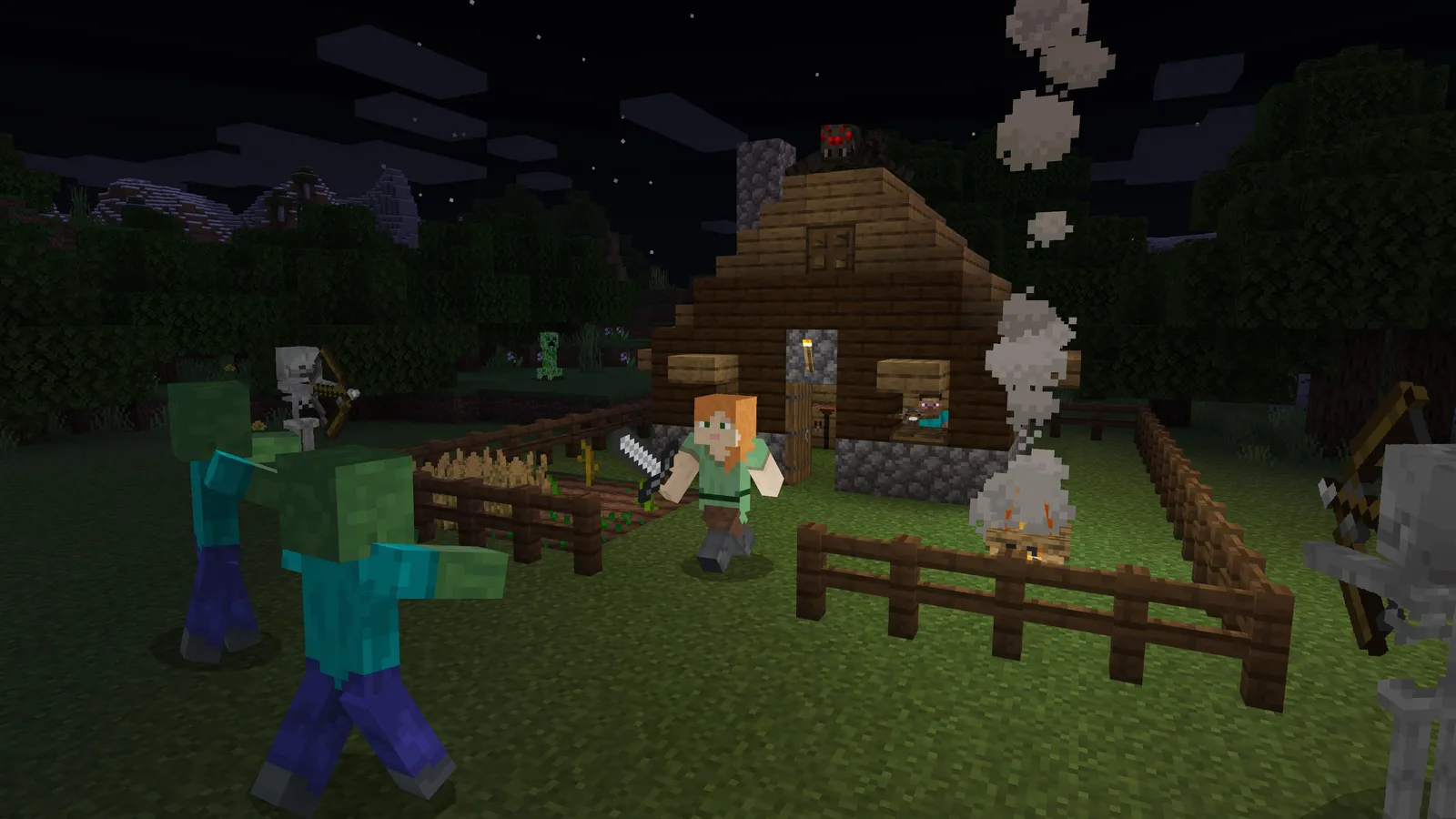
Mojang's sandbox on Java. GPU demands are low, but chunk rendering and entity simulation make it CPU- and memory-bound, so render and simulation distance are the settings that matter most. The Sodium mod is the usual fix for low FPS.
What limits performance in Minecraft: Java Edition
Minecraft: Java Edition runs on Custom (Java, OpenGL with experimental Vulkan) (Sandbox, 2011). Official and researched system requirements:
- Minimum: OS 64-bit system; CPU 4-core processor; RAM 8 GB with a discrete GPU (12 GB with integrated graphics); GPU Vulkan 1.3 capable GPU with at least 2 GB of VRAM; Target 1080p at 30 FPS on the Fast preset
- Recommended: RAM 16 GB; CPU A stronger modern processor; GPU More capable graphics card with 6 GB of VRAM; Target 1080p at 60 FPS on the Fancy preset
The settings that cost the most frames
Menu names and sections below are the ones in the game. Start here, test after each change, and keep the ones that give a clear gain.
- Preset (Video Settings > Quality & Performance): Fast on the Low preset up to Fabulous! on Ultra. The big switch: Fast is cheapest, Fancy is the default and Fabulous! costs the most. Individual options below override it as Custom.
- Render Distance (Video Settings > Quality & Performance): 8 on the Low preset up to 24 on Ultra. Chunks drawn around you. The cost grows quickly with distance, so this is the first setting to lower.
- Simulation Distance (Video Settings > Quality & Performance): 6 on the Low preset up to 12 on Ultra. How far mobs, items and crops are processed. It is pure CPU load and more taxing than the same render distance.
- Smooth Lighting (Video Settings > Quality & Performance): OFF on the Low preset up to ON on Ultra. Softer light on blocks; affects both CPU and GPU.
- Entity Distance (Video Settings > Quality & Performance): 75% on the Low preset up to 125% on Ultra. How far away entities are still drawn; helps in mob farms and busy bases.
- Max Framerate (Video Settings > Display): Unlimited. The default is 120 fps. Raise it to your monitor's refresh rate or to Unlimited if you want more.
- VSync (Video Settings > Display): OFF. Defaults to ON. Turn it off for lower input lag if you have a G-Sync/FreeSync display.
- Chunk Builder (Video Settings > Quality & Performance): Threaded. Threaded builds chunks on separate CPU threads, which is the default and fastest option.
Smaller options
| Setting | Where | Recommended |
|---|---|---|
| Clouds | Video Settings > Quality & Performance | OFF on the Low preset up to Fancy on Ultra |
| Particles | Video Settings > Quality & Performance | Minimal on the Low preset up to All on Ultra |
| Entity Shadows | Video Settings > Quality & Performance | OFF on the Low preset up to ON on Ultra |
| Biome Blend | Video Settings > Quality & Performance | 3×3 on the Low preset up to 5×5 on Ultra |
| Mipmap Levels | Video Settings > Quality & Performance | 2 on the Low preset up to 4 on Ultra |
| Graphics API | Video Settings > Display | Default |
Upscaling and frame generation
No upscaler (DLSS, FSR or XeSS) is listed for this game. No frame generation is listed. No Reflex or Anti-Lag 2 option is listed.
How to show the FPS counter
- Press F3 to open the debug screen; the FPS is at the top left.
- Press F3 + 2 to show the frame time graph (the last 240 frames).
- Minecraft has no always-on FPS counter in the options; use Steam or the NVIDIA app overlay if you want one on screen all the time.
More Minecraft: Java Edition tips
Install Sodium for higher FPS
- Sodium is a free rendering optimisation mod for Java Edition. Download it from Modrinth.
- It needs a mod loader, such as Fabric or NeoForge; follow the install notes on the Modrinth page.
- It replaces the video settings screen with its own, with more detailed options.
Mods are third-party software: use only the official Modrinth page and a version that matches your game version.
Render vs simulation distance
- Render distance only changes how far you see; simulation distance changes how far the game keeps running mobs and crops.
- On a slower CPU, lower Simulation Distance first (to 6 to 8), then Render Distance.
Graphics API (experimental)
- Recent versions let you choose a Graphics API in Video Settings > Display: Default, Prefer OpenGL, or Prefer Vulkan (experimental).
- Leave it on Default unless a driver bug makes you try another option.
Quick checks that help in any game
Before you spend an hour in the menus, rule out the common system-level causes of low FPS and stutter in Minecraft:
- Update your graphics driver and restart. Game-ready drivers often include fixes for new releases.
- Set the Windows power plan to Balanced or High performance, and turn on Game Mode.
- Enable the XMP or EXPO memory profile in your BIOS. Many PCs run RAM below its rated speed, which costs frames in CPU-limited games.
- Install the game on an SSD, not a hard drive, to avoid hitching when assets stream in.
- Close browsers, launchers and overlays you do not need. Each one takes CPU time and memory.
- Watch your temperatures. A CPU or GPU that overheats lowers its clocks, and the result is lower, uneven frame rates.
- Match the frame cap to your monitor, or use adaptive sync so a steady frame rate does not tear.
How to test a change properly
Change one setting at a time and repeat the same short test, ideally in the same place or mode, while watching both the average and the lowest frame rates. The 1% lows tell you more about smoothness than the average does. If a setting changes the picture a lot but the frame rate barely moves, put it back; if it moves the frame rate a lot and the picture barely changes, keep it lower. Check whether the GPU or CPU is the one running at 95 to 100 percent: lowering resolution-related settings only helps when the GPU is the bottleneck, while lowering view distance, crowd and physics options is what helps when the CPU is.
Best settings for your hardware
Every PC is different, so the best choice depends on your CPU, graphics card and monitor. On DontLag you can find recommended settings for each hardware tier on the Minecraft: Java Edition settings page.