VRChat is a free social platform where you explore user-made worlds as a customizable avatar, either in VR or on a desktop with a mouse and keyboard. There's no required headset, no win condition and no tutorial that forces you through every system, so most of what matters in your first hour comes down to the account, avatar and safety choices you make before joining a busy public world.
Age rules to check first
VRChat's Terms of Service require users to be at least 13. Users aged 13 to 17 may only use VRChat with a parent or guardian's consent, and VRChat advises younger users not to share personal details like their real name, home address or school in-world. Age verification is optional; adults who verify can access Verified 18+ instances.
Where to install it
VRChat is free on every platform it supports. Install it only from the official store for your device:
- PC: Steam, or Viveport for SteamVR headsets. Without a headset, launch VRChat from Steam and choose Desktop (Non-VR) mode.
- Standalone headsets: the Meta Horizon Store for Quest, and the PICO Store for PICO headsets.
- Phones: the iOS App Store and Google Play.
Creating an account
You can sign in two ways. A VRChat account, created on VRChat's website with an email verification link, works across every supported platform and is required to gain Trust Ranks or upload your own avatars and worlds. A platform account through Steam, Meta, Google, VIVE or PICO gives instant access instead. If you start with a platform account, you can upgrade to a full VRChat account later from Settings, then Link Account.
Choosing your first avatar
VRChat ships with featured public avatars that are optimized for performance and work across every platform, which makes them a reasonable starting point. From the menu, open Avatars, browse a category such as Public or Favorites, select one, and confirm with Change into Avatar. Many worlds also include avatar pedestals you can walk up to and select directly. Not every avatar works on standalone headsets or phones, since some content has to be built specifically for those devices, so an avatar that looks fine on PC may not be available there.
Setting up Safety and Trust
VRChat gives every account a Trust Rank, starting at Visitor and rising as you spend time in the platform, visit worlds and make friends. Your rank appears on your nameplate while the Quick Menu is open, and it feeds into the Safety settings, which control what you see and hear from other users. There are four Shield levels:
| Shield level | What it does |
|---|---|
| Maximum | Hides the most avatar features from other users; a good starting point for beginners. |
| Normal | The level VRChat recommends for most users; friends show all avatar features. |
| None | Shows almost everything from other users. |
| Custom | Lets you choose per rank whether to show voice, avatars, icons, lights and animations. |
Start on Normal for your first sessions and learn where the Safe Mode shortcut is before joining a busy public world. Safe Mode instantly turns off avatars, voices and other features for everyone around you. In VR, pull both triggers and press both system menu buttons at once; on desktop, press Shift and Escape. It switches your Safety setting to Custom with everything off, so you'll need to set your preferred level again afterward.
A safer first evening
A few habits make the first few sessions smoother. Stick to the Normal Shield level until you understand how avatars, Block and Report work. Try instances run by groups, since their communities moderate activity more closely than an open public instance. Keep personal details out of your display name and conversations, especially if you're under 18. If someone violates the rules, you can report them, mute their voice from the Quick Menu, or block them entirely so you no longer see or hear them.
Keeping performance steady once you're playing
Busy public worlds can run far slower than an empty one, since every avatar in the room adds to the load on your PC or headset. VRChat's own Avatar Performance filter helps here: setting the minimum displayed performance rank to Medium or Poor swaps out heavily loaded avatars for a simple placeholder, which can noticeably improve frame rate in crowded instances without you needing to change any graphics settings. You can still view a specific friend's avatar in full by selecting them individually from the user menu if the placeholder bothers you. The VRChat FPS boost guide covers this filter and other performance settings in more depth, and the VRChat game hub has the rest of what's tracked for the platform.
FAQ
Do I need a VR headset to play VRChat?
No. Desktop mode lets you play with a mouse, keyboard or gamepad, controlling the camera and movement like a typical first-person game.
Is VRChat free to play?
Yes. The app itself is free on every platform it supports, though some avatars and cosmetics on the Avatar Marketplace can be purchased with VRChat Credits.
Can I change my avatar after I've started playing?
Yes, at any time, through the Avatars tab in the menu or by using an avatar pedestal inside a world.
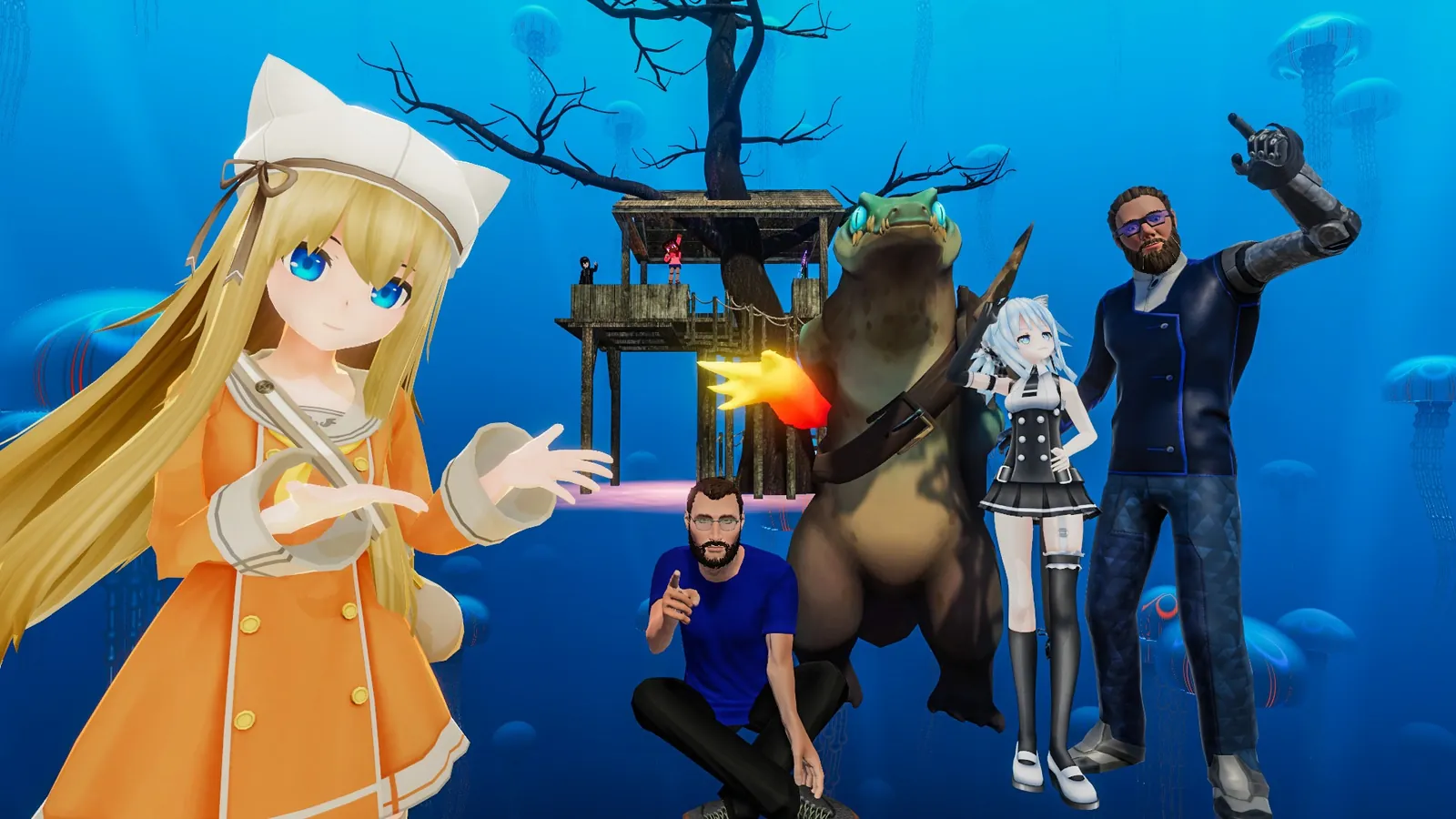
VRChat worlds and avatars are entirely user-made, which is why performance and style vary widely between instances.