Epic's free-to-play battle royale on Unreal Engine 5. It has two very different render paths: the lean Performance mode for competitive play, and DirectX 12 with Nanite and Lumen for a much heavier, prettier game (the old DirectX 11 option was removed from the menu in 2026).
What limits performance in Fortnite
Fortnite runs on Unreal Engine 5 (Battle royale, 2017 (free to play)). Official and researched system requirements:
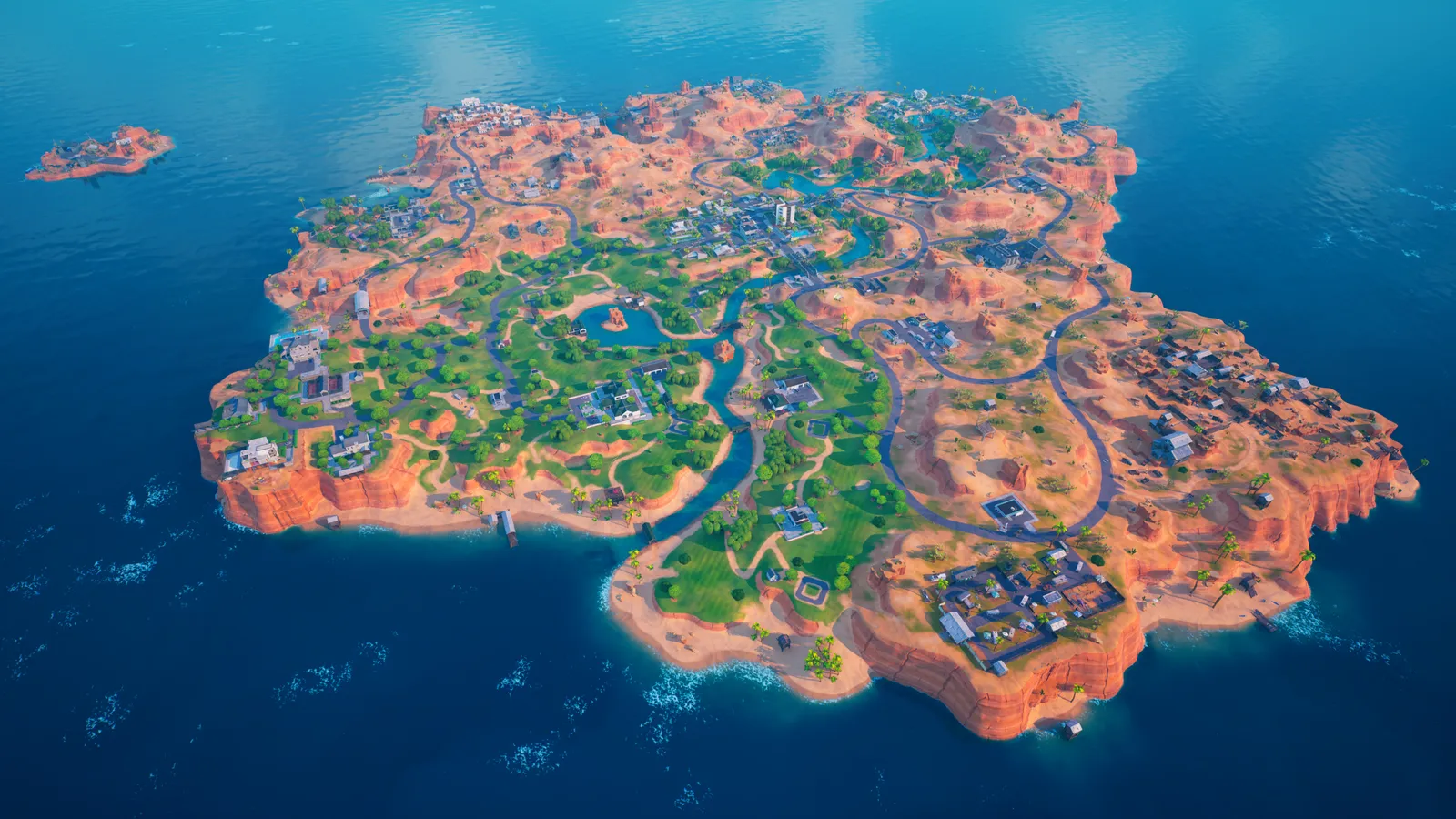
Wide open landscapes load many objects at once, which is where settings matter most.
- Minimum: OS Windows 10/11 64-bit; CPU Intel Core i3-3225 3.3 GHz; RAM 8 GB; GPU Intel HD 4000 or AMD Radeon Vega 8
- Quality presets (epic): CPU Intel Core i7-8700 or AMD Ryzen 7 3700X; RAM 16 GB or more; GPU NVIDIA RTX 3070, AMD Radeon RX 6700 XT or equivalent (8 GB VRAM or more)
The settings that cost the most frames
Menu names and sections below are the ones in the game. Start here, test after each change, and keep the ones that give a clear gain.
- Resolution (Video): native resolution, or lower for more frames. Most pros play 1920 x 1080; higher resolutions cost frames.
- Rendering Mode (Video): Performance. Performance mode is by far the fastest and mostly CPU-bound (testing measured above 720 fps on a fast CPU); DirectX 12 adds Nanite, Lumen and ray tracing at a big cost.
- VSync (Video): Off. VSync adds input lag; use G-Sync/FreeSync in the driver if you need tear-free output.
- Frame Rate Limit (Video): Unlimited. Match or exceed your refresh rate; cap just under it with G-Sync/FreeSync.
- 3D Resolution (Video): 100%. Below 100% blurs enemies; use a Super Resolution method instead of lowering this.
- Shadows (Video): Off. The single biggest cost in the settings; turning shadows off gains the most FPS.
- Effects (Video): Low. Fewer particle effects; Low gives a clean, readable fight.
- Post Processing (Video): Low. Low gains frames with a flatter look.
- Nanite Virtualized Geometry (Advanced Graphics): Off. DirectX 12 only; guides measure a 20-40% FPS cost.
- Global Illumination (Advanced Graphics): Off. DirectX 12 only; Lumen global illumination at Epic is one of the heaviest options.
- Reflections (Advanced Graphics): Off. Lumen reflections are expensive and add nothing to visibility; guides set them to Off.
- Hardware Ray Tracing (Advanced Graphics): Off. DirectX 12 only and very heavy: testing measured only 78 fps on an RTX 5060 Ti 16 GB at 1440p with Epic quality and ray tracing.
Smaller options
| Setting | Where | Recommended |
|---|---|---|
| Window Mode | Video | Fullscreen |
| Meshes | Video | Low |
| View Distance | Video | Near |
| Textures | Video | Low on the Low preset up to Epic on Ultra |
| Motion Blur | Advanced Graphics | Off |
Upscaling and frame generation
Upscalers: DLSS, XeSS. No frame generation is listed. Latency reduction: NVIDIA Reflex.
- NVIDIA Reflex Low Latency (Video). Options: Off, On, On + Boost. Cuts system latency on NVIDIA GPUs.
- Anti-Aliasing and Super Resolution (Video). Options: TSR / TAA (native), NVIDIA DLSS, Intel XeSS. Needs DirectX 12 rendering mode. Epic lists TSR, DLSS, XeSS, FXAA, SMAA and TAA; AMD FSR is not an option in Fortnite (AMD cards use the built-in TSR).
How to show the FPS counter
- Open the menu, click the gear icon and choose Settings, then the Video tab (monitor icon).
- Switch on "Show FPS". The counter appears on screen while you play.
More Fortnite tips
Pick the render path first
- Video > Rendering Mode: choose Performance for competitive play, or DirectX 12 for the full visuals. DirectX 11 is no longer offered (players who had it selected were moved to Performance mode).
- Restart the game after changing it; DirectX 12 builds its shader cache over the first few matches, so judge it after a few games.
Using DLSS or XeSS
- Set Rendering Mode to DirectX 12.
- Scroll down to "Anti-Aliasing and Super Resolution" and choose NVIDIA DLSS (RTX cards) or Intel XeSS, then pick Quality or Balanced.
Keep Textures within your VRAM
- Set Textures to Low on GPUs with less than 6 GB of VRAM.
- Raise it only if the FPS counter shows a steady frame rate.
Quick checks that help in any game
Before you spend an hour in the menus, rule out the common system-level causes of low FPS and stutter in Fortnite:
- Update your graphics driver and restart. Game-ready drivers often include fixes for new releases.
- Set the Windows power plan to Balanced or High performance, and turn on Game Mode.
- Enable the XMP or EXPO memory profile in your BIOS. Many PCs run RAM below its rated speed, which costs frames in CPU-limited games.
- Install the game on an SSD, not a hard drive, to avoid hitching when assets stream in.
- Close browsers, launchers and overlays you do not need. Each one takes CPU time and memory.
- Watch your temperatures. A CPU or GPU that overheats lowers its clocks, and the result is lower, uneven frame rates.
- Match the frame cap to your monitor, or use adaptive sync so a steady frame rate does not tear.
How to test a change properly
Change one setting at a time and repeat the same short test, ideally in the same place or mode, while watching both the average and the lowest frame rates. The 1% lows tell you more about smoothness than the average does. If a setting changes the picture a lot but the frame rate barely moves, put it back; if it moves the frame rate a lot and the picture barely changes, keep it lower. Check whether the GPU or CPU is the one running at 95 to 100 percent: lowering resolution-related settings only helps when the GPU is the bottleneck, while lowering view distance, crowd and physics options is what helps when the CPU is.
Best settings for your hardware
Every PC is different, so the best choice depends on your CPU, graphics card and monitor. On DontLag you can find recommended settings for each hardware tier on the Fortnite settings page.
Sources
- intel.com: how to improve fps in fortnite.html
- epicgames.com: a202300000010124
- epicgames.com: a202300000012731