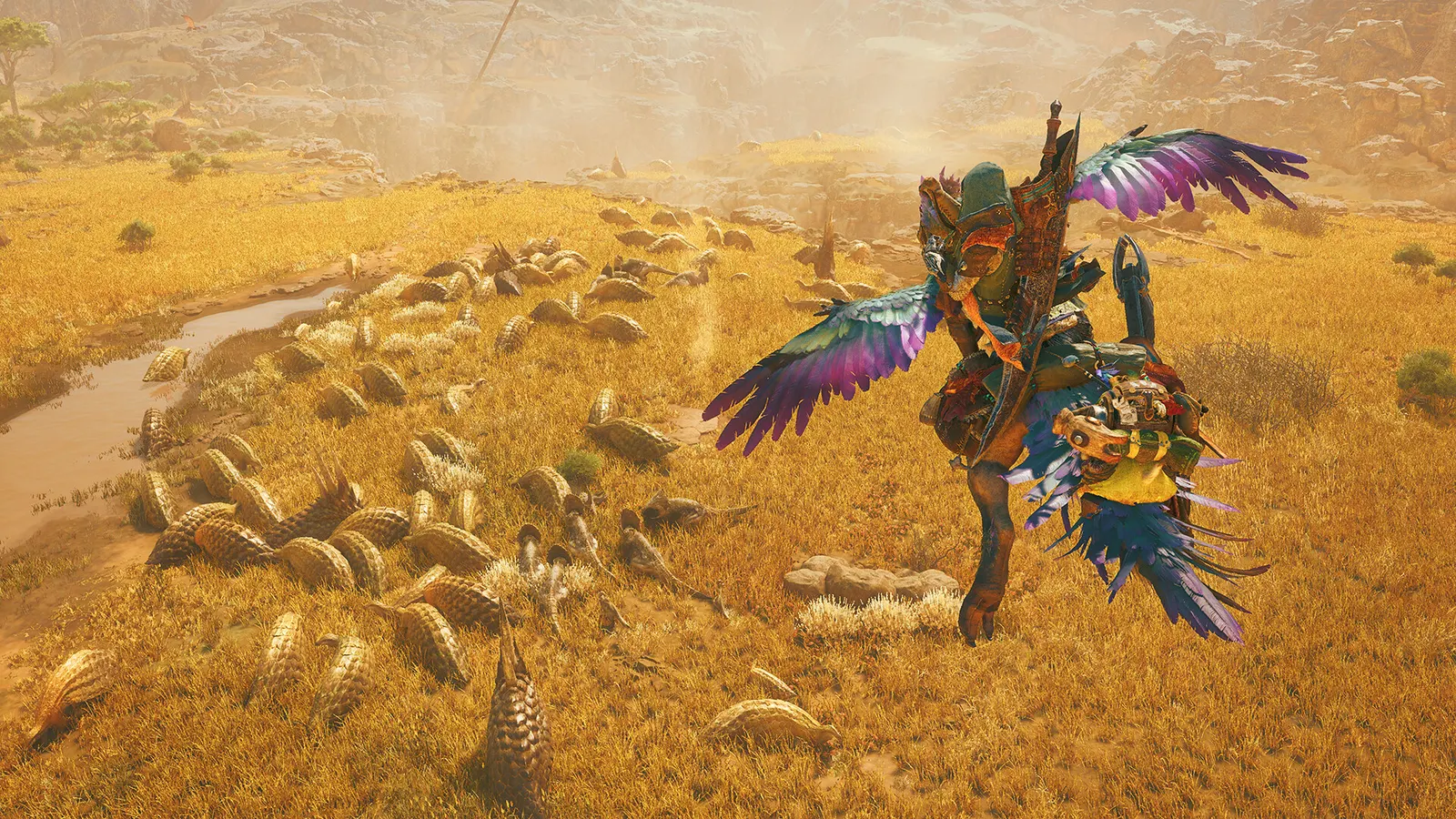
How to show FPS in Monster Hunter Wilds
Use the Steam overlay counter: Steam > Settings > In Game > In-game FPS counter, then pick a corner.
Updated . Game data researched November 2026.
- PEGI 16
- Genre
- Open-world action RPG
- Developer
- Capcom
- Released
- 2025
- Platforms
- PC, Xbox, PlayStation
How do I show FPS in Monster Hunter Wilds?
- Use the Steam overlay counter: Steam > Settings > In Game > In-game FPS counter, then pick a corner.
- Alternatively, the NVIDIA app or AMD Software overlay shows FPS, frame time and GPU use.
- Measure out in the open zones and during a hunt, not in the village: the benchmark tool leans on the GPU, hunts lean on the CPU.
Overlays that work in MH Wilds
Want frame times, GPU load or temperatures as well? These overlays show FPS in any game:
- Steam: Steam › Settings › In Game › In-game FPS counter (games launched through Steam).
- NVIDIA app: press Alt+Z › Statistics, or Alt+R for the performance overlay.
- AMD Adrenalin: Ctrl+Shift+O toggles the metrics overlay.
- Xbox Game Bar: Win+G › Performance widget (pin it to keep it on screen).
Low numbers?
Check the best Monster Hunter Wilds settings for your PC, with an FPS estimate for your graphics card, or follow the Monster Hunter Wilds FPS boost and stutter fix.