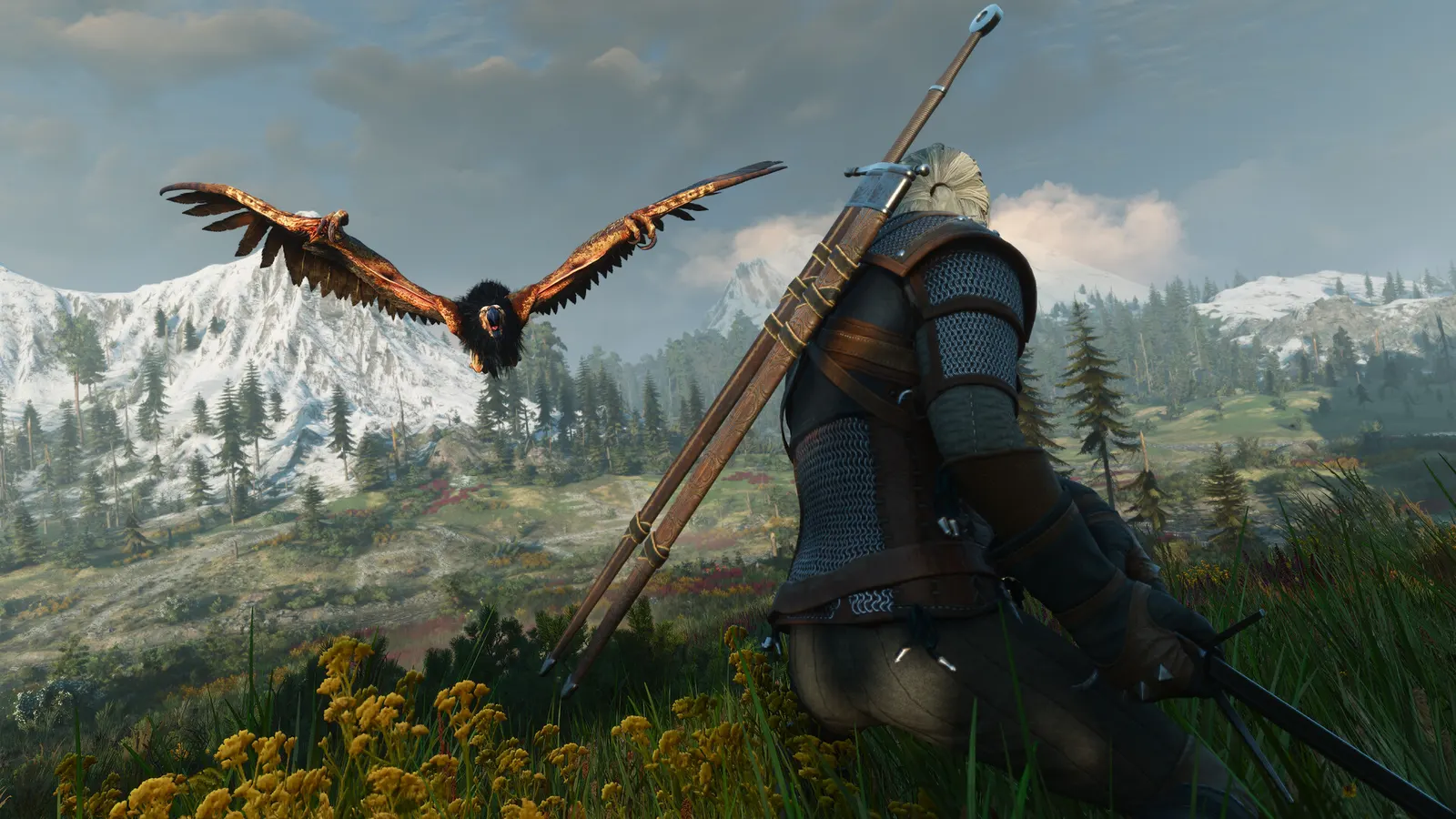
Best The Witcher 3: Wild Hunt settings for a low-end PC
Good news: NVIDIA GeForce GTX 1650, NVIDIA GeForce GTX 1060 6GB, AMD Radeon RX 580 8GB can hold 60 fps in The Witcher 3: Wild Hunt with the settings below.
Updated . Game data researched November 2026.
- PEGI 18
- Genre
- Open-world action RPG
- Developer
- CD PROJEKT RED
- Released
- 2015
- Platforms
- PC, Xbox, PlayStation, Nintendo
How much FPS will I get in The Witcher 3: Wild Hunt on budget hardware?
| Hardware | Low | Low + upscaling | Medium |
|---|---|---|---|
| NVIDIA GeForce GTX 1650Budget desktop · 1080p | 71 fps | 73 fps | 40 fps |
| NVIDIA GeForce GTX 1060 6GBOlder desktop · 1080p | 73 fps | 73 fps | 43 fps |
| AMD Radeon RX 580 8GBOlder desktop · 1080p | 73 fps | 73 fps | 57 fps |
| NVIDIA GeForce GTX 1660 SuperBudget desktop · 1080p | 90 fps | 90 fps | 63 fps |
| NVIDIA GeForce RTX 3050 Laptop GPUGaming laptop · 1080p | 75 fps | 75 fps | 47 fps |
| AMD Radeon 780M (integrated)Laptop, no graphics card · 1080p | 53 fps | 94 fps | 30 fps |
| Intel Iris Xe (integrated)Office laptop · 1080p | 24 fps | 41 fps | 13 fps |
| Steam DeckHandheld · 800p | 47 fps | 47 fps | 29 fps |
Estimates from our model, calibrated on 18 measured benchmarks. How we estimate this. Click a row for the full settings on that hardware. Official minimum: GeForce GTX 1660 / Radeon RX 5500 XT 8GB / Arc A580, 12 GB RAM.
Low-end settings for The Witcher 3: Wild Hunt
| Setting | Set to |
|---|---|
| Resolution | Your monitor's native resolution; scale with the upscaler instead |
| Max FPS | 3 below your refresh rate (141 on 144 Hz); uncapped for max FPS |
| V-Sync | Off; use G-Sync or FreeSync with an FPS cap instead |
| Texture Quality | Low |
| Shadow Quality | Low |
| Water Quality | Low |
| Grass Density | Low |
| Foliage Visibility Range | Low |
| Terrain Quality | Low |
| Number of Background Characters | Low |
| Screen Space Reflections | Low |
| NVIDIA HairWorks | Off |
| Ray-Traced Global Illumination | Off |
| Ray-Traced Shadows | Off |
| Path Tracing | Off |
| Anti-Aliasing / Upscaling | Native; DLSS Quality on RTX, FSR Quality on AMD and older GeForce, XeSS on Intel Arc |
| Frame Generation | Off below 50 fps; above it DLSS frame generation on RTX 40 and 50 or FSR frame generation elsewhere; never in competitive play |
| Low Latency | On with NVIDIA Reflex on GeForce; On with AMD Anti-Lag 2 on Radeon |
| Motion Blur | Off |
More FPS on weak hardware
- Use upscaling before lowering resolution. AMD FSR works on every graphics card, including older NVIDIA and integrated graphics. At 1080p, Quality mode is the lowest that still looks sharp.
- Laptops: plug in the charger and set Windows to Best performance (Settings › System › Power). On battery, the GPU runs at a fraction of its speed.
- Integrated graphics (Iris Xe, Radeon 680M/780M): use two RAM sticks. Dual-channel memory can almost double FPS, because the GPU uses your RAM as video memory.
- Cap the frame rate a little above what you can hold (e.g. 40 or 60): steadier frame times feel smoother than a jumpy higher number.
- Close the browser, Discord overlay and launchers before playing; on 8 GB of RAM they take memory the game needs.
- Update your graphics driver and turn on Game Mode.