Witcher 3: Expect shader stutter at first
- In Witcher 3, the game does not precompile shaders (Wccftech), so the first encounters with new effects can stutter.
- In Witcher 3, it smooths out after some play time; run the game from an SSD.
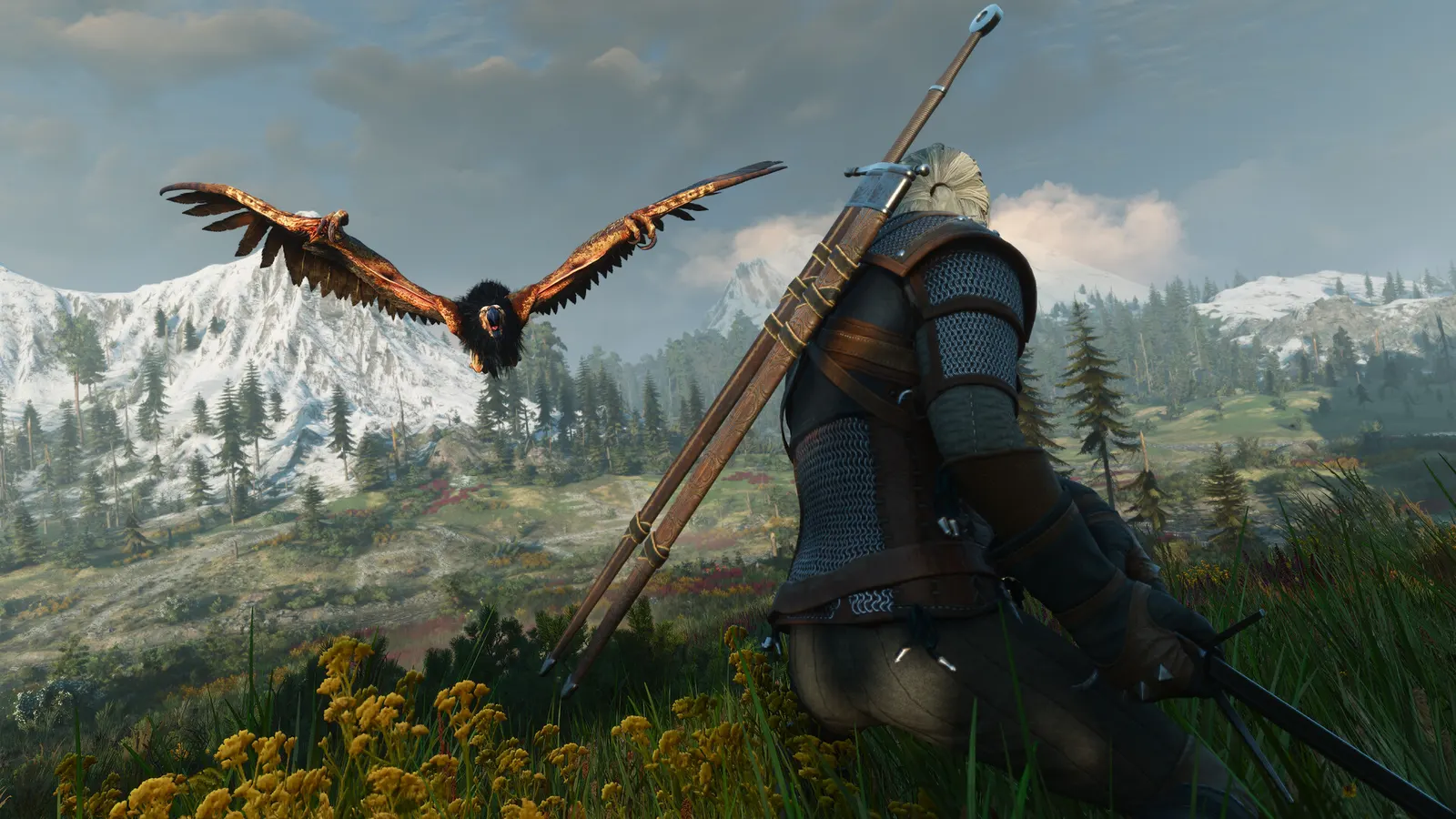
The biggest frame costs in The Witcher 3: Wild Hunt are Shadow Quality, Grass Density, NVIDIA HairWorks. Start there, then work through the stutter checklist.
Updated . Game data researched November 2026.
Shadow Quality
Ultra+ is costly while High looks almost the same.
Grass Density
Medium gives a large gain over Ultra+ for a modest visual loss.
NVIDIA HairWorks
Fur and hair on monsters and Geralt. One RTX 5080 test at 4K with path tracing went from about 44 to about 30 fps with it on.
Ray-Traced Global Illumination
Needs an RTX 20 / RX 6000 class card or better. The Performance mode is the sensible one; Quality costs more.
Ray-Traced Shadows
The first ray tracing effect to give up: it costs a lot for a small gain.
Texture Quality
VRAM-heavy. Wccftech measured Ultra as faster than Ultra+ even without running out of VRAM, so Ultra+ is rarely worth it.
Water Quality
High is faster than Ultra and Ultra+ with little visible difference.
Foliage Visibility Range
High gives a modest gain over the maximum setting.
Screen Space Reflections
High is expensive for a subtle gain. Skip it when ray-traced reflections are on.
Values shown are what we pick for max FPS. Section names follow the in-game menu.
| Setting | Low-end value |
|---|---|
| Resolution | Your monitor's native resolution; scale with the upscaler instead |
| Max FPS | 3 below your refresh rate (141 on 144 Hz); uncapped for max FPS |
| V-Sync | Off; use G-Sync or FreeSync with an FPS cap instead |
| Texture Quality | Low |
| Shadow Quality | Low |
| Water Quality | Low |
| Grass Density | Low |
| Foliage Visibility Range | Low |
| Terrain Quality | Low |
| Number of Background Characters | Low |
| Screen Space Reflections | Low |
| NVIDIA HairWorks | Off |
| Ray-Traced Global Illumination | Off |
| Ray-Traced Shadows | Off |
| Path Tracing | Off |
| Anti-Aliasing / Upscaling | Native; DLSS Quality on RTX, FSR Quality on AMD and older GeForce, XeSS on Intel Arc |
| Frame Generation | Off below 50 fps; above it DLSS frame generation on RTX 40 and 50 or FSR frame generation elsewhere; never in competitive play |
| Low Latency | On with NVIDIA Reflex on GeForce; On with AMD Anti-Lag 2 on Radeon |
| Motion Blur | Off |