Set your wheel to 900 degrees in its own driver, calibrate it inside DiRT Rally 2.0, and start with self aligning torque at about 65 and wheel friction and tire friction at 0. These baselines are community-tested, and they differ per wheel and driver, so treat them as a starting point to fine tune by feel. All sliders are found under Options and Extras, Input, your wheel, then the Vibration and Feedback tab, and each runs from 0 to 150 percent.
Step 1: wheel driver and calibration
- In Logitech G HUB set the operating range to 900 degrees. Thrustmaster wheels do the same in the Thrustmaster control panel. Turn off the driver's centring spring.
- In DiRT Rally 2.0 open the wheel's device options and run the calibration. Without it, steering angle and on-screen rotation may not match.
- Leave soft lock on so the game can set each car's real steering angle.
Step 2: the Vibration and Feedback sliders
| Slider | Typical start | What it does |
|---|---|---|
| Self aligning torque | about 65 | The main force signal from the tyres. Too high makes the wheel heavy and hides detail. |
| Wheel friction | 0 (up to about 15) | A constant damping that adds weight but no information. |
| Tire friction | 0 (up to about 30) | Damping tied to tyre data. It can make the wheel feel sticky. |
| Suspension | about 65 | Carries road surface vibration; strong on gravel, absent on smooth tarmac. Too high is noisy. |
| Collision | 40 to 90 | Jolts when you hit rocks or objects at the roadside. |
| Soft lock | 40 to 150 | The stop you feel when you try to turn past the real steering angle of the car. |
| Steering centre force | on, 40 to 100 | Re-centres the wheel at the start of a stage and when you reset. It is not active while driving. |
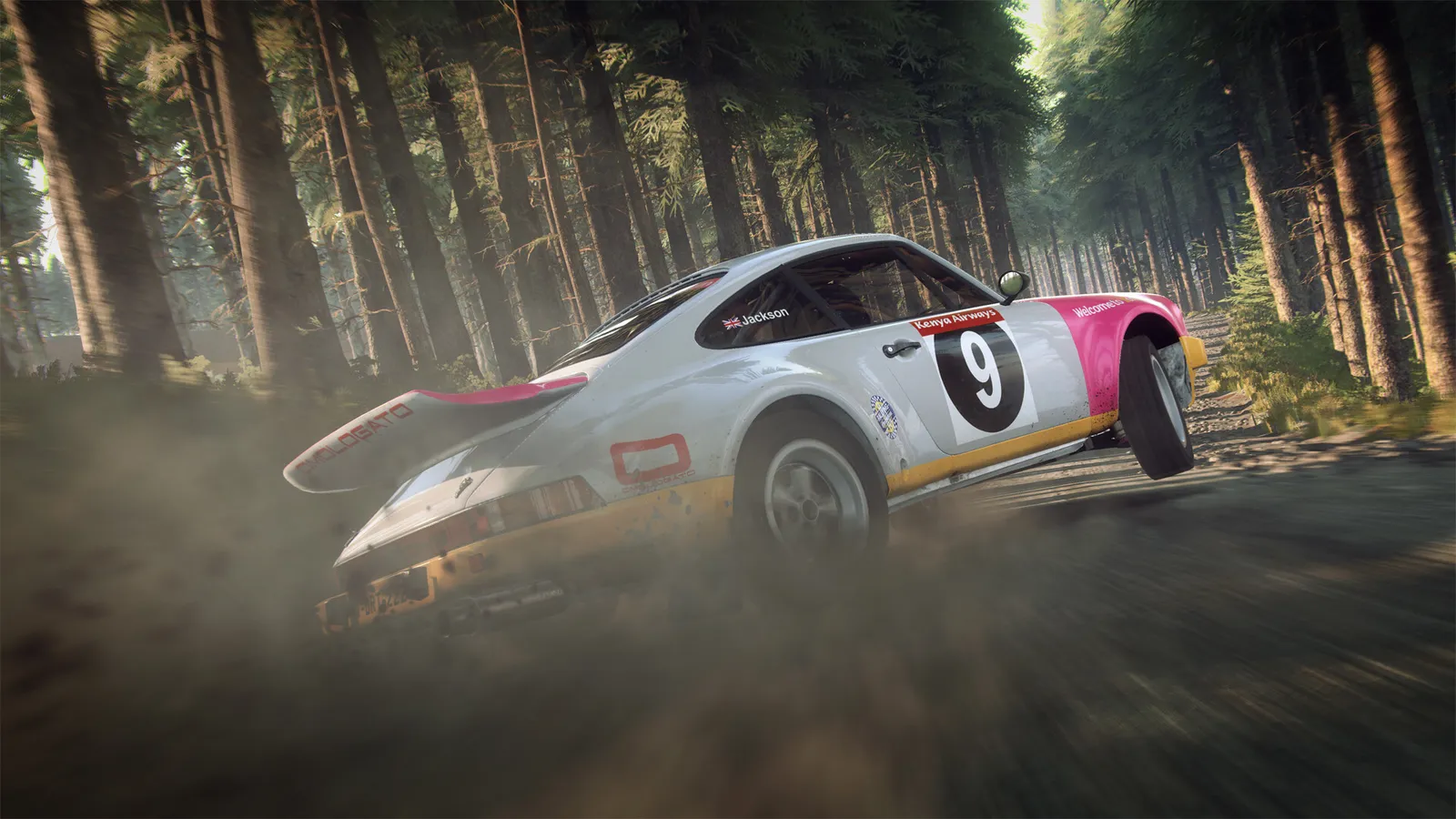
Gravel stages send the strongest suspension vibration through the wheel.
The two ranges in the table come from different wheel manufacturers: the lower values suit direct-drive and high-torque bases where soft lock and collision are already strong, the higher ones belt-driven and gear-driven wheels like the Logitech G29 and G920.
Step 3: steering settings
- Steering linearity: 0 for modern cars. Slightly negative values (down to about -4) make the wheel more responsive around the centre in older cars with a very wide steering range, but make modern cars twitchy.
- Deadzone: 0, and saturation 100, unless your wheel has measurable play.
- Soft lock: on.
Spring and damper in the driver
On Thrustmaster wheels the Spring setting is not used by the game, but Damper is: it creates the wheel friction and tire friction effects.
How to tune by feel
- Pick a gravel stage in a front-wheel-drive car that you know.
- If the wheel feels heavy or you cannot feel the tyres letting go, lower self aligning torque by 5.
- If gravel vibration is too strong or tiring, lower suspension first.
- Only add wheel or tire friction if the wheel feels too light and loose.
Common problems
- The wheel does not centre at the start of a stage. Check the steering centre force slider and your driver's centring spring. The driver setting should be off and the slider should be on.
- The in-game wheel turns less than your real wheel. Run the calibration in the wheel options again and make sure the driver range is 900 degrees; the game then matches the car's real steering angle through soft lock.
- Force feels cut off in corners. Lower self aligning torque a little; if the wheel stays at maximum force through bends, you lose detail.
- The wheel feels heavy on tarmac but light on gravel. That is normal. Gravel sends suspension vibration through the wheel and tarmac does not.
Quick tips
- Change one slider at a time and drive the same stage.
- Turn off most assists with a wheel: they hide how the car really behaves.
- More in our beginner tips and the FPS boost page.