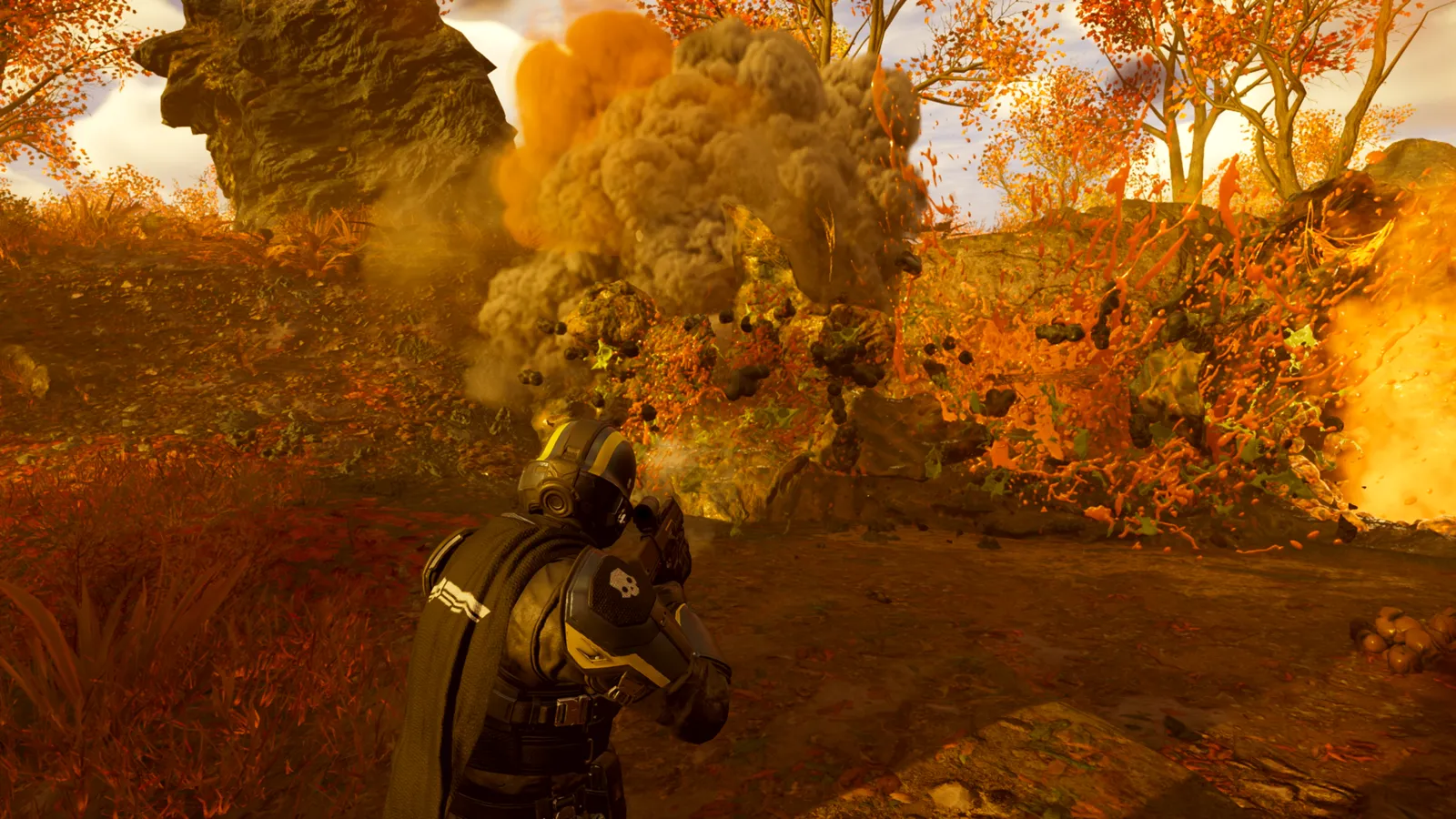
Arrowhead's four-player co-op shooter. It is heavy on both CPU and GPU in big fights, so the biggest wins come from shadows, volumetric fog and clouds, lighting, and an upscaler.
What limits performance in HELLDIVERS 2
HELLDIVERS 2 runs on Autodesk Stingray (modified by Arrowhead) (Co-op third-person shooter, 2024). Official and researched system requirements:
- Minimum: OS Windows 10; CPU Intel Core i7-4790K or AMD Ryzen 5 1500X; RAM 8 GB; GPU NVIDIA GeForce GTX 1050 Ti or AMD Radeon RX 470; Storage 135 GB
- Recommended: OS Windows 10; CPU Intel Core i7-9700K or AMD Ryzen 7 3700X; RAM 16 GB; GPU NVIDIA GeForce RTX 2060 or AMD Radeon RX 6600 XT; Storage 40 GB, SSD recommended
The settings that cost the most frames
Menu names and sections below are the ones in the game. Start here, test after each change, and keep the ones that give a clear gain.
- Resolution (Settings > Display): native resolution, or lower for more frames. Keep your monitor's native resolution and scale with the upscaler instead.
- Dynamic Resolution Scaling (Settings > Display): Off. Turn it off so Render Scale stays where you put it and the image does not pump.
- Variable Rate Shading (Settings > Display): Balanced. A community-wiki recommendation: Balanced saves GPU time with little visible change.
- Framerate Limit (Settings > Display): A cap just below your refresh rate keeps G-Sync/FreeSync working.
- V-Sync (Settings > Display): Use G-Sync/FreeSync plus an FPS cap instead.
- Object Detail Quality (Settings > Graphics): Low on the Low preset up to High on Ultra. Testing found about 3% from Medium and about 7% from Low.
- Render Distance (Settings > Graphics): Low on the Low preset up to Ultra on Ultra. CPU-heavy: lower it first if you are CPU-limited.
- Shadow Quality (Settings > Graphics): Low on the Low preset up to Ultra on Ultra. Costs 6-8% in testing; Medium or higher keeps enemies readable.
- Particle Quality (Settings > Graphics): Low on the Low preset up to High on Ultra. Explosions and smoke; Low gave about 7% in testing.
- Reflection Quality (Settings > Graphics): Low on the Low preset up to High on Ultra. High is around 9% slower than the lowest step. Avoid "Lowest" on Radeon RX 6000/7000: it can show artifacts.
- Vegetation and Rubble Density (Settings > Graphics): Low on the Low preset up to Ultra on Ultra. Costs 4-5%.
- Terrain Quality (Settings > Graphics): Low on the Low preset up to High on Ultra. Costs 4-5% between steps.
- Volumetric Fog Quality (Settings > Graphics): Lowest on the Low preset up to High on Ultra. One of the costliest options, up to about 6%.
- Volumetric Clouds Quality (Settings > Graphics): Lowest on the Low preset up to High on Ultra. About 5% between High and Lowest.
- Lighting Quality (Settings > Graphics): Low on the Low preset up to High on Ultra. Up to about 8% between steps.
Smaller options
| Setting | Where | Recommended |
|---|---|---|
| Display Mode | Settings > Display | Fullscreen |
| Motion Blur | Settings > Graphics | Off |
| Depth of Field | Settings > Graphics | Off |
| Texture Quality | Settings > Graphics | Low on the Low preset up to Ultra on Ultra |
| Space Quality | Settings > Graphics | Low on the Low preset up to High on Ultra |
| Ambient Occlusion | Settings > Graphics | On |
| Use Async Compute | Settings > Graphics | Off |
Upscaling and frame generation
Upscalers: DLSS, FSR, XeSS. No frame generation is listed. Latency reduction: NVIDIA Reflex and AMD Anti-Lag 2.
- Anti-Aliasing (Settings > Display). Options: TAA, NVIDIA DLSS, AMD FSR, Intel XeSS. This dropdown picks TAA or an upscaler; set the strength with Render Scale (Ultra Quality, Quality, Balanced, Performance).
- Low Latency Technologies (Settings > Display). Options: Off, NVIDIA Reflex, AMD Anti-Lag 2. Cuts system latency on supported GPUs.
How to show the FPS counter
- Use the Steam overlay counter: Steam > Settings > In Game > In-game FPS counter, then pick a corner.
- Alternatively, the NVIDIA app or AMD Software overlay shows FPS, frame time and GPU use.
- Test in a busy mission, because the menu and ship give much higher numbers than a bug-swarm fight.
More HELLDIVERS 2 tips
Set the upscaler strength with Render Scale
- Pick DLSS, FSR or XeSS under Anti-Aliasing, then set Render Scale: Ultra Quality is the sharpest, Performance the fastest.
- Setting Render Scale away from Native with plain TAA switches the game to its basic FSR 1 spatial upscaler.
- Keep Dynamic Resolution Scaling off so the render scale does not change on its own.
Config file and resetting settings
- Press Win+R, type %APPDATA%/Arrowhead/Helldivers2 and open user_settings.config in a text editor.
- Back it up before editing. Deleting it resets every setting except input.
- Signs of a corrupted file are startup crashes, black screens or visual artifacts.
Frame generation tools can crash the game
- Since version 1.007.200 the game uses Easy Anti-Cheat, and third-party frame-generation software may cause crashes.
- Forcing DirectX 11 is unsupported and can cause black screens or crashes, especially on AMD and Intel GPUs.
Quick checks that help in any game
Before you spend an hour in the menus, rule out the common system-level causes of low FPS and stutter in Helldivers 2:
- Update your graphics driver and restart. Game-ready drivers often include fixes for new releases.
- Set the Windows power plan to Balanced or High performance, and turn on Game Mode.
- Enable the XMP or EXPO memory profile in your BIOS. Many PCs run RAM below its rated speed, which costs frames in CPU-limited games.
- Install the game on an SSD, not a hard drive, to avoid hitching when assets stream in.
- Close browsers, launchers and overlays you do not need. Each one takes CPU time and memory.
- Watch your temperatures. A CPU or GPU that overheats lowers its clocks, and the result is lower, uneven frame rates.
- Match the frame cap to your monitor, or use adaptive sync so a steady frame rate does not tear.
How to test a change properly
Change one setting at a time and repeat the same short test, ideally in the same place or mode, while watching both the average and the lowest frame rates. The 1% lows tell you more about smoothness than the average does. If a setting changes the picture a lot but the frame rate barely moves, put it back; if it moves the frame rate a lot and the picture barely changes, keep it lower. Check whether the GPU or CPU is the one running at 95 to 100 percent: lowering resolution-related settings only helps when the GPU is the bottleneck, while lowering view distance, crowd and physics options is what helps when the CPU is.
Best settings for your hardware
Every PC is different, so the best choice depends on your CPU, graphics card and monitor. On DontLag you can find recommended settings for each hardware tier on the HELLDIVERS 2 settings page.