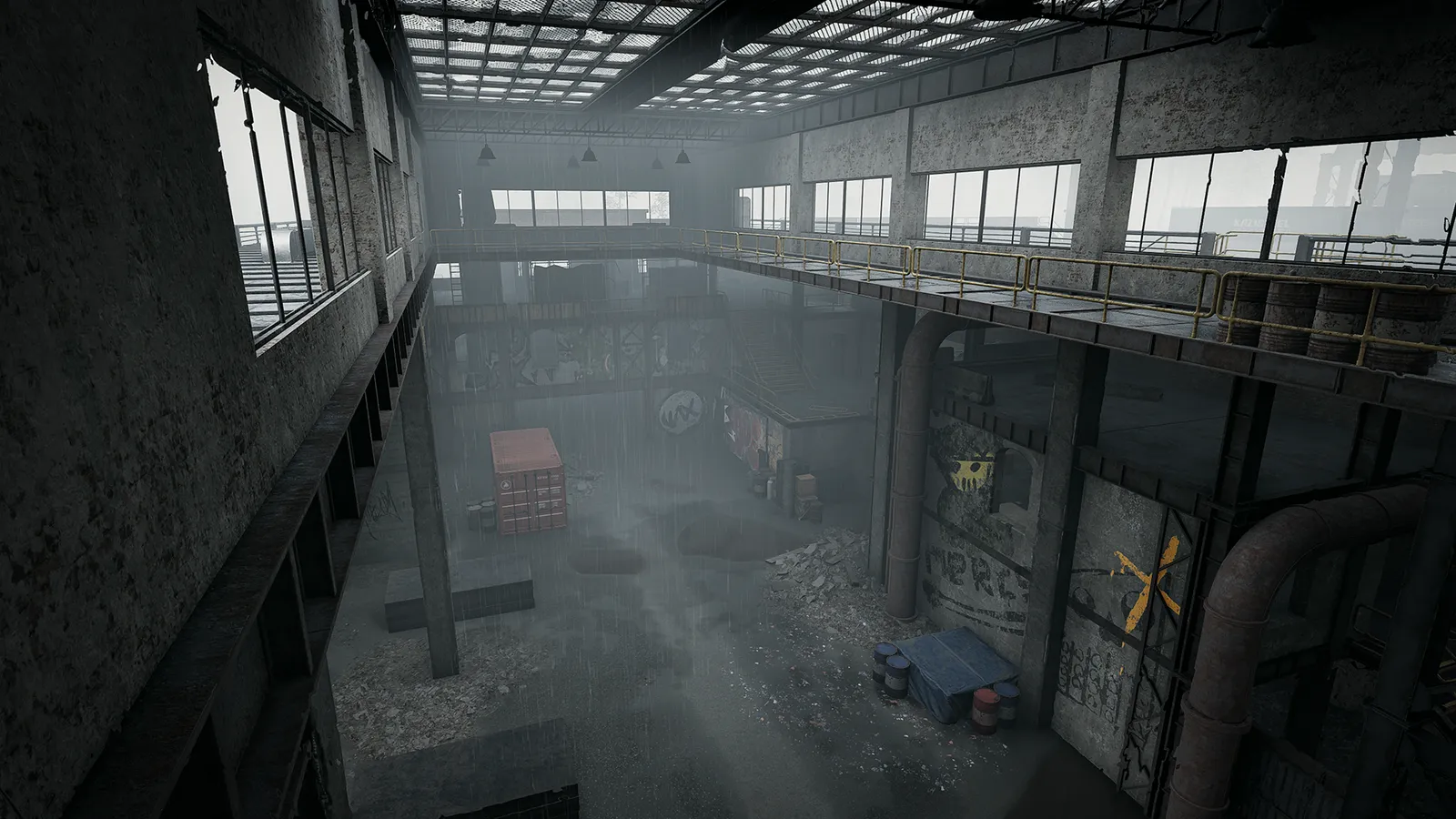
All-out warfare FPS for up to 100 players in three teams, with vehicles, building and destruction across 2x2 km control zones, built on Unreal Engine 5. Early Access: expect big CPU load in large fights, expensive Lumen lighting and a graphics menu that can still change.
What changed in Season 3
- Global Illumination now only appears on the Overkill preset and is off, and hidden, on every other preset. Choosing Overkill turns it on, and if the preset change needs a restart it applies after the restart.
- Performance was improved for ground clutter such as ivy, leaves, rubble and litter, for rain rendering, and unnecessary shadow updates across the map were fixed. The graphics benchmark no longer runs twice on first launch.
- The "potato" shadow setting is only shown when the game detects truly minimum-spec hardware, and it is reset on boot if it was edited in the .ini files. Using NVIDIA Inspector or other third-party tools to remove smoke or grass, change geometry, LOD bias or textures is bannable, and a launch warning blocks the game if such settings are detected.
What limits performance in WARDOGS
WARDOGS runs on Unreal Engine 5 (Large-scale warfare shooter, 2026 (Early Access)). Official and researched system requirements:
- Minimum: OS Windows 10; CPU Intel Core i5-8600 or AMD Ryzen 5 3500; RAM 16 GB; GPU NVIDIA GTX 1660 or AMD Radeon RX 590; Storage 50 GB; Target 1080p Low @ 60fps (Upscaled)
- Recommended: OS Windows 11; CPU Intel Core i7-12700K or AMD Ryzen 7 5700X; RAM 16 GB; GPU NVIDIA RTX 3070 or AMD Radeon RX 6700 XT; Storage 50 GB; Target 1440p Medium @ 70fps+ (Native) or 4K Medium @ 60fps+ (Upscaled)
The settings that cost the most frames
Menu names and sections below are the ones in the game. Start here, test after each change, and keep the ones that give a clear gain.
- Resolution (Video): native resolution, or lower for more frames. Use your monitor's native resolution and lower the load with the upscaler.
- VSync (Video): Disabled. V-Sync adds input lag.
- Frame Limit (Video): Unlimited. A stable cap near your refresh rate keeps frame times even; the 100-player load is CPU-bound anyway.
- Overall Quality (Video): Custom. Custom lets you set each option below instead of a preset (Auto-detect Hardware only aims for a smooth 60 fps).
- Mesh Detail (Video): Low on the Low preset up to High on Ultra. Geometry detail of objects; Medium or High is the usual guide pick.
- View Distance (Video): Low on the Low preset up to High on Ultra. How far detailed objects are drawn; guides use Medium to High, lower on older hardware.
- Shading (Video): Low on the Low preset up to High on Ultra. Material and lighting quality; guides keep it on Low.
- Global Illumination (Video): Off, and since Season 3 it only appears on the Overkill preset. Unreal Engine 5's Lumen lighting is the most expensive option in the menu; before Season 3 every guide turned it off.
- Shadows (Video): Low on the Low preset up to High on Ultra. One of the biggest GPU costs; Low or Medium is the guide pick.
- Reflections (Video): Low on the Low preset up to High on Ultra. Reflective surfaces and water; Low costs little visibility.
- Effects (Video): Low on the Low preset up to High on Ultra. Explosions, smoke and fire; heavy in large fights, so lower it first when frames drop.
- Particle Spawn Rate (Video): Low on the Low preset up to High on Ultra. How many particles an effect spawns; Low reduces clutter and load.
- Picture-in-Picture Scope (Gameplay): Disabled. Picture-in-picture scopes render the scene a second time; turning it off saves frames.
Smaller options
| Setting | Where | Recommended |
|---|---|---|
| Display Mode | Video | Windowed Fullscreen |
| Main Menu FPS Limit | Video | Enabled |
| Post-processing | Video | Low on the Low preset up to High on Ultra |
| World / Character / Effects Textures | Video | Low on the Low preset up to High on Ultra |
| Texture Streaming | Video | Low on the Low preset up to High on Ultra |
| Texture Filtering | Video | Low on the Low preset up to High on Ultra |
| Motion Blur | Video | Disabled |
| Depth of Field | Video | Disabled |
| Lens Flare | Video | Disabled |
| Bloom | Video | Disabled |
Upscaling and frame generation
Upscalers: DLSS, FSR, XeSS, DLAA. Frame generation: DLSS. Latency reduction: NVIDIA Reflex.
- Anti-Aliasing Method (Video). Options: TAA, NVIDIA DLSS, AMD FSR, Intel XeSS, NVIDIA DLSS (DLAA mode). Pick DLSS on RTX cards, FSR (FSR 4 on RX 9000) on AMD or XeSS on Intel Arc. The mode (DLAA, Quality, Balanced, Performance, Ultra Performance) is a second option; start at Quality and avoid Performance unless the GPU is maxed out.
- DLSS Frame Generation (Video). Options: Off, On2X. RTX 40 and newer only, and it needs a solid base frame rate. Guides disagree on whether a frame cap breaks it, so test with Frame Limit on Unlimited and Reflex on.
- NVIDIA Reflex (Video). Options: Disabled, Enabled, Enabled + Boost. Reduces input latency on NVIDIA GPUs at almost no FPS cost.
How to show the FPS counter
- No built-in FPS counter is documented for WARDOGS yet.
- Use Steam: Settings > In Game > "In-game FPS counter" and pick a corner (the Steam overlay must be on).
- Or press Alt+R with the NVIDIA app overlay enabled, or use the AMD Software metrics overlay or MSI Afterburner.
More WARDOGS tips
Menus change during Early Access
- BULKHEAD has not published a settings guide, so the options here come from player guides.
- If a setting is missing or renamed, check the Video tab in the in-game settings.
- Some guides call the top quality step "Overkill" and the lowest "Potato"; the labels in the tables use the four middle steps.
Based on player guides written during Early Access; not confirmed by the developer.
Big battles are CPU-heavy
- With up to 100 players, destruction and vehicles, lowering graphics will not fix every frame drop.
- Close background apps and enable XMP/EXPO for your memory.
Turn off Global Illumination first
- WARDOGS uses Unreal Engine 5, and Global Illumination is its Lumen lighting.
- Since Season 3 it is off on every preset except Overkill, so avoid Overkill; leaving it off was the single biggest FPS gain players reported.
Kernel-level anti-cheat
- The Steam page states the game "Uses Kernel Level Anti-Cheat".
- Keep Windows and your GPU driver up to date to avoid launch issues.
Quick checks that help in any game
Before you spend an hour in the menus, rule out the common system-level causes of low FPS and stutter in WARDOGS:
- Update your graphics driver and restart. Game-ready drivers often include fixes for new releases.
- Set the Windows power plan to Balanced or High performance, and turn on Game Mode.
- Enable the XMP or EXPO memory profile in your BIOS. Many PCs run RAM below its rated speed, which costs frames in CPU-limited games.
- Install the game on an SSD, not a hard drive, to avoid hitching when assets stream in.
- Close browsers, launchers and overlays you do not need. Each one takes CPU time and memory.
- Watch your temperatures. A CPU or GPU that overheats lowers its clocks, and the result is lower, uneven frame rates.
- Match the frame cap to your monitor, or use adaptive sync so a steady frame rate does not tear.
How to test a change properly
Change one setting at a time and repeat the same short test, ideally in the same place or mode, while watching both the average and the lowest frame rates. The 1% lows tell you more about smoothness than the average does. If a setting changes the picture a lot but the frame rate barely moves, put it back; if it moves the frame rate a lot and the picture barely changes, keep it lower. Check whether the GPU or CPU is the one running at 95 to 100 percent: lowering resolution-related settings only helps when the GPU is the bottleneck, while lowering view distance, crowd and physics options is what helps when the CPU is.
Best settings for your hardware
Every PC is different, so the best choice depends on your CPU, graphics card and monitor. On DontLag you can find recommended settings for each hardware tier on the WARDOGS settings page.