Skip to content
Set up my rig
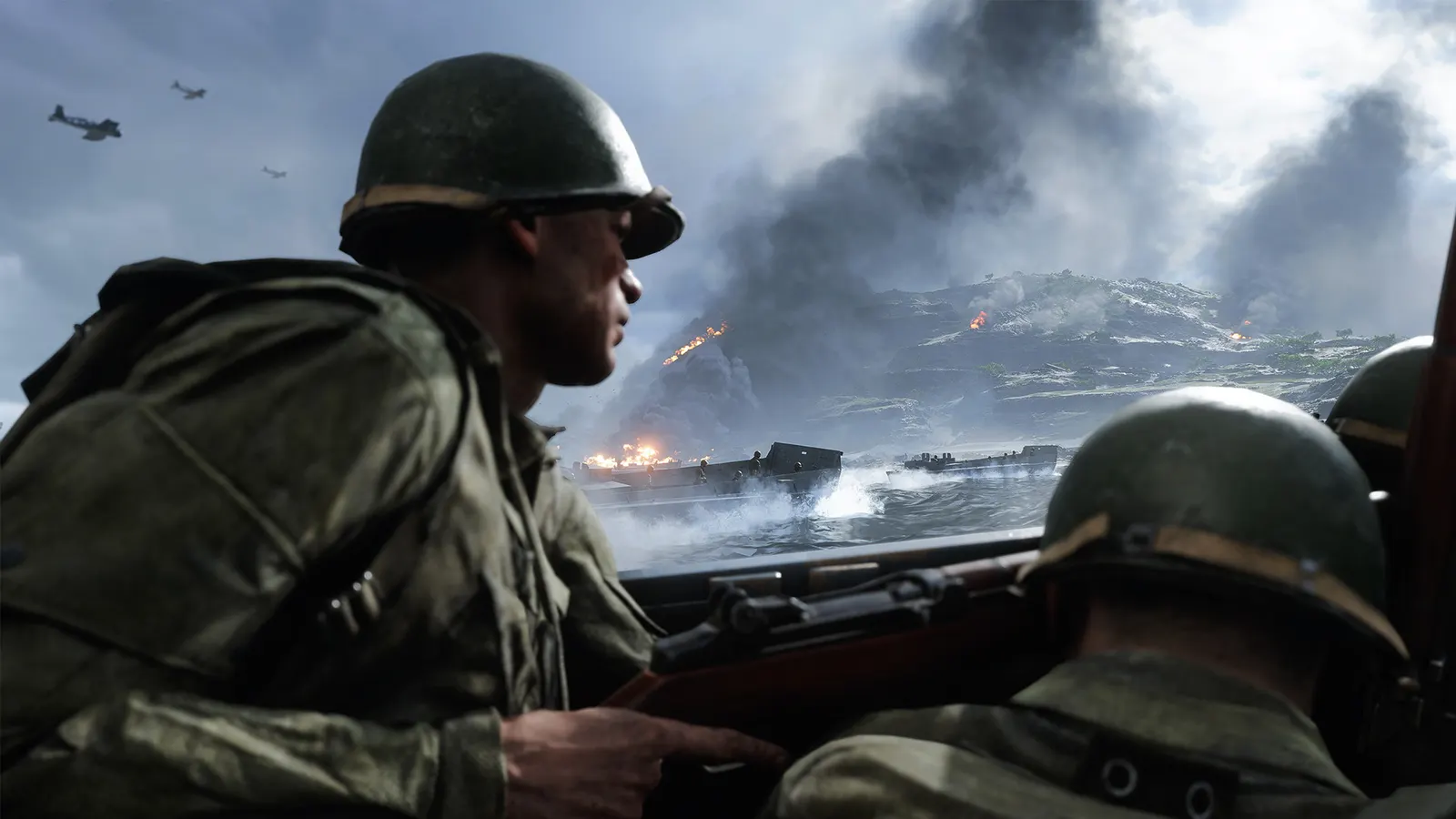
Battlefield V, official artwork

Battlefield V FPS boost and stutter fix

The biggest frame costs in Battlefield V are Lighting Quality, Effects Quality, Post Process Quality. Start there, then work through the stutter checklist.

Updated . Game data researched November 2026.

  • PEGI 16
Genre
Military shooter
Developer
DICE / EA
Released
2018
Platforms
PC, Xbox, PlayStation

Which Battlefield V settings cost the most FPS?

Lighting Quality

One of the heavier options in Frostbite; first to lower when GPU-bound.

Low

Effects Quality

Explosions, smoke and fire; Low also keeps fights readable.

Low

Post Process Quality

Bloom, depth of field and colour grading.

Low

Mesh Quality

Object detail and draw distance; also loads the CPU in 64-player matches.

Medium

Undergrowth Quality

Grass and bushes; the standard competitive pick is Low so prone enemies stand out.

Low

Ambient Occlusion

Soft contact shadows; HBAO costs more than SSAO.

Off

Values shown are what we pick for max FPS. Section names follow the in-game menu.

Upscaling and latency in BFV

  • Upscaling: not available in this game.
  • Frame generation: not available in this game.
  • Latency: no Reflex or Anti-Lag 2 in this game. Cap your FPS a few frames below your refresh rate instead.

Upscaling explained

How do I fix stuttering in Battlefield V?

BFV: Stay on DirectX 11

  1. In BFV, open Options > Video > Advanced and keep DirectX 12 off unless you want ray tracing or DLSS.
  2. In BFV, DirectX 11 gave higher and steadier frame rates in ComputerBase's tests; PCGamesN reported DX12 stutter on a 6-core Ryzen.

BFV: Frame cap via user.cfg

  1. In BFV, players put a text file named user.cfg in the game install folder with a line such as GameTime.MaxVariableFps 144 to cap the frame rate.
  2. In BFV, close the EA app first; if the game crashes after the logo, remove lines until it starts. Not documented by EA and not re-verified on the current build.

BFV: What is still running

  1. BFV has had no content updates since the Summer Update on 4 June 2020, but servers are still online and the game is on sale on Steam and the EA app.

Checklist for every PC

  • Install the game on an SSD: a hard drive causes texture pop-in and hitches. Battlefield V wants 12 GB of RAM; close browsers and launchers while playing.
  • Lower Textures one step if your graphics card has 8 GB of VRAM or less and you see sudden drops.
  • Let shaders finish compiling on first launch and after driver updates; the first match can stutter.
  • Enable XMP/EXPO so your RAM runs at its rated speed, and update your graphics driver.
  • Check that Windows runs your monitor at its full refresh rate: how to check.
  • Turn on Game Mode and Hardware-accelerated GPU scheduling: Windows gaming settings.

Battlefield V settings for a low-end PC

SettingLow-end value
ResolutionYour monitor's native resolution; scale with the upscaler instead
Vertical SyncOff; use G-Sync or FreeSync with an FPS cap instead
DirectX 12Off (use DirectX 11)
Resolution Scale100%
Future Frame RenderingOff
DXR Ray-Traced ReflectionsOff
NVIDIA DLSSOff
Texture QualityLow
Texture FilteringLow
Lighting QualityLow
Effects QualityLow
Post Process QualityLow
Mesh QualityLow
Terrain QualityLow
Undergrowth QualityLow
Anti-AliasingTAA
Ambient OcclusionOff
Motion BlurOff