Skip to content
Set up my rig
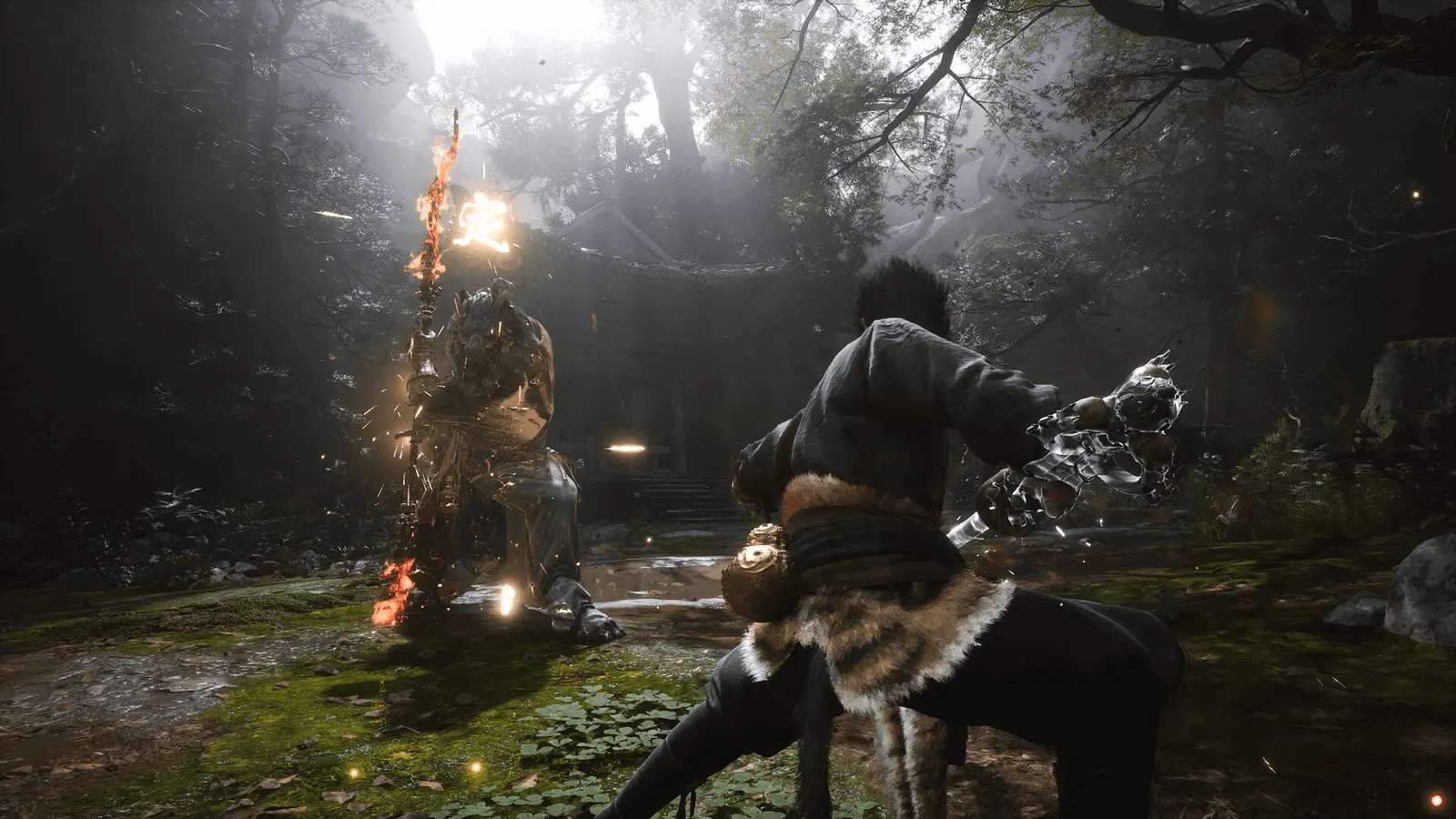
Black Myth: Wukong, official artwork

Black Myth: Wukong FPS boost and stutter fix

The biggest frame costs in Black Myth: Wukong are Shadow Quality, Global Illumination Quality, View Distance Quality. Start there, then work through the stutter checklist.

Updated . Game data researched November 2026.

  • PEGI 16
Genre
Action RPG
Developer
Game Science
Released
2024
Platforms
PC, Xbox, PlayStation

Which Black Myth: Wukong settings cost the most FPS?

Shadow Quality

PCOptimizedSettings measured High as the sweet spot; Cinematic cost about 17% more on average.

Low

Global Illumination Quality

Lumen lighting is one of the costliest options (up to about 30% at the top step in testing).

Low

View Distance Quality

Mostly a CPU cost: it changes how far objects are drawn.

Low

Reflection Quality

Lumen reflections are mildly taxing and can look noisy with FSR and XeSS.

Low

Values shown are what we pick for max FPS. Section names follow the in-game menu.

Upscaling and latency in Wukong

  • Upscaling: NVIDIA DLSS, AMD FSR, Intel XeSS. Use the Quality mode first; at 1080p avoid Balanced and Performance, they get blurry.
  • Frame generation: NVIDIA DLSS frame generation, AMD FSR frame generation. Only turn it on when you already have 50+ fps, and keep it off in competitive matches: it adds input lag.
  • Latency: no Reflex or Anti-Lag 2 in this game. Cap your FPS a few frames below your refresh rate instead.

Upscaling explained

How do I fix stuttering in Black Myth: Wukong?

Wukong: Run the free Benchmark Tool

  1. Install "Black Myth: Wukong Benchmark Tool" from Steam and test with the settings you plan to use.
  2. In Wukong, the tool only runs the Cinematic preset, so treat its score as a worst case; the real game usually runs a bit faster.

Wukong: Set the upscaler with the Super Resolution slider

  1. In Wukong, there are no named Quality or Balanced modes: pick the upscaler under Super Resolution Sampling, then use the Super Resolution slider.
  2. In Wukong, ComputerBase tested with 67% (Quality) at 1080p, 58% (Balanced) at 1440p and 50% (Performance) at 4K.
  3. In Wukong, on GeForce cards DLSS holds up best; PCOptimizedSettings found FSR and XeSS add noisy reflections in water.

Wukong: Frame generation and ray tracing caveats

  1. In Wukong, frame generation can flicker even with the latest DLSS model, and FSR/TSR frame generation is limited to 60 fps.
  2. In Wukong, only use it when your base frame rate is already near 50-60 fps; below that it feels laggy.

Checklist for every PC

  • Install the game on an SSD: a hard drive causes texture pop-in and hitches. Black Myth: Wukong wants 16 GB of RAM; close browsers and launchers while playing.
  • Lower Textures one step if your graphics card has 8 GB of VRAM or less and you see sudden drops.
  • Let shaders finish compiling on first launch and after driver updates; the first match can stutter.
  • Enable XMP/EXPO so your RAM runs at its rated speed, and update your graphics driver.
  • Check that Windows runs your monitor at its full refresh rate: how to check.
  • Turn on Game Mode and Hardware-accelerated GPU scheduling: Windows gaming settings.

Black Myth: Wukong settings for a low-end PC

SettingLow-end value
Display ModeBorderless
Display ResolutionYour monitor's native resolution; scale with the upscaler instead
Framerate Cap3 below your refresh rate (141 on 144 Hz); uncapped for max FPS
V-SyncOff; use G-Sync or FreeSync with an FPS cap instead
Motion BlurOff
Super Resolution SamplingNative; DLSS Quality on RTX, FSR Quality on AMD and older GeForce, XeSS on Intel Arc
Frame GenerationOff below 50 fps; above it DLSS frame generation on RTX 40 and 50 or FSR frame generation elsewhere; never in competitive play
View Distance QualityLow
Anti-Aliasing QualityLow
Post-Effects QualityLow
Shadow QualityLow
Texture QualityLow
Global Illumination QualityLow
Reflection QualityLow
Vegetation QualityLow
Hair QualityLow
Full Ray TracingOff