Siege X needs DirectX 12
- In Siege X, Ubisoft lists DirectX 12 for every tier, so keep your GPU driver up to date.
- In Siege X, keep Render Scaling at 100 and use DLSS or FSR for extra frames instead.
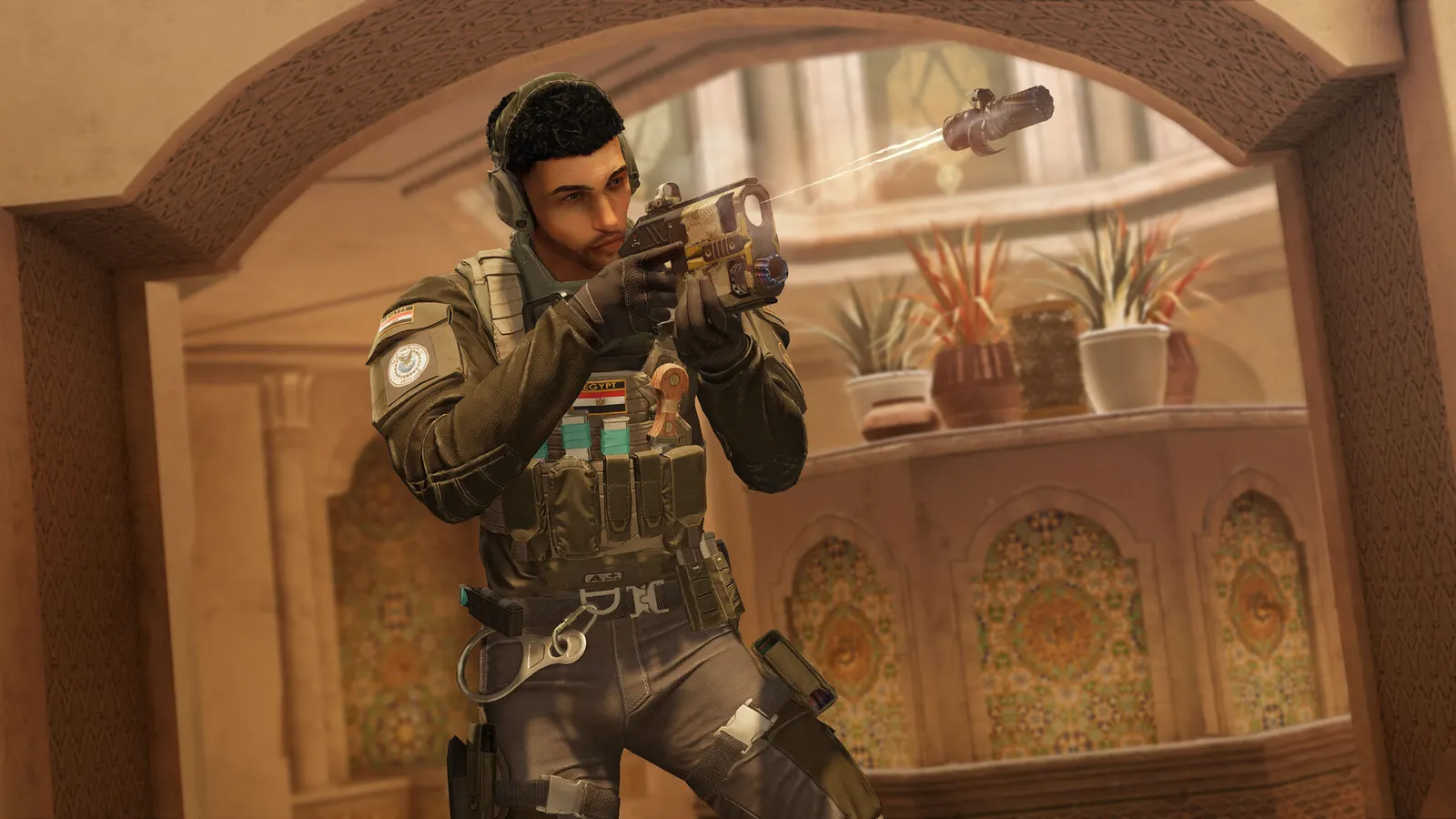
The biggest frame costs in Rainbow Six Siege X are Ambient Occlusion, LOD Quality, Shading Quality. Start there, then work through the stutter checklist.
Updated . Game data researched November 2026.
Ambient Occlusion
Has a real FPS cost; Off in competitive play, SSBC+ if you have headroom.
LOD Quality
Controls how far objects keep their detail; guides split on Low for FPS or Very High for seeing details like gadgets at range.
Shading Quality
Low is the standard competitive choice for FPS.
Shadow Quality
Medium keeps useful shadow cues; Low is the fastest.
Reflection Quality
Reflections cost FPS and give little competitive information.
VFX Quality
Smoke, fire and explosions; Low reduces clutter.
Values shown are what we pick for max FPS (visibility kept where it matters). Section names follow the in-game menu.
| Setting | Low-end value |
|---|---|
| Display Mode | Fullscreen |
| Resolution | Your monitor's native resolution; scale with the upscaler instead |
| VSync | Off; use G-Sync or FreeSync with an FPS cap instead |
| Nvidia Reflex Low Latency | On with NVIDIA Reflex on GeForce |
| Texture Quality | Low |
| Texture Filtering | Linear |
| LOD Quality | Low |
| Shading Quality | Low |
| Shadow Quality | Low |
| Reflection Quality | Low |
| VFX Quality | Low |
| Ambient Occlusion | Off |
| Lens Effect | Off |
| Zoom-In Depth of Field | Off |
| NVIDIA DLSS / AMD FSR | Native; DLSS Quality on RTX, FSR Quality on AMD and older GeForce |
| Anti-Aliasing | T-AA |
| Adaptive Render Scaling Target fps | 0 |
| Field of View | 90 |
| Render Scaling | 100 |