Skip to content
Set up my rig
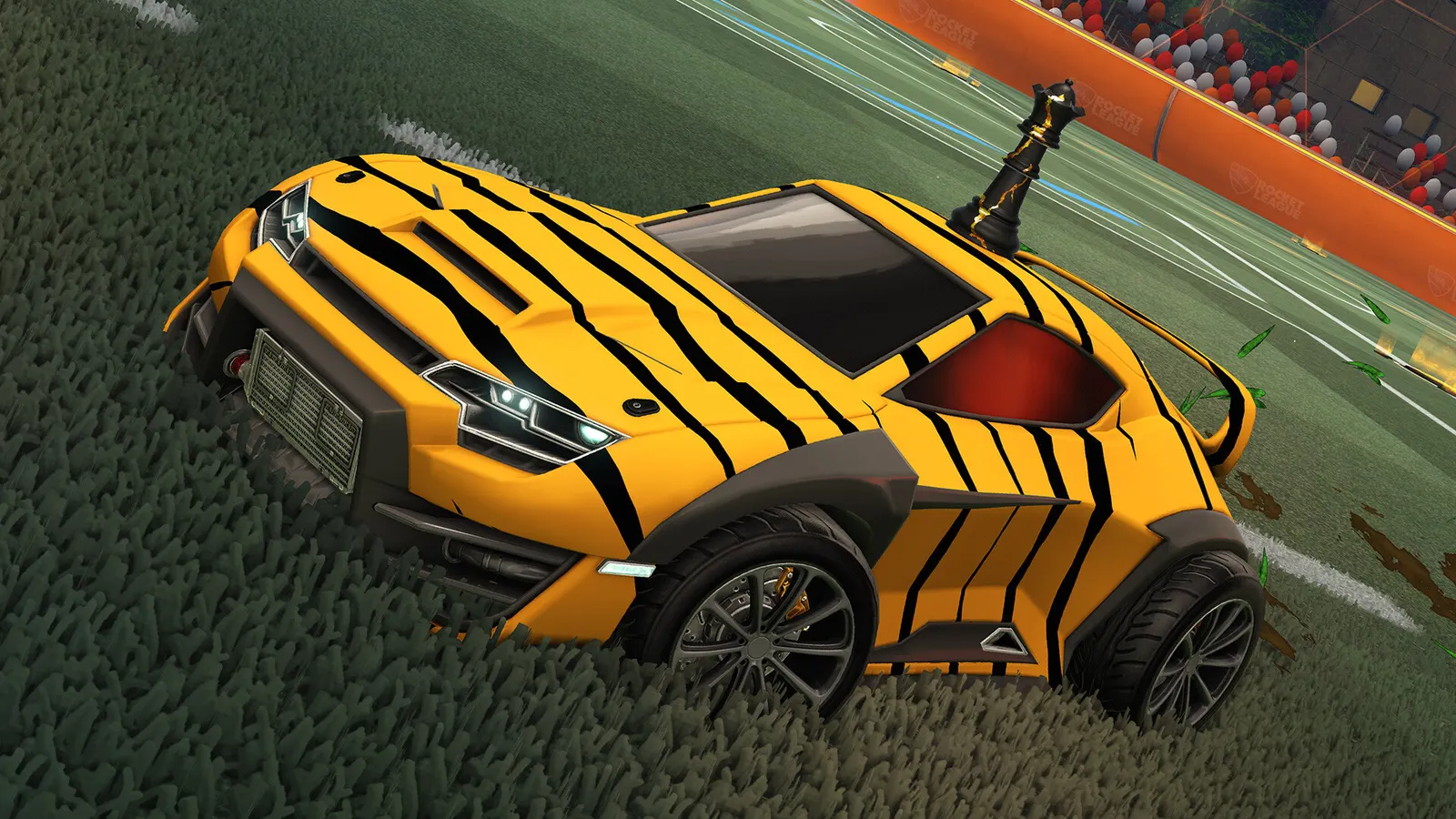
Rocket League, official artwork

Rocket League FPS boost and stutter fix

The biggest frame costs in Rocket League are Render Quality, Anti-Aliasing, Render Detail. Start there, then work through the stutter checklist.

Updated . Game data researched November 2026.

  • PEGI 3
  • Free to play
  • Competitive
Genre
Vehicular soccer
Developer
Psyonix (Epic Games)
Released
2015
Platforms
PC, Xbox, PlayStation, Nintendo

Which Rocket League settings cost the most FPS?

Render Quality

The main quality preset; High Performance gives the steadiest frame times.

High Performance

Anti-Aliasing

Off gains the most frames; FXAA Low smooths edges at small cost.

Off

Render Detail

Detail level of the arena and cars.

Performance

World Detail

Matters most on CPUs with four cores or fewer.

Performance

Particle Detail

Fewer particles mean less clutter around the ball.

Low

Values shown are what we pick for max FPS (visibility kept where it matters). Section names follow the in-game menu.

Upscaling and latency in Rocket League

  • Upscaling: not available in this game.
  • Frame generation: not available in this game.
  • Latency: no Reflex or Anti-Lag 2 in this game. Cap your FPS a few frames below your refresh rate instead.

Upscaling explained

How do I fix stuttering in Rocket League?

Rocket League: Uncap the frame rate

  1. In Rocket League, open Settings > Video.
  2. In Rocket League, set the Frames Per Second dropdown to your refresh rate, or to Uncapped (bottom of the list).
  3. In Rocket League, uncapped works with V-Sync off and can cause tearing without G-Sync/FreeSync.

In Rocket League, the old 250 FPS slider was replaced by this dropdown in v1.94 (April 2021), so config edits are no longer needed.

Rocket League: Config file location

  1. Video options are stored in TASystemSettings.ini in Documents\My Games\Rocket League\TAGame\Config.
  2. In Rocket League, close the game and back up the file before editing it.

In Rocket League, guides describe the AllowPerFrameSleep=False edit as an old way to lift the cap; the in-game Uncapped option replaces it.

Rocket League: Epic Games only

  1. Rocket League has been Epic-only on PC since 2020; it is launched from the Epic Games Launcher.
  2. In Rocket League, upscalers such as DLSS or FSR are not offered in the game; lower Render Quality or the resolution instead.

Checklist for every PC

  • Install the game on an SSD: a hard drive causes texture pop-in and hitches. Rocket League wants 8 GB of RAM; close browsers and launchers while playing.
  • Lower Textures one step if your graphics card has 8 GB of VRAM or less and you see sudden drops.
  • Let shaders finish compiling on first launch and after driver updates; the first match can stutter.
  • Enable XMP/EXPO so your RAM runs at its rated speed, and update your graphics driver.
  • Check that Windows runs your monitor at its full refresh rate: how to check.
  • Turn on Game Mode and Hardware-accelerated GPU scheduling: Windows gaming settings.

Rocket League settings for a low-end PC

SettingLow-end value
Display ModeFullscreen
ResolutionYour monitor's native resolution; scale with the upscaler instead
V-SyncOff; use G-Sync or FreeSync with an FPS cap instead
Frames Per Second3 below your refresh rate (141 on 144 Hz); uncapped for max FPS
Anti-AliasingOff
Render QualityHigh Performance
Render DetailPerformance
Texture DetailLow
World DetailPerformance
Particle DetailLow
Effect IntensityLow
High Quality ShadersOff
Ambient OcclusionOff
Depth of FieldOff
BloomOff
Dynamic ShadowsOff
Motion BlurOff
Transparent GoalpostsOn