Apex: Match the Texture Streaming Budget to your VRAM
- In Apex, open Settings > Video and set Texture Streaming Budget at or just below your GPU's VRAM.
- In Apex, if you get hitching or pop-in, step it down one notch and retest.
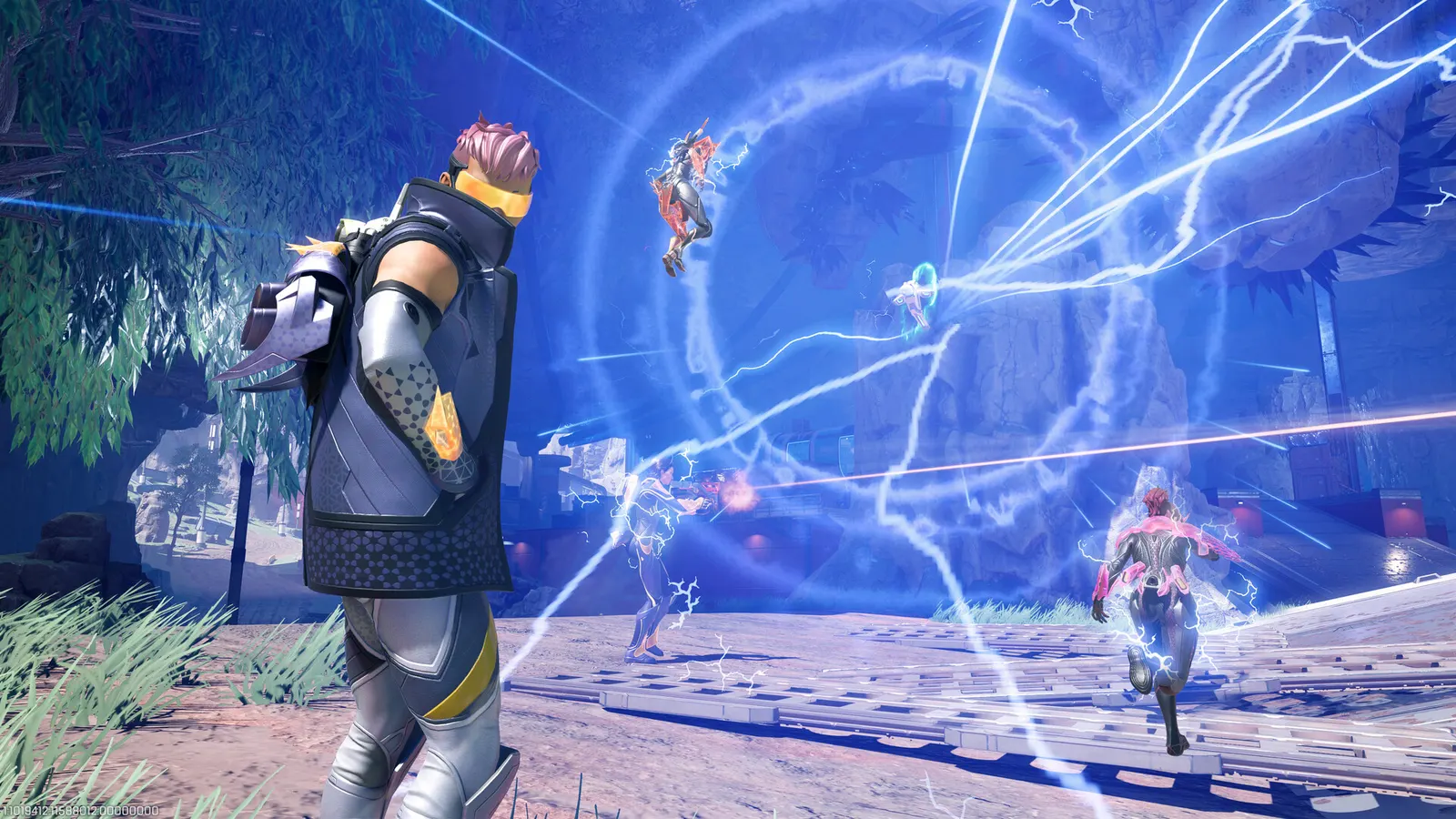
The biggest frame costs in Apex Legends are Ambient Occlusion Quality, Sun Shadow Coverage, Sun Shadow Detail. Start there, then work through the stutter checklist.
Updated . Game data researched November 2026.
Ambient Occlusion Quality
EA recommends Disabled for performance.
Sun Shadow Coverage
EA recommends Low for performance.
Sun Shadow Detail
EA recommends Low for performance.
Spot Shadow Detail
Disable it first if you still need frames in fights.
Model Detail
EA recommends Low for performance.
Effects Detail
EA recommends Low for performance.
Values shown are what we pick for max FPS (visibility kept where it matters). Section names follow the in-game menu.
| Setting | Low-end value |
|---|---|
| Display Mode | Full Screen |
| Resolution | Your monitor's native resolution; scale with the upscaler instead |
| Field of View | 104 |
| V-Sync | Off; use G-Sync or FreeSync with an FPS cap instead |
| Adaptive Resolution FPS Target | 0 |
| NVIDIA Reflex | On with NVIDIA Reflex on GeForce |
| Anti-Aliasing | None |
| Texture Streaming Budget | Low |
| Texture Filtering | Bilinear |
| Ambient Occlusion Quality | Disabled |
| Sun Shadow Coverage | Low |
| Sun Shadow Detail | Low |
| Spot Shadow Detail | Disabled |
| Volumetric Lighting | Disabled |
| Dynamic Spot Shadows | Disabled |
| Model Detail | Low |
| Effects Detail | Low |
| Impact Marks | Disabled |
| Ragdolls | Low |
| Frame Rate Cap (launch option +fps_max) | 3 below your refresh rate (141 on 144 Hz); uncapped for max FPS |
+fps_max unlimited Removes the engine frame cap (300 fps); EA documents the +fps_max form. Use a number instead to cap, and avoid caps right at 65-85, 140-160, 205-230 or 275-300 fps.+lobby_max_fps 0 Removes the separate frame cap in the lobby, as guides list it.