Skip to content
Set up my rig
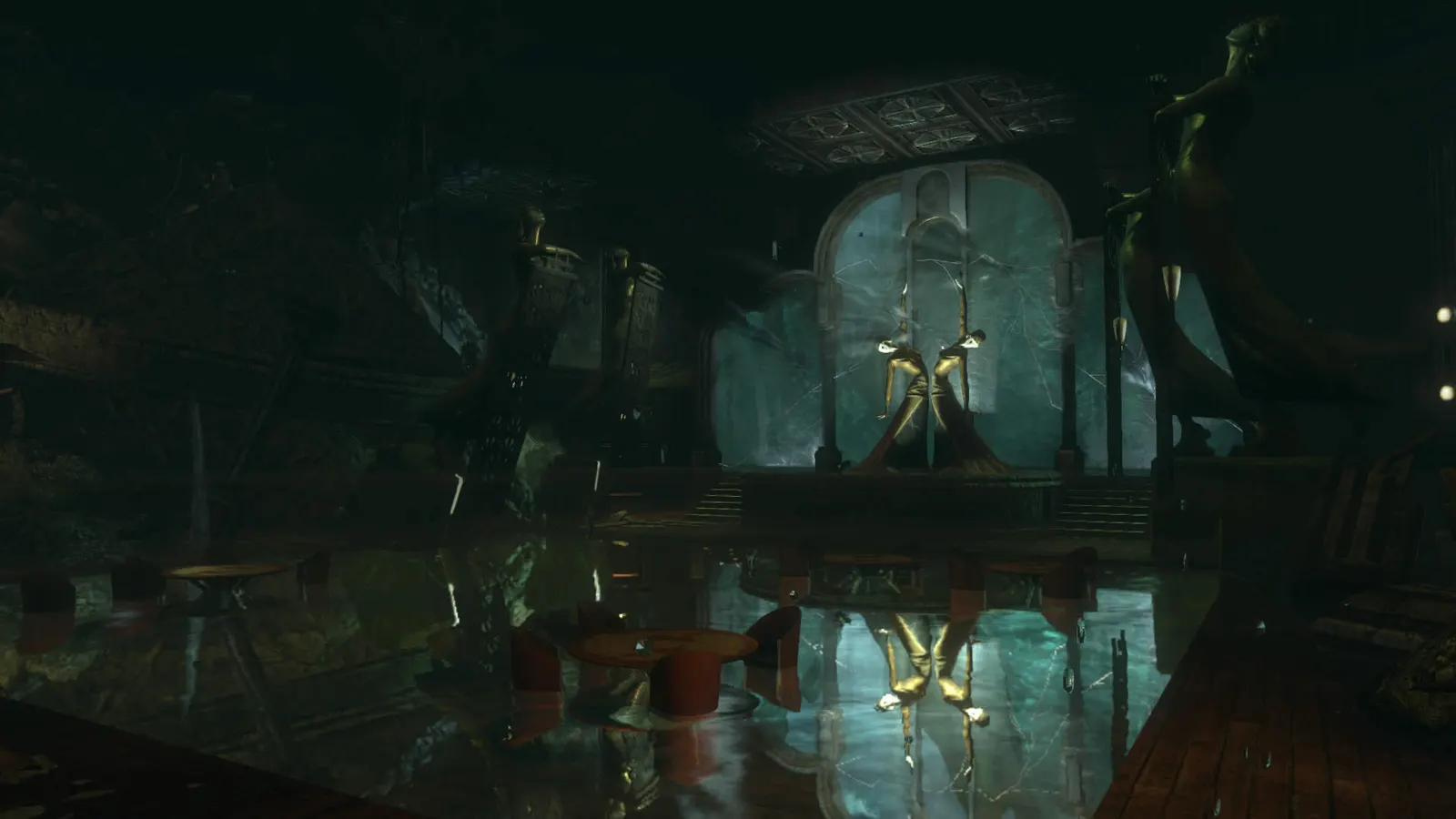
BioShock 2 Remastered, official artwork

BioShock 2 Remastered FPS boost and stutter fix

Work through the settings and the stutter checklist below.

Updated . Game data researched November 2026.

  • PEGI 18
Genre
First-person shooter / immersive sim
Developer
2K Marin / 2K China / Digital Extremes / Blind Squirrel Games
Released
2016
Platforms
PC, Mac, Xbox, PlayStation, Nintendo

Upscaling and latency in BioShock 2

  • Upscaling: not available in this game.
  • Frame generation: not available in this game.
  • Latency: no Reflex or Anti-Lag 2 in this game. Cap your FPS a few frames below your refresh rate instead.

Upscaling explained

How do I fix stuttering in BioShock 2 Remastered?

BioShock 2: Widen the field of view

  1. In BioShock 2, open Options > Graphics and drag the Field of View slider (75 to 130 after the October 2016 patch).
  2. In BioShock 2, if the slider is missing, make sure the game is fully updated through Steam.
BioShock 2: Fix mouse lag

  1. In BioShock 2, turn V-Sync off in Options > Graphics.
  2. In BioShock 2, on a G-Sync or FreeSync monitor, enable adaptive sync in the GPU control panel and cap the frame rate a few frames below the refresh rate there.

Checklist for every PC

  • Install the game on an SSD: a hard drive causes texture pop-in and hitches. BioShock 2 Remastered wants 8 GB of RAM; close browsers and launchers while playing.
  • Lower Textures one step if your graphics card has 8 GB of VRAM or less and you see sudden drops.
  • Let shaders finish compiling on first launch and after driver updates; the first match can stutter.
  • Enable XMP/EXPO so your RAM runs at its rated speed, and update your graphics driver.
  • Check that Windows runs your monitor at its full refresh rate: how to check.
  • Turn on Game Mode and Hardware-accelerated GPU scheduling: Windows gaming settings.

BioShock 2 Remastered settings for a low-end PC

SettingLow-end value
ResolutionYour monitor's native resolution; scale with the upscaler instead
V-SyncOff; use G-Sync or FreeSync with an FPS cap instead
Anti-AliasingOff
Anisotropic FilteringLow
Field of View90-100