Skip to content
Set up my rig
Call of Duty: Black Ops Cold War, official artwork

Best Call of Duty: Black Ops Cold War settings

Treyarch's 1980s Cold War Call of Duty with a campaign, multiplayer and Zombies. The PC version has over 200 settings, DLSS 2, Reflex and optional ray-traced shadows and occlusion. Maximum details cost only a few frames over High, so the real wins are lowering ray tracing and resolution.

Best Call of Duty: Black Ops Cold War settings at 1080p for an RTX 4060 + Ryzen 5 7600: Ultra with DLSS Quality. Modelled: that PC gets about 180 fps, an RTX 3060 + Ryzen 5 5600 145 fps (Ultra), a GTX 1650 + Core i5-10400 60 fps (Medium). Calibrated against 27 measured benchmarks. How we estimate this

Updated . Game data researched November 2026.

  • PEGI 18
  • Competitive
Genre
First-person shooter
Developer
Treyarch / Raven Software / Activision
Released
2020
Platforms
PC, Xbox, PlayStation
Engine
IW engine
Researched
Nov 2026

What are the best Call of Duty: Black Ops Cold War graphics settings?

The setting for every preset, from Low to Ultra. Save your hardware to get one tuned list.

Tell us your hardware once and every game page shows settings for it. Set up my rig

Set up your rig to see which column fits your PC, with an estimate of your frames. The competitive column is what we recommend for max FPS.

Call of Duty: Black Ops Cold War graphics settings per preset
SettingLowMediumHighUltra Competitive
Display Mode FullscreenFullscreenFullscreenFullscreen Fullscreen
Resolution Your monitor's native resolution; scale with the upscaler instead
V-Sync (Gameplay) Off; use G-Sync or FreeSync with an FPS cap instead
Gameplay Framerate Limit 3 below your refresh rate (141 on 144 Hz); uncapped for max FPS
NVIDIA DLSS Native; DLSS Quality on RTX
NVIDIA Reflex Low Latency On with NVIDIA Reflex on GeForce
Graphics Quality (all Details & Textures options) LowNormalHighUltra Low
Texture Quality LowNormalHighUltra Low
Special Effects Quality LowNormalHighHigh Low
Screen Space Reflection OffOffOffOff Off
Object View Distance HighHighHighHigh High
Shadow Quality LowNormalHighUltra Normal
Volumetric Lighting OffOffOffOff Off
Ray Tracing (Ambient Occlusion, Sun Shadows, Local Shadows) OffOffOffOff Off
Motion Blur OffOffOffOff Off
Field of View 100100100100 100

How much FPS will I get in Call of Duty: Black Ops Cold War?

Modelled frame rates on the High preset at native resolution, without upscaling or frame generation. Your own rig can differ: check your exact PC.

Estimated Call of Duty: Black Ops Cold War FPS by graphics card, High preset, with a Ryzen 7 7800X3D and 16 GB RAM
Graphics card 1080p1440p4K
RTX 4090 250 fps250 fps135 fps
RTX 4070 220 fps140 fps75 fps
RTX 4060 135 fps85 fps45 fps
RTX 3060 12GB 110 fps70 fps35 fps
GTX 1650 50 fps30 fps15 fps
RX 7800 XT 230 fps145 fps75 fps
RX 7600 135 fps85 fps45 fps
RX 6600 105 fps65 fps35 fps

These are estimates from our model, not measurements; real results vary with the scene, drivers and background load. Orange numbers are below 60 fps. How we estimate this

What are the best Cold War tips for more FPS?

How do I show FPS in Cold War?

  1. In Cold War, open Settings and go to the Interface tab.
  2. In Cold War, in the advanced part under Telemetry monitors, switch on "FPS Counter" (GPU temperature, VRAM usage and GPU time are there too).
  3. In Cold War, fallback: Steam > Settings > In Game > In-game FPS counter.

Path from Activision's official PC settings blog for Black Ops Cold War.
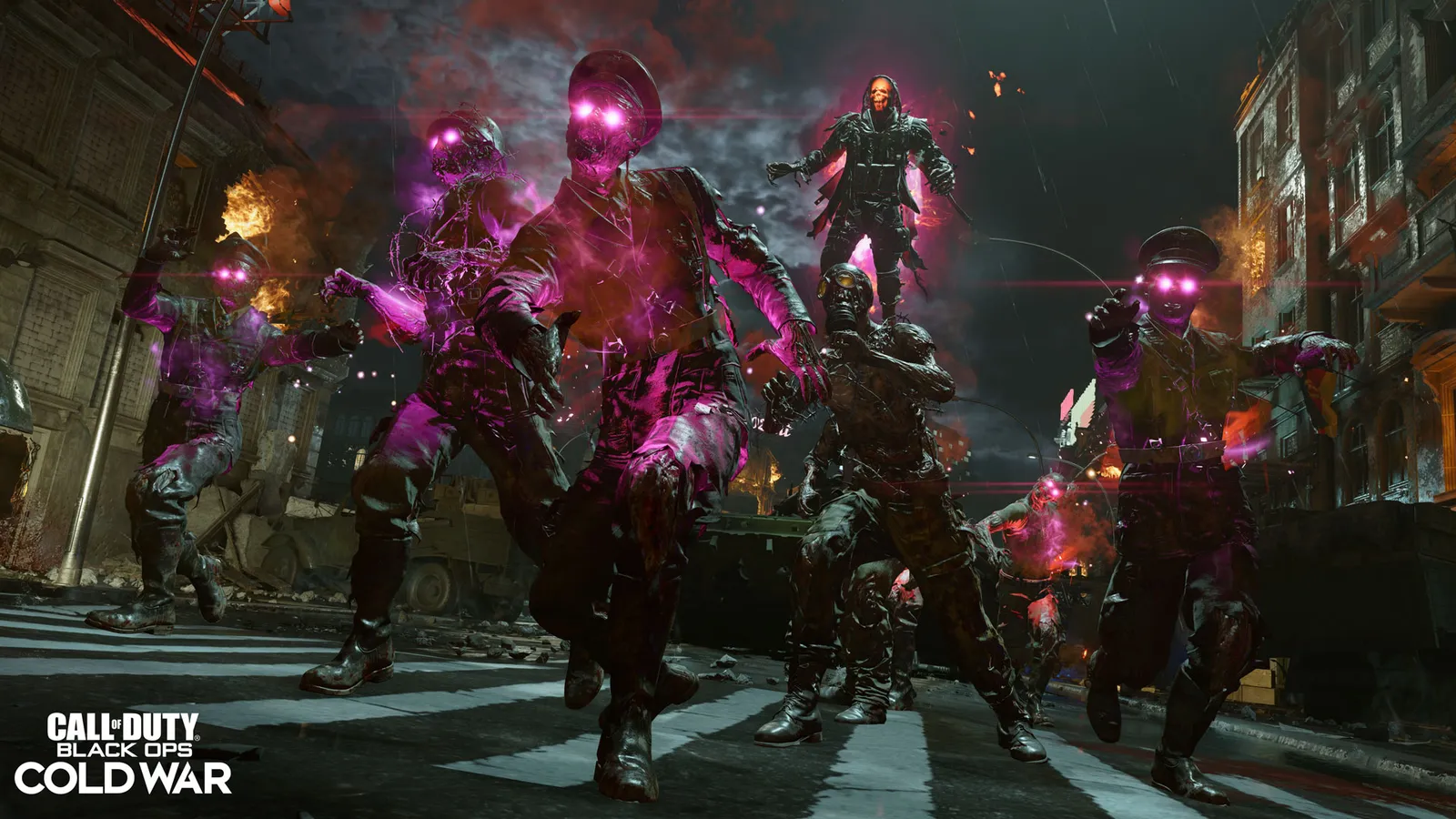
Cold War: Ray tracing is the expensive switch

  1. In Cold War, ray tracing covers three effects in the Ray Tracing section: Ambient Occlusion, Sun Shadows and Local Shadows.
  2. In Cold War, activision lists an RTX 3070 as the recommended card for it; switch DLSS on to win some of the frames back.

Cold War: Ultra textures need an extra pack

  1. In Cold War, the Ultra Texture Quality level needs an additional texture download.
  2. In Cold War, the base install is already 175 GB, so skip the pack if your SSD is small; High textures look nearly the same in a firefight.

News from Steam

All news

Guides