Skip to content
Set up my rig
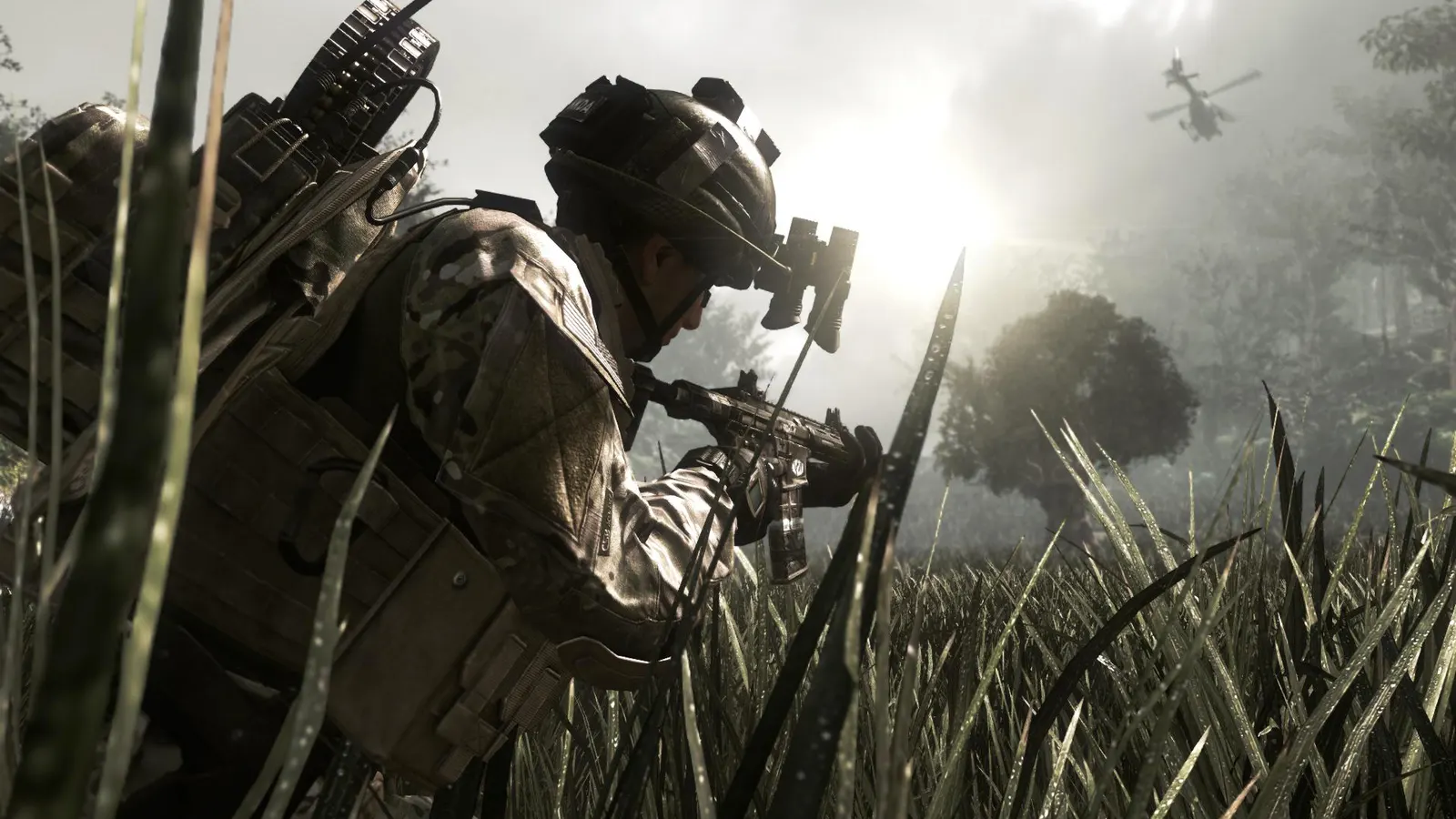
Call of Duty: Ghosts, official artwork

Call of Duty: Ghosts FPS boost and stutter fix

The biggest frame costs in Call of Duty: Ghosts are Screen Space Ambient Occlusion, Dynamic Fur, Anti-Aliasing. Start there, then work through the stutter checklist.

Updated . Game data researched November 2026.

  • PEGI 16
  • Competitive
Genre
First-person shooter
Developer
Infinity Ward / Activision
Released
2013
Platforms
PC, Xbox, PlayStation

Which Call of Duty: Ghosts settings cost the most FPS?

Screen Space Ambient Occlusion

Soft contact shadows. HBAO+ costs roughly 10 fps on a mid-range card (NVIDIA's own measurement).

Off

Dynamic Fur

Animated fur on animals and the wolf companion. NVIDIA measured 24-30 fps between Low and High in the worst single-player scene.

Off

Anti-Aliasing

MSAA and TXAA are expensive; FXAA and SMAA cost almost nothing. 4x MSAA is the big reason Extra is slow.

SMAA

Shadows

Shadow resolution and range; one of the larger GPU costs.

Normal

PhysX Turbulence

GPU-simulated smoke and debris on NVIDIA cards; roughly 10 fps in NVIDIA's testing, and it needs a GeForce card.

Off

Values shown are what we pick for max FPS (visibility kept where it matters). Section names follow the in-game menu.

Upscaling and latency in Ghosts

  • Upscaling: not available in this game.
  • Frame generation: not available in this game.
  • Latency: no Reflex or Anti-Lag 2 in this game. Cap your FPS a few frames below your refresh rate instead.

Upscaling explained

How do I fix stuttering in Call of Duty: Ghosts?

Ghosts: What makes "Extra" slow

  1. In Ghosts, texture, normal and specular map resolution set to Extra mostly use VRAM and cost little speed.
  2. In Ghosts, the heavy items are 4x MSAA, HBAO+, Dynamic Fur and PhysX Turbulence: turn those down first.
  3. In Ghosts, NVIDIA names the GTX 780 as the first card that could run everything maxed in 2013.

Ghosts: Mouse acceleration and the config files

  1. In Ghosts, settings are stored in config.cfg (campaign) and config_mp.cfg (multiplayer) in the game folder.
  2. NVIDIA's Ghosts guide lists cl_mouseaccel 0 as the setting for raw mouse input; check the file after a reset.

From NVIDIA's 2013 Ghosts graphics and performance guide.

Ghosts: Multiplayer frame cap

  1. Call of Duty games of this era were limited to around 90 fps in multiplayer; no outlet confirmed a Ghosts-specific value.
  2. In Ghosts, if your multiplayer fps stops at one fixed number, it is the engine, not your hardware.

Not verified for Ghosts; treat as a hint, not a rule.

Ghosts: Check driver-level frame caps and V-Sync

  1. In Ghosts, open the NVIDIA Control Panel or AMD Software and look at the profile for this game.
  2. In Ghosts, make sure V-Sync is not forced on and no maximum frame rate is set, then use the in-game limiter if you want a cap.
  3. In Ghosts, on Windows 10/11, set the game's graphics preference to High performance on laptops with two GPUs.

Checklist for every PC

  • Install the game on an SSD: a hard drive causes texture pop-in and hitches. Call of Duty: Ghosts wants 8 GB of RAM; close browsers and launchers while playing.
  • Lower Textures one step if your graphics card has 8 GB of VRAM or less and you see sudden drops.
  • Let shaders finish compiling on first launch and after driver updates; the first match can stutter.
  • Enable XMP/EXPO so your RAM runs at its rated speed, and update your graphics driver.
  • Check that Windows runs your monitor at its full refresh rate: how to check.
  • Turn on Game Mode and Hardware-accelerated GPU scheduling: Windows gaming settings.

Call of Duty: Ghosts settings for a low-end PC

SettingLow-end value
Display ModeFullscreen
ResolutionYour monitor's native resolution; scale with the upscaler instead
Sync Every Frame (V-Sync)Off; use G-Sync or FreeSync with an FPS cap instead
Texture ResolutionNormal
Normal Map ResolutionNormal
Specular Map ResolutionNormal
ShadowsLow
Screen Space Ambient OcclusionOff
Depth of FieldOff
DistortionOff
Dynamic FurOff
PhysX TurbulenceOff
Anti-AliasingFXAA
Anisotropic Filtering4x
Field of View (FOV)90