Skip to content
Set up my rig
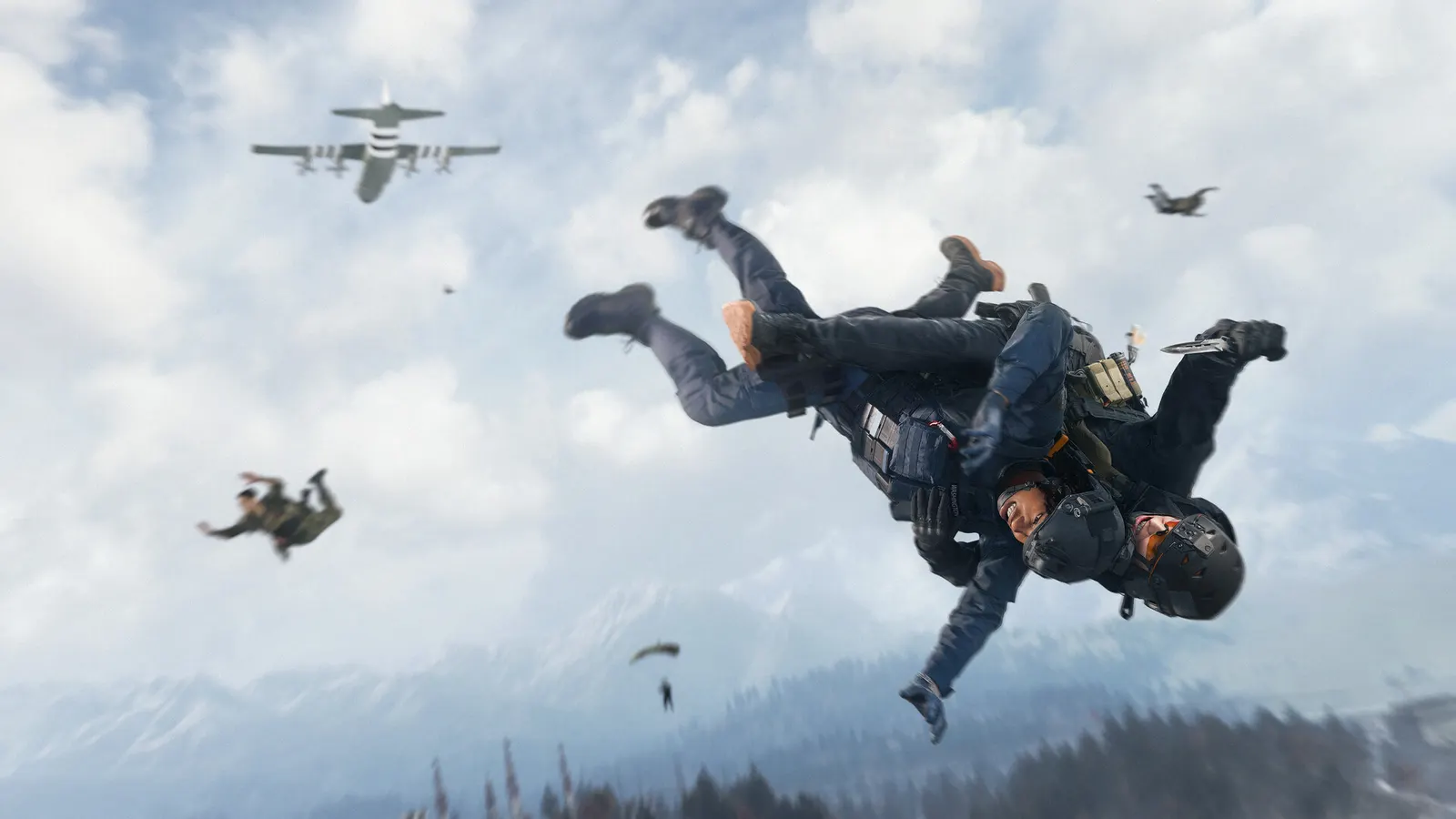
Call of Duty: Warzone, official artwork

Call of Duty: Warzone FPS boost and stutter fix

The biggest frame costs in Call of Duty: Warzone are Shadow Quality, Particle Resolution, Shader Quality. Start there, then work through the stutter checklist.

Updated . Game data researched November 2026. Loadout data: Season 1.

  • PEGI 18
  • Free to play
  • Competitive
Genre
Battle royale
Developer
Raven / Infinity Ward / Activision
Released
2020
Platforms
PC, Xbox, PlayStation

Which Call of Duty: Warzone settings cost the most FPS?

Shadow Quality

Among the costliest options; Low is enough to see enemy shadows.

Low

Particle Resolution

Cheaper smoke and explosions with little visibility loss.

Very Low

Shader Quality

Low shader quality gains frames at a modest visual cost.

Low

Values shown are what we pick for max FPS (visibility kept where it matters). Section names follow the in-game menu.

Upscaling and latency in Warzone

  • Upscaling: NVIDIA DLSS, AMD FSR, Intel XeSS. Use the Quality mode first; at 1080p avoid Balanced and Performance, they get blurry.
  • Frame generation: not available in this game.
  • Latency: NVIDIA Reflex. Turn it on; it lowers input lag with no image cost.

Upscaling explained

How do I fix stuttering in Call of Duty: Warzone?

Warzone: Finish shader preloading before you drop in

  1. In Warzone, after every update or driver change, wait for the shader compilation to complete before joining a match.
  2. In Warzone, skipping it is the most common cause of stutter in the first match after an update.

Warzone: Use Custom and a fixed render resolution

  1. In Warzone, in the Quality tab set Graphic Preset to Custom.
  2. In Warzone, keep render resolution at 100 and Dynamic Resolution off, then use DLSS, FSR or XeSS Quality instead if you need more FPS.

Warzone: Check Hardware-Accelerated GPU Scheduling

  1. In Warzone, open Windows Settings > System > Display > Graphics > Default graphics settings.
  2. In Warzone, test with "Hardware-accelerated GPU scheduling" On, then Off, and keep whichever gives smoother frame times.

In Warzone, guides recommend On; results vary per system, so compare both.

Checklist for every PC

  • Install the game on an SSD: a hard drive causes texture pop-in and hitches. Call of Duty: Warzone wants 16 GB of RAM; close browsers and launchers while playing.
  • Lower Textures one step if your graphics card has 8 GB of VRAM or less and you see sudden drops.
  • Let shaders finish compiling on first launch and after driver updates; the first match can stutter.
  • Enable XMP/EXPO so your RAM runs at its rated speed, and update your graphics driver.
  • Check that Windows runs your monitor at its full refresh rate: how to check.
  • Turn on Game Mode and Hardware-accelerated GPU scheduling: Windows gaming settings.

Call of Duty: Warzone settings for a low-end PC

SettingLow-end value
Display ModeFullscreen Exclusive
Display ResolutionYour monitor's native resolution; scale with the upscaler instead
NVIDIA Reflex Low LatencyOn with NVIDIA Reflex on GeForce
V-Sync (Gameplay)Off; use G-Sync or FreeSync with an FPS cap instead
Custom Frame Rate Limit3 below your refresh rate (141 on 144 Hz); uncapped for max FPS
Upscaling/SharpeningNative; DLSS Quality on RTX, FSR Quality on AMD and older GeForce, XeSS on Intel Arc
Frame GenerationOff
VRAM Scale Target75
Texture ResolutionLow
Shadow QualityVery Low
Particle ResolutionVery Low
Shader QualityLow
On-Demand Texture StreamingMinimal
Screen Space ReflectionsOff
Occlusion and Screen Space LightingOff
World Motion BlurOff
Film Grain0