Skip to content
Set up my rig
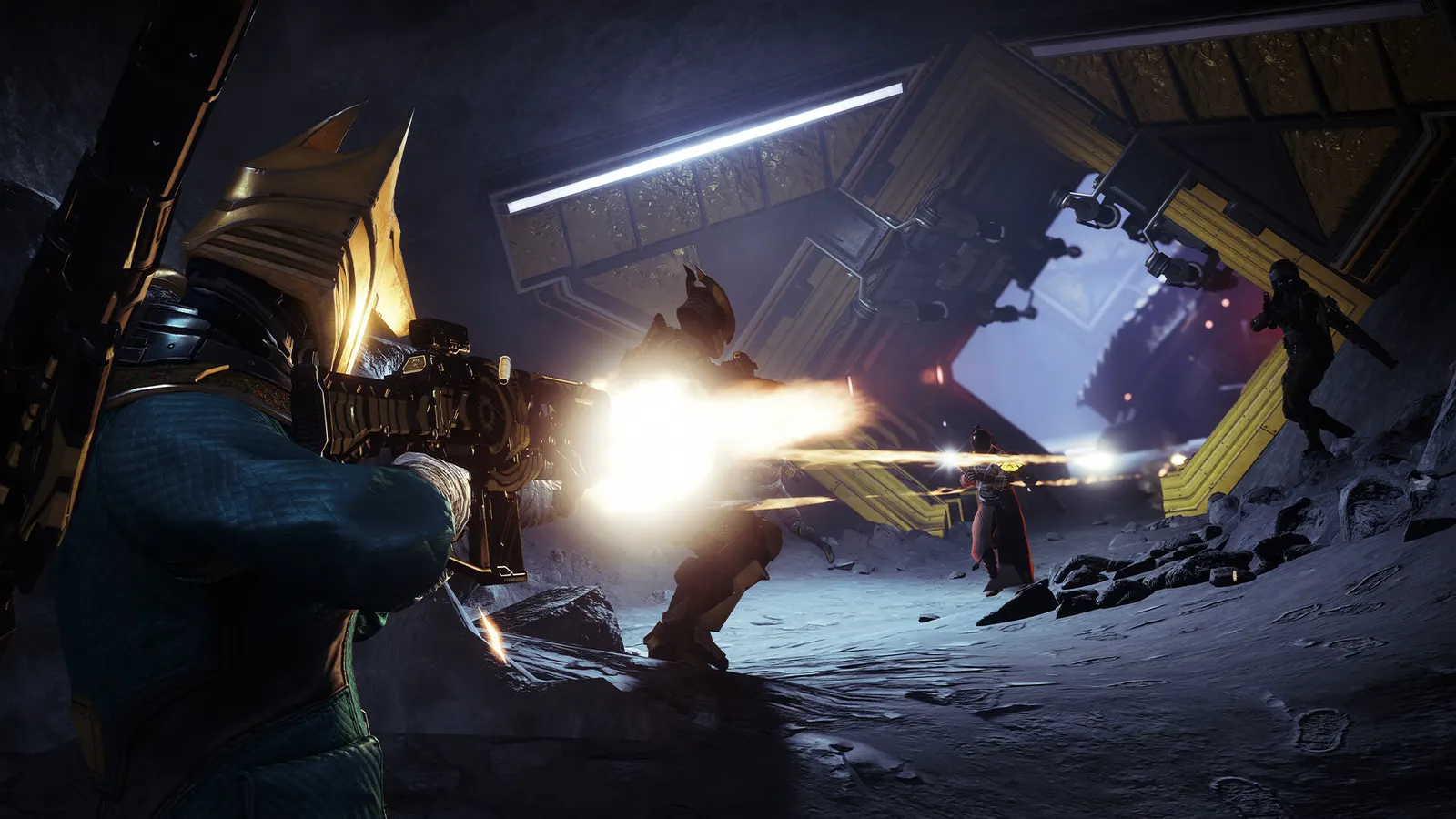
Destiny 2, official artwork

Destiny 2 FPS boost and stutter fix

The biggest frame costs in Destiny 2 are Render Resolution, Shadow Quality, Screen Space Ambient Occlusion. Start there, then work through the stutter checklist.

Updated . Game data researched November 2026.

  • PEGI 16
  • Free to play
Genre
Looter shooter
Developer
Bungie
Released
2019
Platforms
PC, Xbox, PlayStation

Which Destiny 2 settings cost the most FPS?

Render Resolution

Keep it at 100% for a sharp image; it is the main emergency lever on slow GPUs.

85%

Shadow Quality

The costliest setting: dropping from Highest to Low yields up to about 16% more fps.

Low

Screen Space Ambient Occlusion

HDAO costs about 5 fps and the 3D mode about 12 fps in Hone's tests.

Off

Foliage Detail Distance

Grass, bushes and trees; High to Low saves about 5 fps with little visible change in combat.

Low

Environment Detail Distance

How far detailed scenery is drawn; also affects CPU load in open zones.

Low

Values shown are what we pick for max FPS. Section names follow the in-game menu.

Upscaling and latency in Destiny 2

  • Upscaling: not available in this game.
  • Frame generation: not available in this game.
  • Latency: NVIDIA Reflex. Turn it on; it lowers input lag with no image cost.

Upscaling explained

How do I fix stuttering in Destiny 2?

Destiny 2: Watch the VRAM bar

  1. In Destiny 2, the video settings show a memory bar for the current texture level; keep it under your card's VRAM.
  2. In Destiny 2, going over VRAM causes stutter as textures swap to system RAM, which is worse than lowering Texture Quality.

Destiny 2: cvars.xml and the settings folder

  1. Destiny 2 stores its settings in cvars.xml inside the Bungie folder (%APPDATA%\Bungie\DestinyPC\prefs).
  2. In Destiny 2, back the file up before editing. Some players change shadow values by hand, but this is a grey area in Bungie's rules, so stick to the in-game options.

Destiny 2: The CPU matters in crowded activities

  1. In Destiny 2, hone describes a CPU bottleneck in the modified Tiger engine: a fast GPU can sit underused in busy public events.
  2. In Destiny 2, if your GPU load is low while fps drops, lowering Environment and Character Detail Distance helps more than lowering Shadow Quality.

Checklist for every PC

  • Install the game on an SSD: a hard drive causes texture pop-in and hitches. Destiny 2 wants 16 GB of RAM; close browsers and launchers while playing.
  • Lower Textures one step if your graphics card has 8 GB of VRAM or less and you see sudden drops.
  • Let shaders finish compiling on first launch and after driver updates; the first match can stutter.
  • Enable XMP/EXPO so your RAM runs at its rated speed, and update your graphics driver.
  • Check that Windows runs your monitor at its full refresh rate: how to check.
  • Turn on Game Mode and Hardware-accelerated GPU scheduling: Windows gaming settings.

Destiny 2 settings for a low-end PC

SettingLow-end value
Display ModeFullscreen
ResolutionYour monitor's native resolution; scale with the upscaler instead
Render Resolution85%
Field of View105
V-SyncOff; use G-Sync or FreeSync with an FPS cap instead
Frame Cap3 below your refresh rate (141 on 144 Hz); uncapped for max FPS
Nvidia ReflexOn with NVIDIA Reflex on GeForce
Shadow QualityLow
Screen Space Ambient OcclusionOff
Foliage Detail DistanceLow
Environment Detail DistanceLow
Character Detail DistanceLow
Texture QualityLow
Texture Anisotropy16x
Anti-AliasingFXAA
Depth of FieldOff
Motion BlurOff
Wind ImpulseOff