Skip to content
Set up my rig
Dota 2, official artwork

Dota 2 FPS boost and stutter fix

The biggest frame costs in Dota 2 are Effects Quality, Ambient Occlusion, Shadow Quality. Start there, then work through the stutter checklist.

Updated . Game data researched November 2026.

  • Free to play
  • Competitive
Genre
MOBA
Developer
Valve
Released
2013
Platforms
PC, Mac, Linux

Which Dota 2 settings cost the most FPS?

Effects Quality

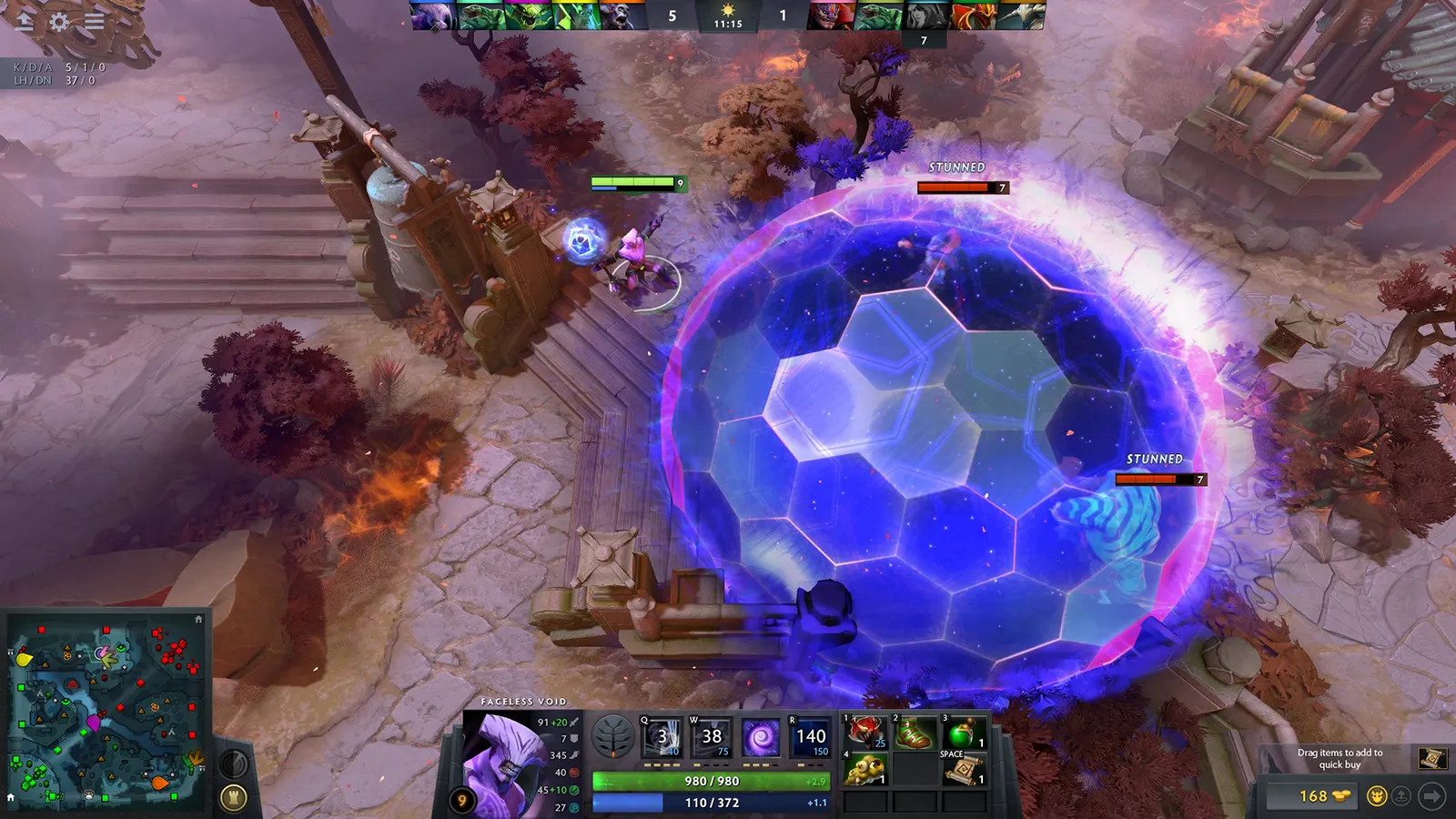
Spell effects are the biggest cost in a teamfight, and Low keeps the fight readable.

Low

Ambient Occlusion

One of the costliest toggles (roughly 5-15% by guide estimates) with no gameplay benefit.

Off

Shadow Quality

Shadows make heroes easier to pick out; most competitive guides land on Low or Medium.

Low

Anti-Aliasing

Jagged edges are hard to see in the stylised art; the free frames matter more.

Off

Values shown are what we pick for max FPS (visibility kept where it matters). Section names follow the in-game menu.

Upscaling and latency in Dota 2

  • Upscaling: AMD FSR. Use the Quality mode first; at 1080p avoid Balanced and Performance, they get blurry.
  • Frame generation: not available in this game.
  • Latency: no Reflex or Anti-Lag 2 in this game. Cap your FPS a few frames below your refresh rate instead.

Upscaling explained

How do I fix stuttering in Dota 2?

Dota 2: Test DX11 against Vulkan

  1. In Steam: right-click Dota 2 > Properties > General > Launch Options.
  2. In Dota 2, add -dx11, play a match and watch the FPS counter; then try -vulkan instead.
  3. In Dota 2, keep whichever gives the higher and steadier FPS on your PC.

Dota 2: Use FSR only when the GPU is the limit

  1. In Dota 2, open Video > Advanced options and lower "Game Screen Render Quality" below 100%.
  2. In Dota 2, the "FidelityFX Super Resolution" checkbox appears; turn it on.
  3. In Dota 2, setting Render Quality back to 100% turns FSR off again. At 1080p, lowering other settings first usually looks better.

Dota 2: Dota is CPU-limited

  1. In Dota 2, close browsers and overlays while playing; a single busy core is what caps frame rate.
  2. In Dota 2, enable XMP/EXPO for your RAM in the BIOS.
  3. In Dota 2, lowering graphics will not add much once the CPU is the bottleneck.

Checklist for every PC

  • Install the game on an SSD: a hard drive causes texture pop-in and hitches. Dota 2 wants 8 GB of RAM; close browsers and launchers while playing.
  • Lower Textures one step if your graphics card has 8 GB of VRAM or less and you see sudden drops.
  • Let shaders finish compiling on first launch and after driver updates; the first match can stutter.
  • Enable XMP/EXPO so your RAM runs at its rated speed, and update your graphics driver.
  • Check that Windows runs your monitor at its full refresh rate: how to check.
  • Turn on Game Mode and Hardware-accelerated GPU scheduling: Windows gaming settings.

Dota 2 settings for a low-end PC

SettingLow-end value
Display ModeFull Screen
ResolutionYour monitor's native resolution; scale with the upscaler instead
Rendering APIDirectX 11
Texture QualityLow
Effects QualityLow
Shadow QualityOff
Anti-AliasingOff
Ambient OcclusionOff
High Quality WaterOff
Animate PortraitOff
Atmospheric Fog / CausticsOff
VSyncOff; use G-Sync or FreeSync with an FPS cap instead
Maximum frames per second allowed3 below your refresh rate (141 on 144 Hz); uncapped for max FPS
FidelityFX Super ResolutionNative; FSR Quality on AMD and older GeForce

Launch options

  • -dx11 Forces the DirectX 11 renderer.
  • -vulkan Forces the Vulkan renderer.
  • -high Runs Dota 2 with high CPU priority.
  • +fps_max 0 Removes the in-game 240 FPS ceiling (0 = unlimited).
  • -map dota Loads the map at launch to shorten load times.