Skip to content
Set up my rig
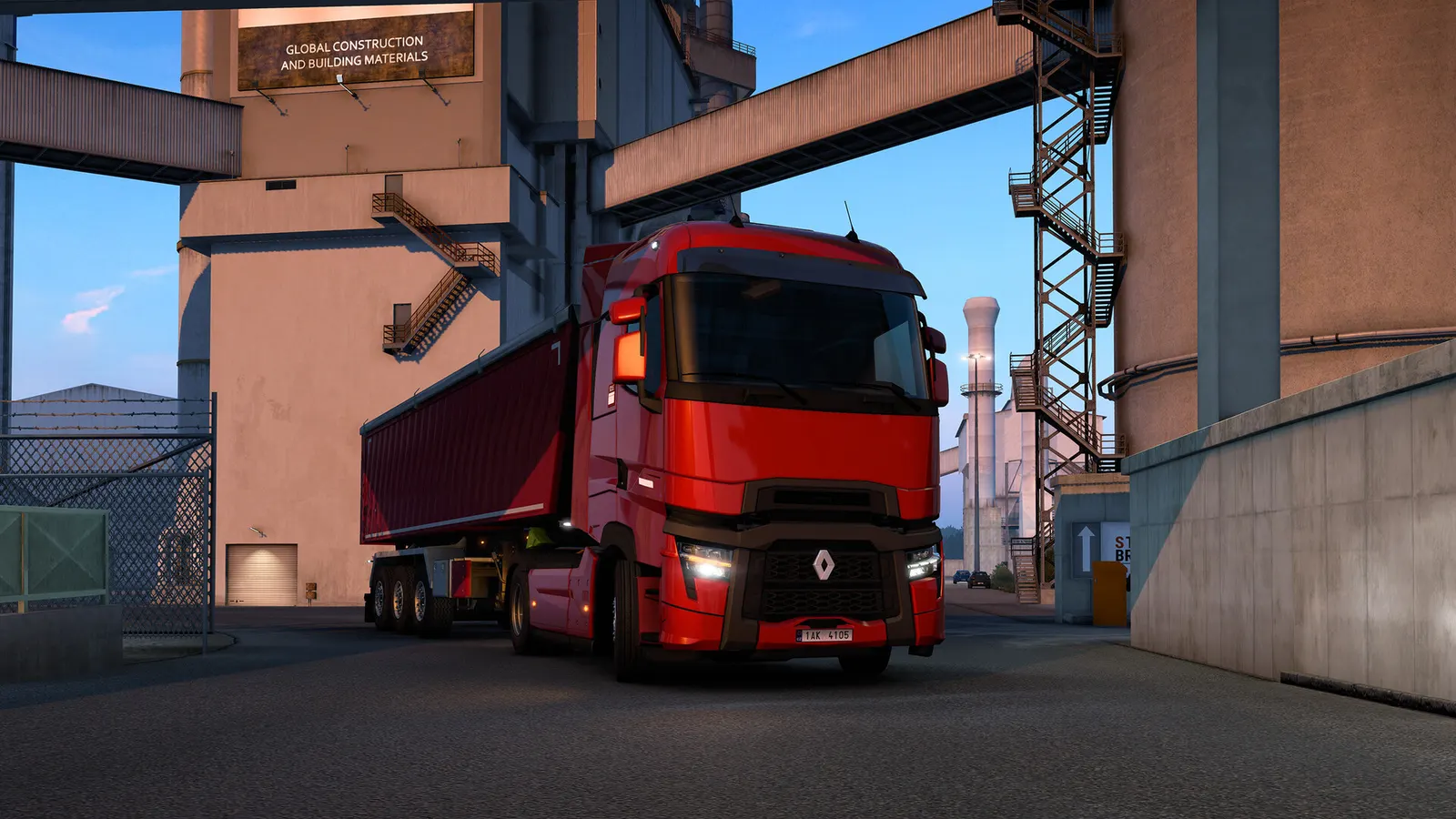
Euro Truck Simulator 2, official artwork

Euro Truck Simulator 2 FPS boost and stutter fix

The biggest frame costs in Euro Truck Simulator 2 are Scaling, Shadow Quality, Anti-Aliasing. Start there, then work through the stutter checklist.

Updated . Game data researched November 2026.

  • PEGI 3
Genre
Truck simulation
Developer
SCS Software
Released
2012
Platforms
PC, Mac, Linux

Which Euro Truck Simulator 2 settings cost the most FPS?

Scaling

The internal render scale. A community guide lists 50-75% for weak PCs and 125% or more for supersampling on strong ones; it is the most expensive option.

75%

Shadow Quality

Shadow detail is costly in cities; guides suggest Medium as a good balance.

Low

Anti-Aliasing

TAA (added in 1.50) looks smoother; SMAA is lighter but more jagged.

SMAA

SSAO

Ambient occlusion; a modest cost.

Off

Reflection Detail

Wet-road and glass reflections; trim it before Scaling on a weak GPU.

Low

Mirror Quality

Every mirror re-renders the scene. A guide calls mirror distance the most CPU-heavy option and says lowering it from Ultra to High can add up to 40% in cities.

Low

Vegetation Detail

Trees and bushes at distance.

Low

Grass Density

Rated a high-cost option in guides.

Low

Values shown are what we pick for max FPS. Section names follow the in-game menu.

Upscaling and latency in ETS2

  • Upscaling: not available in this game.
  • Frame generation: not available in this game.
  • Latency: no Reflex or Anti-Lag 2 in this game. Cap your FPS a few frames below your refresh rate instead.

Upscaling explained

How do I fix stuttering in Euro Truck Simulator 2?

FPS counter and console in ETS2

  1. SCS keeps its settings in config.cfg under Documents\Euro Truck Simulator 2. Set g_developer and g_console to 1, restart the game and open the console with the ~ key.
  2. In ETS2, SCS's config reference lists a g_fps value for an fps display; check that your game version supports it, since we could not confirm the exact syntax.

ETS2: Cities and traffic are CPU-bound

  1. In ETS2, large cities (for example Berlin, Rome or Paris), dense traffic and big map mods limit frame rate through the CPU.
  2. In ETS2, lower Mirror Quality and traffic density rather than resolution when the GPU sits below 100%.

ETS2: Use Scaling, not resolution

  1. In ETS2, lower the Scaling slider instead of changing the monitor resolution; the UI stays sharp.
  2. In ETS2, values above 100% supersample and are very expensive: keep them for powerful GPUs.

ETS2: No DLSS or FSR in the game

  1. In ETS2, as of the latest checked update (1.60) the game does not offer DLSS, FSR or XeSS; Scaling and anti-aliasing are the tools you have.

Checklist for every PC

  • Install the game on an SSD: a hard drive causes texture pop-in and hitches. Euro Truck Simulator 2 wants 12 GB of RAM; close browsers and launchers while playing.
  • Lower Textures one step if your graphics card has 8 GB of VRAM or less and you see sudden drops.
  • Let shaders finish compiling on first launch and after driver updates; the first match can stutter.
  • Enable XMP/EXPO so your RAM runs at its rated speed, and update your graphics driver.
  • Check that Windows runs your monitor at its full refresh rate: how to check.
  • Turn on Game Mode and Hardware-accelerated GPU scheduling: Windows gaming settings.

Euro Truck Simulator 2 settings for a low-end PC

SettingLow-end value
FullscreenOn
ResolutionYour monitor's native resolution; scale with the upscaler instead
Scaling75%
Anti-AliasingSMAA
Shadow QualityLow
SSAOOff
Reflection DetailLow
Mirror QualityLow
Vegetation DetailLow
Grass DensityLow
Texture QualityLow
Anisotropic Filtering4x
V-SyncOff; use G-Sync or FreeSync with an FPS cap instead