Skip to content
Set up my rig
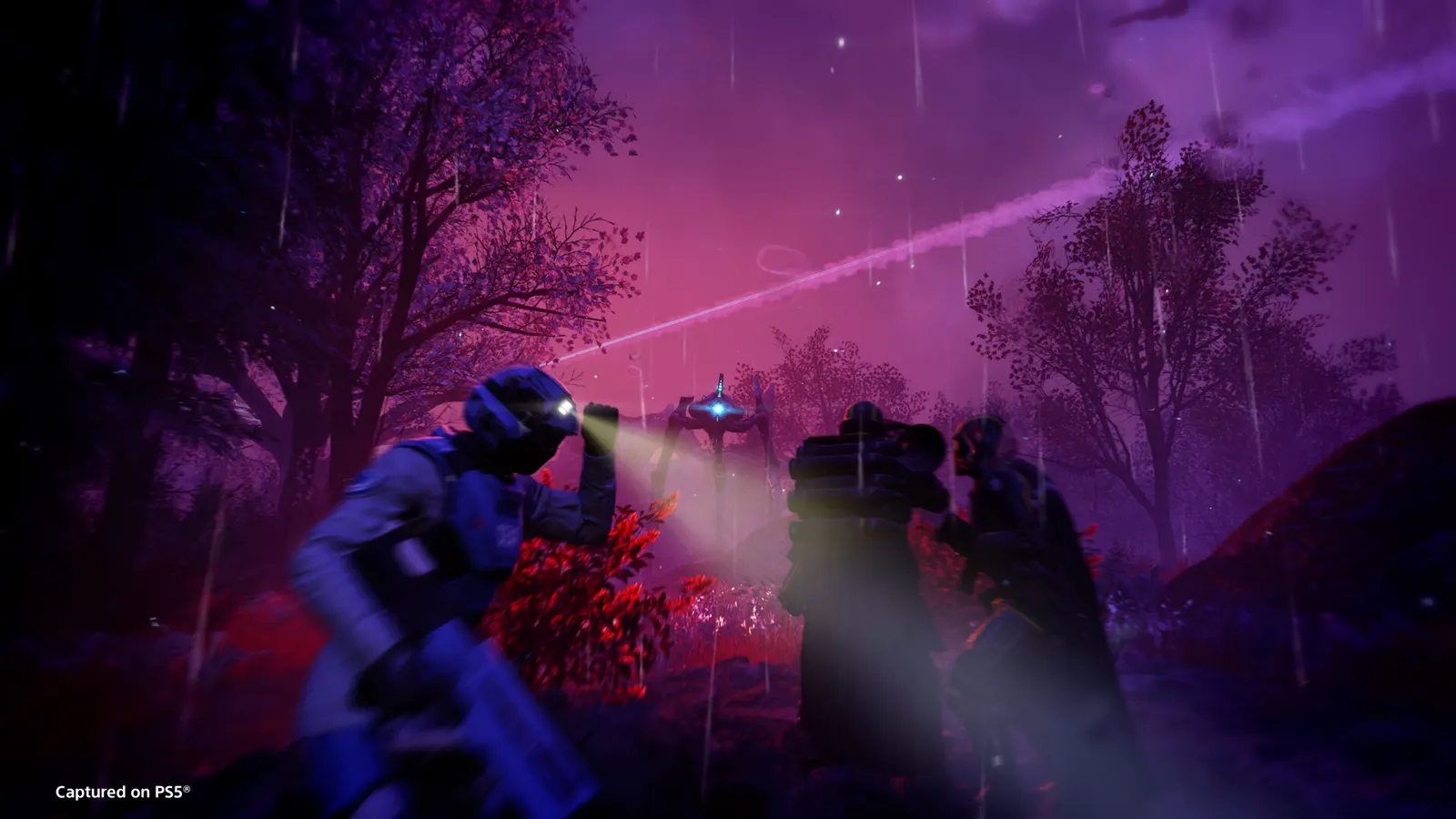
HELLDIVERS 2, official artwork

HELLDIVERS 2 FPS boost and stutter fix

The biggest frame costs in HELLDIVERS 2 are Shadow Quality, Volumetric Fog Quality, Lighting Quality. Start there, then work through the stutter checklist.

Updated . Game data researched November 2026.

  • PEGI 18
Genre
Co-op third-person shooter
Developer
Arrowhead Game Studios
Released
2024
Platforms
PC, Xbox, PlayStation

Which HELLDIVERS 2 settings cost the most FPS?

Shadow Quality

Costs 6-8% in testing; Medium or higher keeps enemies readable.

Low

Volumetric Fog Quality

One of the costliest options, up to about 6%.

Lowest

Lighting Quality

Up to about 8% between steps.

Low

Object Detail Quality

Testing found about 3% from Medium and about 7% from Low.

Low

Render Distance

CPU-heavy: lower it first if you are CPU-limited.

Low

Particle Quality

Explosions and smoke; Low gave about 7% in testing.

Low

Reflection Quality

High is around 9% slower than the lowest step. Avoid "Lowest" on Radeon RX 6000/7000: it can show artifacts.

Low

Vegetation and Rubble Density

Costs 4-5%.

Low

Terrain Quality

Costs 4-5% between steps.

Low

Volumetric Clouds Quality

About 5% between High and Lowest.

Lowest

Values shown are what we pick for max FPS. Section names follow the in-game menu.

Upscaling and latency in Helldivers 2

  • Upscaling: NVIDIA DLSS, AMD FSR, Intel XeSS. Use the Quality mode first; at 1080p avoid Balanced and Performance, they get blurry.
  • Frame generation: not available in this game.
  • Latency: NVIDIA Reflex, AMD Anti-Lag 2. Turn it on; it lowers input lag with no image cost.

Upscaling explained

How do I fix stuttering in HELLDIVERS 2?

Helldivers 2: Set the upscaler strength with Render Scale

  1. In Helldivers 2, pick DLSS, FSR or XeSS under Anti-Aliasing, then set Render Scale: Ultra Quality is the sharpest, Performance the fastest.
  2. In Helldivers 2, setting Render Scale away from Native with plain TAA switches the game to its basic FSR 1 spatial upscaler.
  3. In Helldivers 2, keep Dynamic Resolution Scaling off so the render scale does not change on its own.

Helldivers 2: Config file and resetting settings

  1. In Helldivers 2, press Win+R, type %APPDATA%/Arrowhead/Helldivers2 and open user_settings.config in a text editor.
  2. In Helldivers 2, back it up before editing. Deleting it resets every setting except input.
  3. In Helldivers 2, signs of a corrupted file are startup crashes, black screens or visual artifacts.

Helldivers 2: Frame generation tools can crash the game

  1. In Helldivers 2, since version 1.007.200 the game uses Easy Anti-Cheat, and third-party frame-generation software may cause crashes.
  2. In Helldivers 2, forcing DirectX 11 is unsupported and can cause black screens or crashes, especially on AMD and Intel GPUs.

Checklist for every PC

  • Install the game on an SSD: a hard drive causes texture pop-in and hitches. HELLDIVERS 2 wants 16 GB of RAM; close browsers and launchers while playing.
  • Lower Textures one step if your graphics card has 8 GB of VRAM or less and you see sudden drops.
  • Let shaders finish compiling on first launch and after driver updates; the first match can stutter.
  • Enable XMP/EXPO so your RAM runs at its rated speed, and update your graphics driver.
  • Check that Windows runs your monitor at its full refresh rate: how to check.
  • Turn on Game Mode and Hardware-accelerated GPU scheduling: Windows gaming settings.

HELLDIVERS 2 settings for a low-end PC

SettingLow-end value
Display ModeFullscreen
ResolutionYour monitor's native resolution; scale with the upscaler instead
Anti-AliasingNative; DLSS Quality on RTX, FSR Quality on AMD and older GeForce, XeSS on Intel Arc
Dynamic Resolution ScalingOff
Variable Rate ShadingBalanced
Low Latency TechnologiesOn with NVIDIA Reflex on GeForce; On with AMD Anti-Lag 2 on Radeon
Framerate Limit3 below your refresh rate (141 on 144 Hz); uncapped for max FPS
V-SyncOff; use G-Sync or FreeSync with an FPS cap instead
Motion BlurOff
Depth of FieldOff
Texture QualityLow
Object Detail QualityLow
Render DistanceLow
Shadow QualityLow
Particle QualityLow
Reflection QualityLow
Space QualityLow
Ambient OcclusionOn
Vegetation and Rubble DensityLow
Terrain QualityLow
Volumetric Fog QualityLowest
Volumetric Clouds QualityLowest
Lighting QualityLow
Use Async ComputeOff