Skip to content
Set up my rig
Marathon, official artwork

Marathon FPS boost and stutter fix

The biggest frame costs in Marathon are Shadow Quality, Screen Space Ambient Occlusion, Environment Detail Distance. Start there, then work through the stutter checklist.

Updated . Game data researched November 2026.

  • PEGI 16
  • Competitive
Genre
Extraction shooter
Developer
Bungie
Released
2026
Platforms
PC, Xbox, PlayStation

Which Marathon settings cost the most FPS?

Shadow Quality

Shadow resolution and range are among the heaviest GPU costs; Medium keeps enemy shadows readable.

Low

Screen Space Ambient Occlusion

Adds contact shadows in corners and under objects; a moderate GPU cost that you hardly notice in a firefight.

Low

Environment Detail Distance

How far away full-detail props and geometry are drawn. It costs CPU and GPU time in large outdoor areas.

Low

Character Detail Distance

How far away players and enemies keep full detail. Keep it high, because distant targets are what matters in a fight.

Medium

Foliage Detail Distance

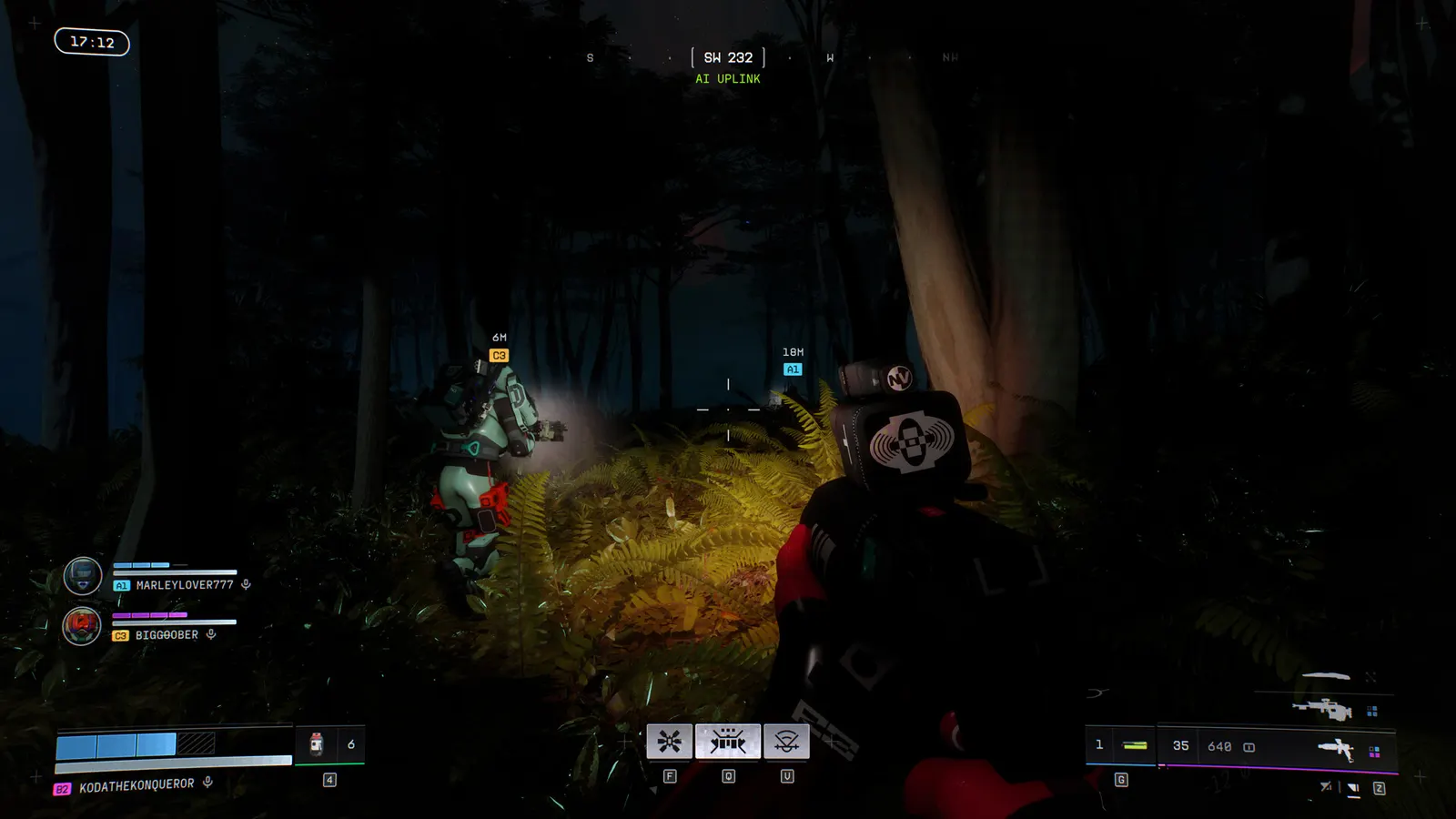
Draw distance of grass and plants. Lower values also make it easier to see players standing in vegetation.

Low

Light Shafts

Volumetric light beams. Pretty, but they add haze that can hide enemies and cost GPU time.

Low

Values shown are what we pick for max FPS (visibility kept where it matters). Section names follow the in-game menu.

Upscaling and latency in Marathon

  • Upscaling: NVIDIA DLSS, DLAA, AMD FSR, Intel XeSS. Use the Quality mode first; at 1080p avoid Balanced and Performance, they get blurry.
  • Frame generation: NVIDIA DLSS frame generation, AMD FSR frame generation. Only turn it on when you already have 50+ fps, and keep it off in competitive matches: it adds input lag.
  • Latency: NVIDIA Reflex. Turn it on; it lowers input lag with no image cost.

Upscaling explained

How do I fix stuttering in Marathon?

Marathon: Set the frame-rate cap properly

  1. In Marathon, open Settings > Video, switch "Frame Rate Cap Enabled" to On, then move "Frame Rate Cap" (it goes up to 240).
  2. In Marathon, with G-Sync or FreeSync, cap about 3 below your refresh rate and keep VSync off.

Marathon: Use upscaling before dropping presets

  1. In Marathon, in Advanced Video pick DLSS (NVIDIA), FSR (AMD) or XeSS (Intel) in the Anti-Aliasing dropdown, then set Resolution Scaling to Quality.
  2. In Marathon, go to Balanced or Performance only if you are still under your target; the picture gets softer each step.
  3. In Marathon, DLSS was updated to version 4.5 in Season 2 according to PCGamingWiki.

Marathon: Intel Arc and CPU notes

  1. In Marathon, Intel Arc cards need Resizable BAR switched on in the BIOS; the requirements list this for the A580 and A770.
  2. In Marathon, A four-core CPU or 8 GB of RAM can cause stutter in raids even when the GPU is idle; close background apps and use the high-performance power mode.

Checklist for every PC

  • Install the game on an SSD: a hard drive causes texture pop-in and hitches. Marathon wants 16 GB of RAM; close browsers and launchers while playing.
  • Lower Textures one step if your graphics card has 8 GB of VRAM or less and you see sudden drops.
  • Let shaders finish compiling on first launch and after driver updates; the first match can stutter.
  • Enable XMP/EXPO so your RAM runs at its rated speed, and update your graphics driver.
  • Check that Windows runs your monitor at its full refresh rate: how to check.
  • Turn on Game Mode and Hardware-accelerated GPU scheduling: Windows gaming settings.

Marathon settings for a low-end PC

SettingLow-end value
Window ModeFull Screen
ResolutionYour monitor's native resolution; scale with the upscaler instead
VSyncOff; use G-Sync or FreeSync with an FPS cap instead
Frame Rate Cap3 below your refresh rate (141 on 144 Hz); uncapped for max FPS
Field of View100-105
Anti-Aliasing + Resolution ScalingNative; DLSS Quality on RTX, FSR Quality on AMD and older GeForce, XeSS on Intel Arc
Frame GenerationOff below 50 fps; above it DLSS frame generation on RTX 40 and 50 or FSR frame generation elsewhere; never in competitive play
Screen Space Ambient OcclusionLow
Anisotropic Filtering4×
Texture QualityLow
Shadow QualityLow
Environment Detail DistanceLow
Character Detail DistanceMedium
Foliage Detail DistanceLow
Light ShaftsLow
Motion BlurOff
Chromatic AberrationOff
NVIDIA ReflexOn with NVIDIA Reflex on GeForce