OW: Check that Frame Rate and Render Scale stay on Custom
- In OW, after changing Graphics Quality, re-open Video and check that Frame Rate and Render Scale are still on Custom.
- In OW, they can reset when the preset changes.
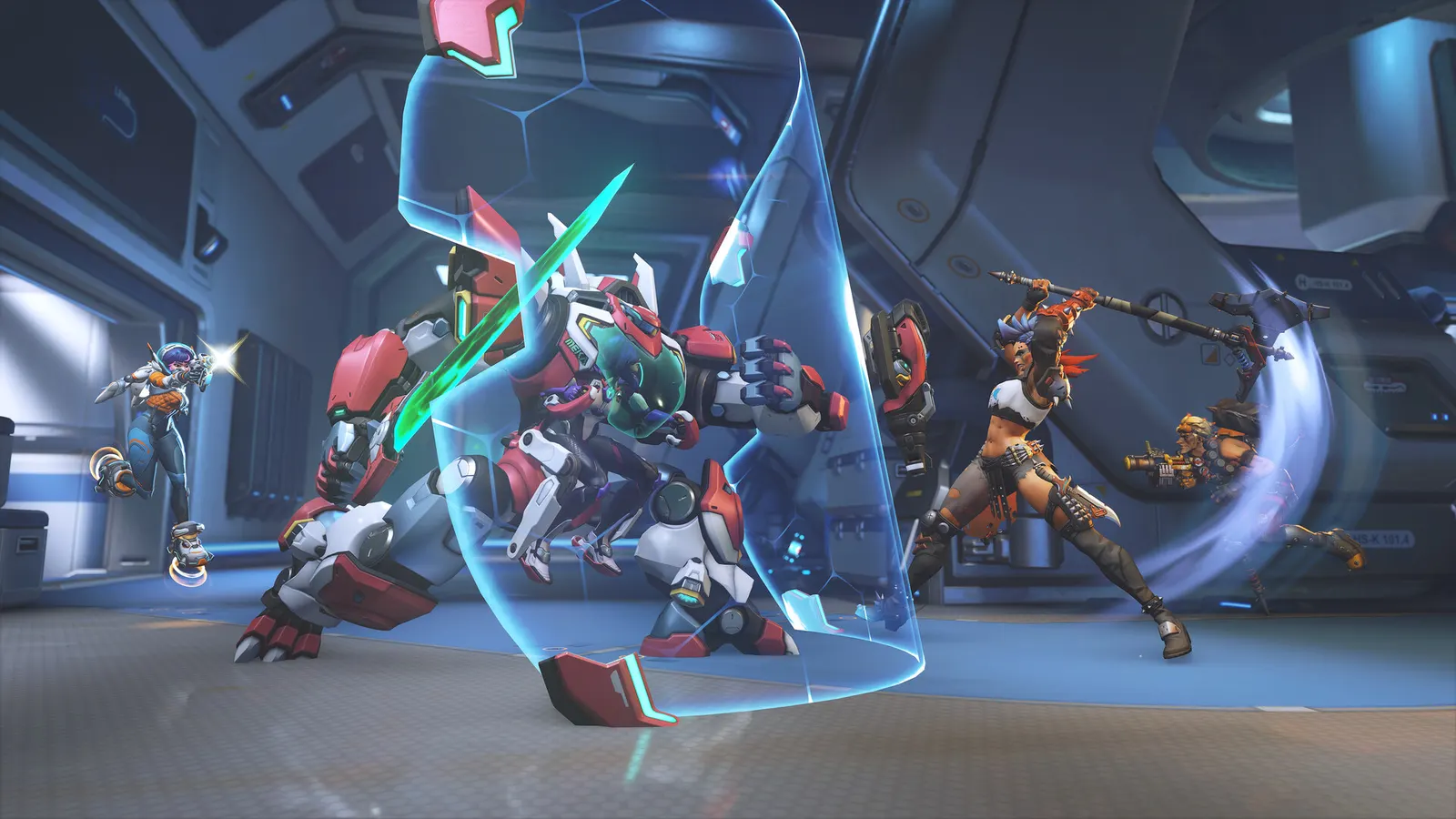
The biggest frame costs in Overwatch are Local Fog Detail, Dynamic Reflections, Shadow Detail. Start there, then work through the stutter checklist.
Updated . Game data researched November 2026.
Local Fog Detail
Less fog and haze means better visibility.
Dynamic Reflections
A visual-only cost with no competitive value.
Shadow Detail
Keep it above Off: shadows show enemies around corners.
Effects Detail
Fewer particles in team fights.
Lighting Quality
Cheaper lighting gains frames.
Values shown are what we pick for max FPS (visibility kept where it matters). Section names follow the in-game menu.
In OW, the option list may differ per patch; check the Video tab.
| Setting | Low-end value |
|---|---|
| Graphics API | DirectX 11 |
| Display Mode | Fullscreen |
| Resolution | Your monitor's native resolution; scale with the upscaler instead |
| Field of View | 103 |
| Dynamic Render Scale | Off |
| Render Scale | Custom (100%) |
| High Quality Upsampling | Native; DLSS Quality on RTX, FSR Quality on AMD and older GeForce |
| Frame Rate | 3 below your refresh rate (141 on 144 Hz); uncapped for max FPS |
| V-Sync | Off; use G-Sync or FreeSync with an FPS cap instead |
| Triple Buffering | Off |
| Reduce Buffering | On |
| NVIDIA Reflex | On with NVIDIA Reflex on GeForce |
| Texture Quality | Low |
| Antialias Quality | Low - FXAA |
| Texture Filtering Quality | 4x |
| Local Fog Detail | Low |
| Dynamic Reflections | Off |
| Shadow Detail | Low |
| Model Detail | Low |
| Effects Detail | Low |
| Lighting Quality | Low |
| Refraction Quality | Low |
| Ambient Occlusion | Off |
| Local Reflections | Off |