Skip to content
Set up my rig
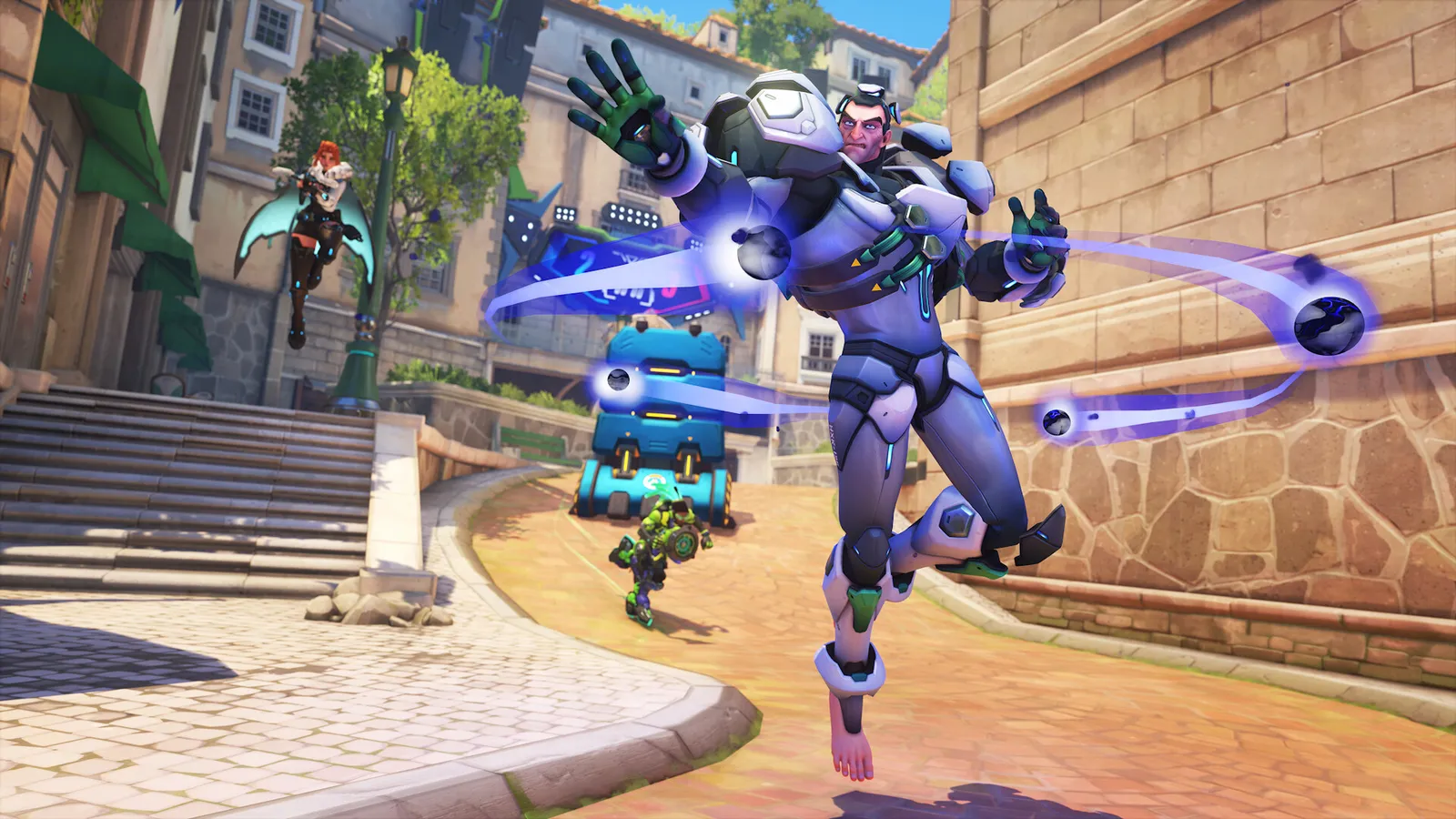
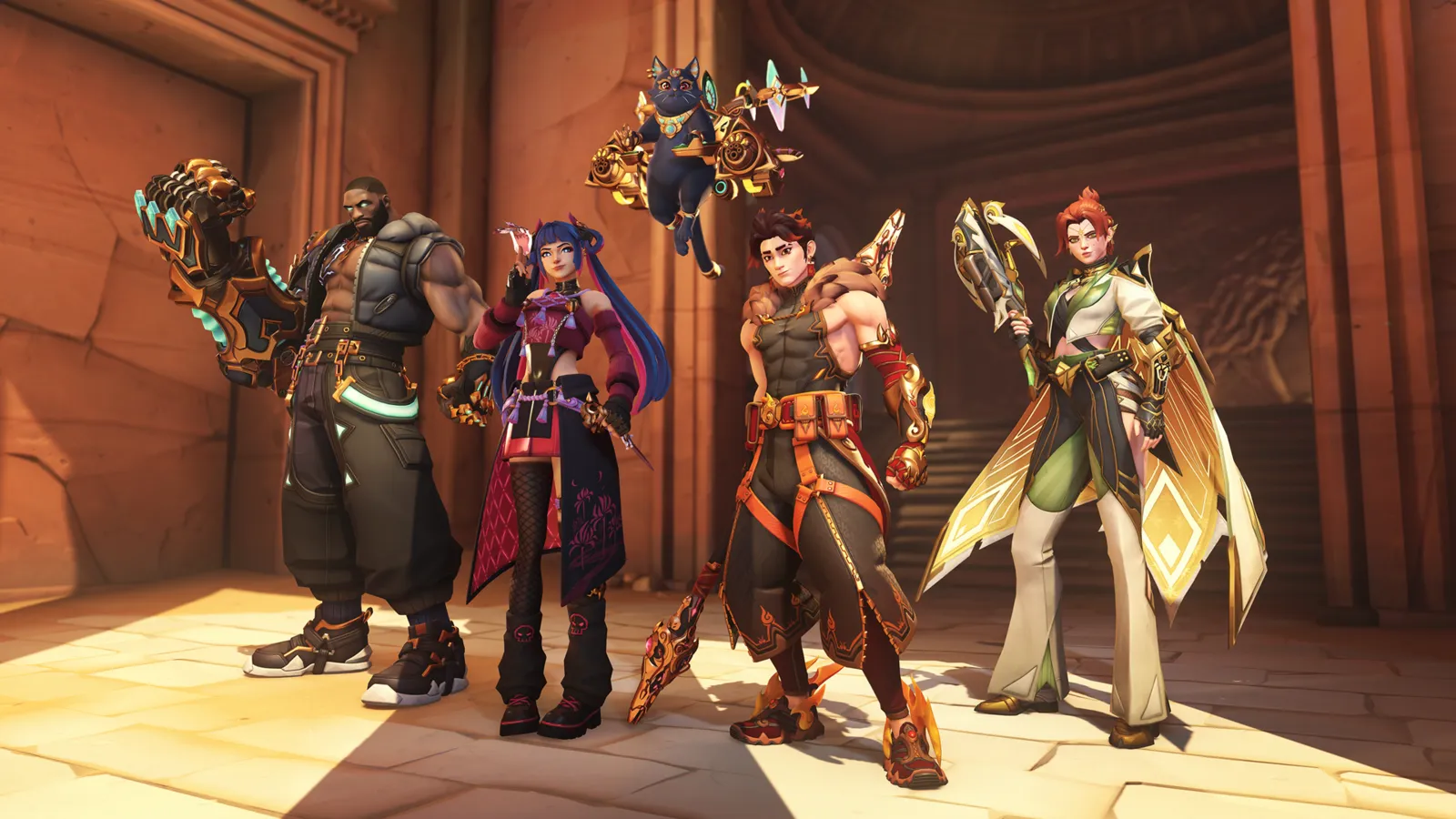
Overwatch, official artwork

Best Overwatch settings

Blizzard's free-to-play 5v5 hero shooter (released as Overwatch 2, renamed Overwatch in February 2026). It is light on the GPU and scales with your CPU, and a handful of visibility settings (Dynamic Reflections, Local Fog, shadows) matter more than the preset.

Best Overwatch settings at 1080p for an RTX 4060 + Ryzen 5 7600: Ultra. Modelled: that PC gets about 170 fps, an RTX 3060 + Ryzen 5 5600 140 fps (Ultra), a GTX 1650 + Core i5-10400 140 fps (High). Calibrated against 8 measured benchmarks. How we estimate this

Updated . Game data researched November 2026.

  • PEGI 12
  • Free to play
  • Competitive
Genre
Hero shooter
Developer
Blizzard Entertainment
Released
2022 (free to play)
Platforms
PC, Xbox, PlayStation, Nintendo
Engine
Proprietary (Blizzard)
Researched
Nov 2026

What are the best Overwatch graphics settings?

The setting for every preset, from Low to Ultra. Save your hardware to get one tuned list.

Tell us your hardware once and every game page shows settings for it. Set up my rig

Set up your rig to see which column fits your PC, with an estimate of your frames. The competitive column is what we recommend for max FPS.

Overwatch graphics settings per preset
SettingLowMediumHighUltra Competitive
Graphics API DirectX 11DirectX 11DirectX 11DirectX 11 DirectX 11
Display Mode FullscreenFullscreenFullscreenFullscreen Fullscreen
Resolution Your monitor's native resolution; scale with the upscaler instead
Field of View 103103103103 103
Dynamic Render Scale OffOffOffOff Off
Render Scale Custom (100%)Custom (100%)Custom (100%)Custom (100%) Custom (100%)
High Quality Upsampling Native; DLSS Quality on RTX, FSR Quality on AMD and older GeForce
Frame Rate 3 below your refresh rate (141 on 144 Hz); uncapped for max FPS
V-Sync Off; use G-Sync or FreeSync with an FPS cap instead
Triple Buffering OffOffOffOff Off
Reduce Buffering OnOnOnOn On
NVIDIA Reflex On with NVIDIA Reflex on GeForce
Texture Quality LowMediumHighUltra Low
Antialias Quality Low - FXAAMedium - SMAA LowHigh - SMAA MediumHigh - SMAA Medium Medium - SMAA Low
Texture Filtering Quality 4x8x8x16x 16x
Local Fog Detail LowLowMediumHigh Low
Dynamic Reflections OffLowMediumHigh Off
Shadow Detail LowLowMediumHigh Low
Model Detail LowMediumHighUltra Low
Effects Detail LowLowMediumHigh Low
Lighting Quality LowLowMediumHigh Low
Refraction Quality LowLowMediumHigh Low
Ambient Occlusion OffOffOffOff Off
Local Reflections OffOffOffOff Off

How much FPS will I get in Overwatch?

Modelled frame rates on the High preset at native resolution, without upscaling or frame generation. Your own rig can differ: check your exact PC.

Estimated Overwatch FPS by graphics card, High preset, with a Ryzen 7 7800X3D and 16 GB RAM
Graphics card 1080p1440p4K
RTX 4090 600 fps420 fps220 fps
RTX 4070 365 fps230 fps120 fps
RTX 4060 220 fps140 fps75 fps
RTX 3060 12GB 180 fps115 fps60 fps
GTX 1650 80 fps50 fps25 fps
RX 7800 XT 380 fps240 fps125 fps
RX 7600 220 fps140 fps75 fps
RX 6600 175 fps110 fps55 fps

These are estimates from our model, not measurements; real results vary with the scene, drivers and background load. Orange numbers are below 60 fps. How we estimate this

What are the best OW tips for more FPS?

How do I show FPS in OW?

  1. In OW, open Options > Video and scroll to the Details section.
  2. Switch on "Display Performance Stats" and "Show Framerate".

Menu location per community guides; the Details section also shows other stats such as GPU and network.
OW: Check that Frame Rate and Render Scale stay on Custom

  1. In OW, after changing Graphics Quality, re-open Video and check that Frame Rate and Render Scale are still on Custom.
  2. In OW, they can reset when the preset changes.

OW: Graphics API and Super Resolution

  1. In OW, competitive guides recommend the DirectX 11 graphics API and leaving High Quality Upsampling off (use DLSS only when you must).

In OW, the option list may differ per patch; check the Video tab.

OW: Reflex vs Boost

  1. In OW, set NVIDIA Reflex to Enabled.
  2. In OW, only use Enabled + Boost if you have stutter problems and thermal headroom: it keeps the GPU at its maximum clock.

Meta loadouts

All loadouts

News from Steam

All news

Black Friday Savings Are Here

Black Friday Bundle Savings Black Friday has arrived with a simple way to level up your Overwatch collection. Save 20% on four select bundles, from the sweet charm of Candy Kingdom Brigitte to Classic Divinity’s goddess-inspired looks and…

Read on Steam (opens in a new tab): Black Friday Savings Are Here

Taking Reign

Taking Reign The year-long Reign of Talon story reaches its final chapter in a brand-new event, Taking Reign! Complete games and challenges over five weeks to climb 24 tiers of rewards, including a new Sigma Epic Skin on the Free Pass…

Read on Steam (opens in a new tab): Taking Reign

Excavation Initiative

Excavation Initiative The Excavation Initiative is back with Loot Boxes to earn around every corner. Complete three digs each week to earn a Loot Box, then keep digging for bonus Loot Boxes, Epic Loot Boxes, and even a Legendary Loot Box…

Read on Steam (opens in a new tab): Excavation Initiative

Guides