THE FINALS: It is CPU-heavy
- In THE FINALS, lowering graphics barely adds FPS once the CPU is the limit; a faster CPU and RAM at rated speed help most.
- In THE FINALS, close background apps and overlays you do not need.
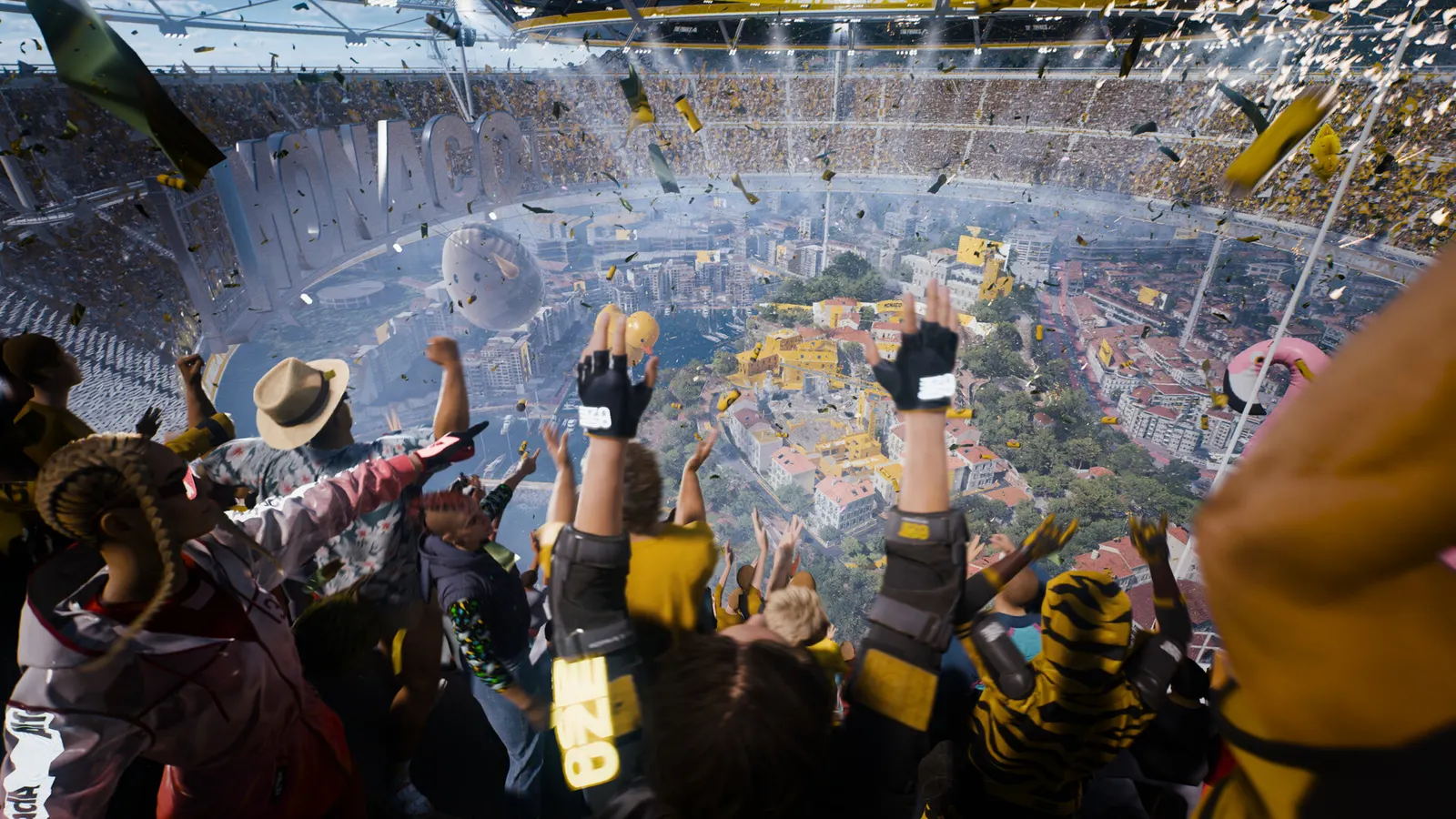
The biggest frame costs in THE FINALS are NVIDIA RTX Global Illumination, Shadows, View Distance. Start there, then work through the stutter checklist.
Updated . Game data researched November 2026.
NVIDIA RTX Global Illumination
RTX GPUs only. Ray-traced lighting is the most expensive visual option; Static is the cheapest.
Shadows
Among the most expensive options; Low is enough to see enemies.
View Distance
High keeps distant enemies visible without the Epic cost.
Post-Processing
Fewer screen effects mean a cleaner image.
Effects
Explosions and destruction effects; lower keeps fights readable.
Global Illumination Resolution
Resolution of the lighting solution; Low is the fastest.
Values shown are what we pick for max FPS (visibility kept where it matters). Section names follow the in-game menu.
In THE FINALS, Community-documented path; not an official Embark guide.
| Setting | Low-end value |
|---|---|
| Window Mode | Fullscreen |
| Resolution | Your monitor's native resolution; scale with the upscaler instead |
| Graphics API | DirectX 12 |
| VSync | Off; use G-Sync or FreeSync with an FPS cap instead |
| NVIDIA Reflex Low Latency | On with NVIDIA Reflex on GeForce; On with AMD Anti-Lag 2 on Radeon |
| Resolution Scaling Method | Native; DLSS Quality on RTX, FSR Quality on AMD and older GeForce |
| Frame Generation | Off below 50 fps; above it DLSS frame generation on RTX 40 and 50 or FSR frame generation elsewhere; never in competitive play |
| Motion Blur | Off |
| Lens Distortion | Off |
| NVIDIA RTX Global Illumination | Static |
| Overall Quality Level | Custom |
| View Distance | Low |
| Anti-Aliasing | Low |
| Shadows | Low |
| Post-Processing | Low |
| Texture | Low |
| Effects | Low |
| Foliage | Low |
| Global Illumination Resolution | Low |