Skip to content
Set up my rig
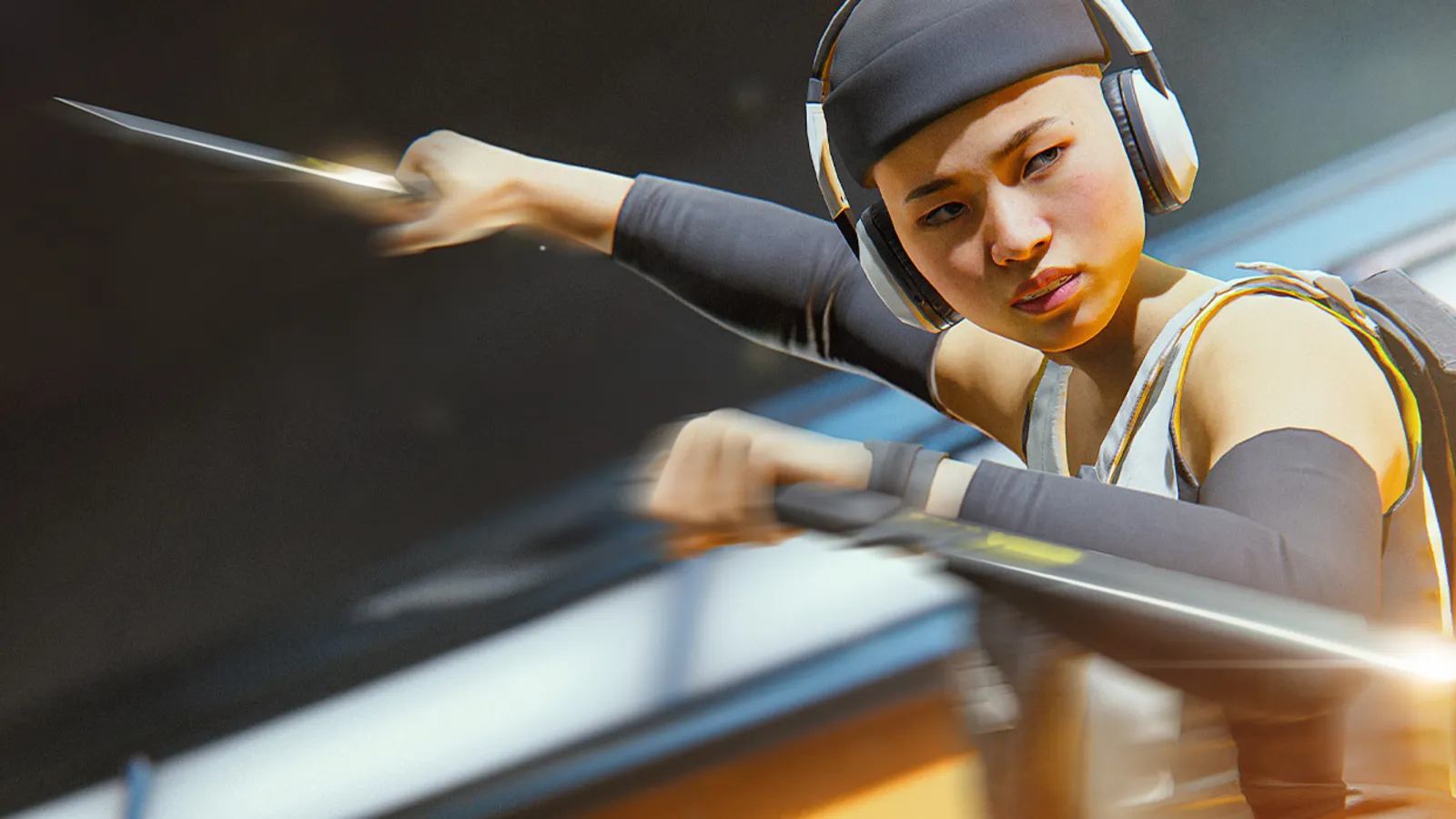
THE FINALS, official artwork

Best THE FINALS settings

Embark's free-to-play 3v3v3v3 shooter with fully destructible maps. Heavy on the CPU, and RTX global illumination is the one setting that costs a lot, so most competitive players keep GI static or low and play at native resolution.

Best THE FINALS settings at 1080p for an RTX 4060 + Ryzen 5 7600: Ultra, lowering NVIDIA RTX Global Illumination and Shadows first. Modelled: that PC gets about 130 fps, an RTX 3060 + Ryzen 5 5600 175 fps (Ultra), a GTX 1650 + Core i5-10400 130 fps (Ultra). Calibrated against 19 measured benchmarks. How we estimate this

Updated . Game data researched November 2026.

  • Free to play
  • Competitive
Genre
Team-based arena shooter
Developer
Embark Studios
Released
2023 (free to play)
Platforms
PC, Xbox, PlayStation
Engine
Unreal Engine 5
Researched
Nov 2026

What are the best THE FINALS graphics settings?

The setting for every preset, from Low to Ultra. Save your hardware to get one tuned list.

Tell us your hardware once and every game page shows settings for it. Set up my rig

Set up your rig to see which column fits your PC, with an estimate of your frames. The competitive column is what we recommend for max FPS.

THE FINALS graphics settings per preset
SettingLowMediumHighUltra Competitive
Window Mode FullscreenFullscreenFullscreenFullscreen Fullscreen
Resolution Your monitor's native resolution; scale with the upscaler instead
Graphics API DirectX 12DirectX 12DirectX 12DirectX 12 DirectX 12
VSync Off; use G-Sync or FreeSync with an FPS cap instead
NVIDIA Reflex Low Latency On with NVIDIA Reflex on GeForce; On with AMD Anti-Lag 2 on Radeon
Resolution Scaling Method Native; DLSS Quality on RTX, FSR Quality on AMD and older GeForce
Frame Generation Off below 50 fps; above it DLSS frame generation on RTX 40 and 50 or FSR frame generation elsewhere; never in competitive play
Motion Blur OffOffOffOff Off
Lens Distortion OffOffOffOff Off
NVIDIA RTX Global Illumination StaticStaticDynamic - LowDynamic - Medium Static
Overall Quality Level CustomCustomCustomCustom Custom
View Distance LowMediumHighEpic High
Anti-Aliasing LowLowHighHigh Low
Shadows LowMediumHighEpic Low
Post-Processing LowMediumHighEpic Low
Texture LowMediumHighEpic Low
Effects LowMediumHighEpic Low
Foliage LowLowHighHigh Low
Global Illumination Resolution LowLowMediumHigh Low

How much FPS will I get in THE FINALS?

Modelled frame rates on the High preset at native resolution, without upscaling or frame generation. Your own rig can differ: check your exact PC.

Estimated THE FINALS FPS by graphics card, High preset, with a Ryzen 7 7800X3D and 16 GB RAM
Graphics card 1080p1440p4K
RTX 4090 285 fps285 fps180 fps
RTX 4070 285 fps190 fps100 fps
RTX 4060 180 fps115 fps60 fps
RTX 3060 12GB 145 fps95 fps50 fps
GTX 1650 65 fps40 fps20 fps
RX 7800 XT 285 fps195 fps105 fps
RX 7600 180 fps115 fps60 fps
RX 6600 140 fps90 fps45 fps

These are estimates from our model, not measurements; real results vary with the scene, drivers and background load. Orange numbers are below 60 fps. How we estimate this

What are the best THE FINALS tips for more FPS?

How do I show FPS in THE FINALS?

  1. In THE FINALS, open Steam > Settings > In Game and set "In-game FPS counter" to a corner.
  2. In THE FINALS, on NVIDIA or AMD, their app overlays also show FPS and frame time.
  3. In THE FINALS, judge it in a real match: the Practice Range gives higher numbers than a destructive 12-player round.


THE FINALS: It is CPU-heavy

  1. In THE FINALS, lowering graphics barely adds FPS once the CPU is the limit; a faster CPU and RAM at rated speed help most.
  2. In THE FINALS, close background apps and overlays you do not need.

THE FINALS: Config file

  1. In THE FINALS, press Win+R, type %LOCALAPPDATA%\Discovery\Saved\Config\WindowsClient and press Enter.
  2. In THE FINALS, GameUserSettings.ini holds your settings. Back it up before editing it.
  3. In THE FINALS, some players set the file to read-only after configuring so the game does not overwrite it.

In THE FINALS, Community-documented path; not an official Embark guide.

THE FINALS: Frame generation and upscaling in a competitive game

  1. In THE FINALS, guides recommend leaving frame generation off because it adds input latency.
  2. In THE FINALS, if your GPU is the limit at native resolution, DLSS Quality or FSR Quality is the least blurry option.

News from Steam

All news

Update 12.3.0

INTO THE SPOTLIGHTTGM26 is right around the corner and the teams are ready to take the action into the Arena. This week brings the much-awaited Esport Bundles, the new TGM26 Event Pass, the return of the Head Hunter LTM and much more…

Read on Steam (opens in a new tab): Update 12.3.0

Update 12.2.0

This week we’re bringing a refreshed Store, more info about TGM26 and some balance changes. You still have a few more days to redeem any tickets you may have left before the Frights Galore Event closes! We have more coming, so stay tuned…

Read on Steam (opens in a new tab): Update 12.2.0

Update 12.1.0

BOO! A mysterious fog has taken over the Arena, and with that, a bucket worth of tricks and cosmetics are now available! We’re also bringing some bug fixes to smoothen things out. Don’t forget, you have one more week to collect tickets…

Read on Steam (opens in a new tab): Update 12.1.0

Welcome to a New Era of THE FINALS

IT'S PRIME TIME. WELCOME. The spotlight is on, Contestants! PRIME TIME is taking the Game Show to a whole new level with remastered Arenas, the biggest destruction upgrade since launch, new Gadgets, new Mode, and so much more. Missed the…

Read on Steam (opens in a new tab): Welcome to a New Era of THE FINALS

Guides