Skip to content
Set up my rig
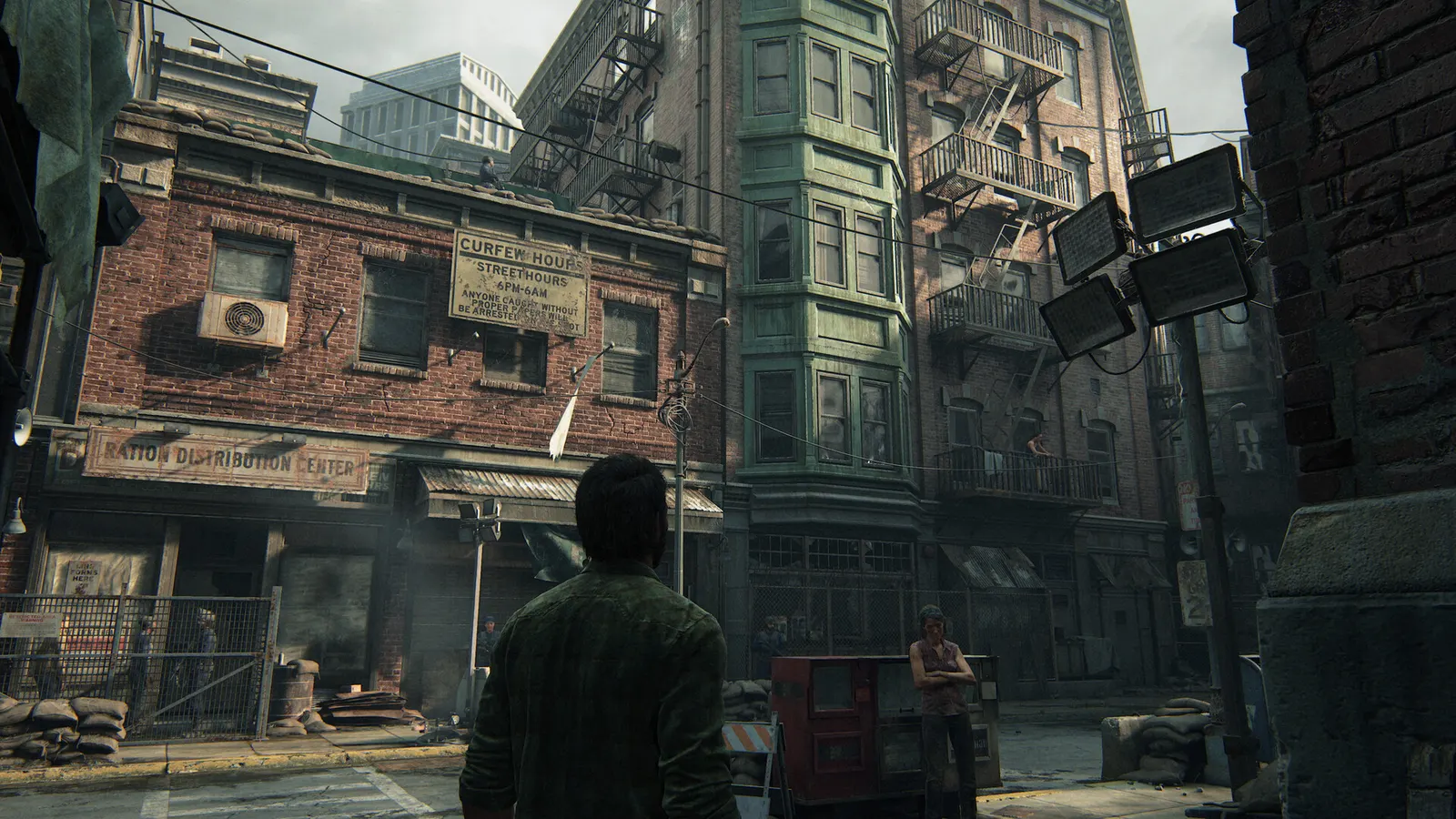
The Last of Us Part I, official artwork

The Last of Us Part I FPS boost and stutter fix

The biggest frame costs in The Last of Us Part I are Directional Shadow Resolution, Draw Distance, Dynamic Objects Level of Detail. Start there, then work through the stutter checklist.

Updated . Game data researched November 2026.

  • PEGI 18
Genre
Action-adventure
Developer
Naughty Dog / Iron Galaxy
Released
2023
Platforms
PC, PlayStation

Which The Last of Us Part I settings cost the most FPS?

Directional Shadow Resolution

Sun and moon shadow sharpness, one of the more expensive GPU options.

Low

Draw Distance

How far geometry stays detailed; costs both CPU and GPU in large outdoor areas.

Low

Dynamic Objects Level of Detail

Model detail of props and items.

Low

Character Level of Detail

Model detail of characters and enemies.

Low

Environments Level of Detail

Model detail of the world geometry.

Low

Dynamic Objects Texture Quality

VRAM-heavy: ComputerBase saw 8 GB cards hit their limit at maximum textures already at 1080p.

Low

Characters Texture Quality

Uses VRAM; the game shows the memory cost in its own menu.

Low

Environments Texture Quality

The biggest VRAM item; lower it first if the game stutters or crashes on an 8 GB card.

Low

Ambient Shadows Quality

Soft contact shadows in corners and under objects.

Low

Directional Shadow Distance

How far sun shadows reach.

Low

Spotlights Shadow Resolution

Shadow sharpness for flashlights and lamps; matters in the many dark indoor sections.

Low

Point Lights Shadow Resolution

Shadow sharpness for bulbs and fires.

Low

Bounced Lighting

Indirect light bounce; changes the mood of interiors.

Low

Values shown are what we pick for max FPS. Section names follow the in-game menu.

Upscaling and latency in TLOU Part I

  • Upscaling: NVIDIA DLSS, AMD FSR. Use the Quality mode first; at 1080p avoid Balanced and Performance, they get blurry.
  • Frame generation: not available in this game.
  • Latency: no Reflex or Anti-Lag 2 in this game. Cap your FPS a few frames below your refresh rate instead.

Upscaling explained

How do I fix stuttering in The Last of Us Part I?

TLOU Part I: Let the shaders finish compiling

  1. In TLOU Part I, the first launch, and the first launch after every graphics driver update, compiles shaders at the main menu. Leave it alone until it finishes.
  2. In TLOU Part I, skipping it causes heavy stutter in game. PCGamingWiki reports it can take from a few minutes to about an hour on slow CPUs.

TLOU Part I: CPU maxed out at the menu or in game

  1. In TLOU Part I, reported fix: Steam > right-click the game > Properties > Controller > "Disable Steam Input".
  2. In TLOU Part I, install the game on an SSD; asset streaming and decompression load the CPU.

TLOU Part I: Fix texture stutter on 8 GB cards

  1. In TLOU Part I, lower the four Texture Quality options one step at a time and watch the VRAM bar in the menu.
  2. In TLOU Part I, keep VRAM use clearly below your card's memory; ComputerBase saw stutter and texture drops at max textures on 8 and 10 GB cards.

Checklist for every PC

  • Install the game on an SSD: a hard drive causes texture pop-in and hitches. The Last of Us Part I wants 16 GB of RAM; close browsers and launchers while playing.
  • Lower Textures one step if your graphics card has 8 GB of VRAM or less and you see sudden drops.
  • Let shaders finish compiling on first launch and after driver updates; the first match can stutter.
  • Enable XMP/EXPO so your RAM runs at its rated speed, and update your graphics driver.
  • Check that Windows runs your monitor at its full refresh rate: how to check.
  • Turn on Game Mode and Hardware-accelerated GPU scheduling: Windows gaming settings.

The Last of Us Part I settings for a low-end PC

SettingLow-end value
ResolutionYour monitor's native resolution; scale with the upscaler instead
Framerate Cap3 below your refresh rate (141 on 144 Hz); uncapped for max FPS
V-SyncOff; use G-Sync or FreeSync with an FPS cap instead
Scaling ModeNative; DLSS Quality on RTX, FSR Quality on AMD and older GeForce
Animation QualityLow
Draw DistanceLow
Dynamic Objects Level of DetailLow
Character Level of DetailLow
Environments Level of DetailLow
Dynamic Objects Texture QualityLow
Characters Texture QualityLow
Environments Texture QualityLow
Visual Effects Texture QualityLow
Texture FilteringLow
Ambient Shadows QualityLow
Directional Shadow ResolutionLow
Directional Shadow DistanceLow
Image Based LightingLow
Spotlights Shadow ResolutionLow
Point Lights Shadow ResolutionLow
Bounced LightingLow