Skip to content
Set up my rig
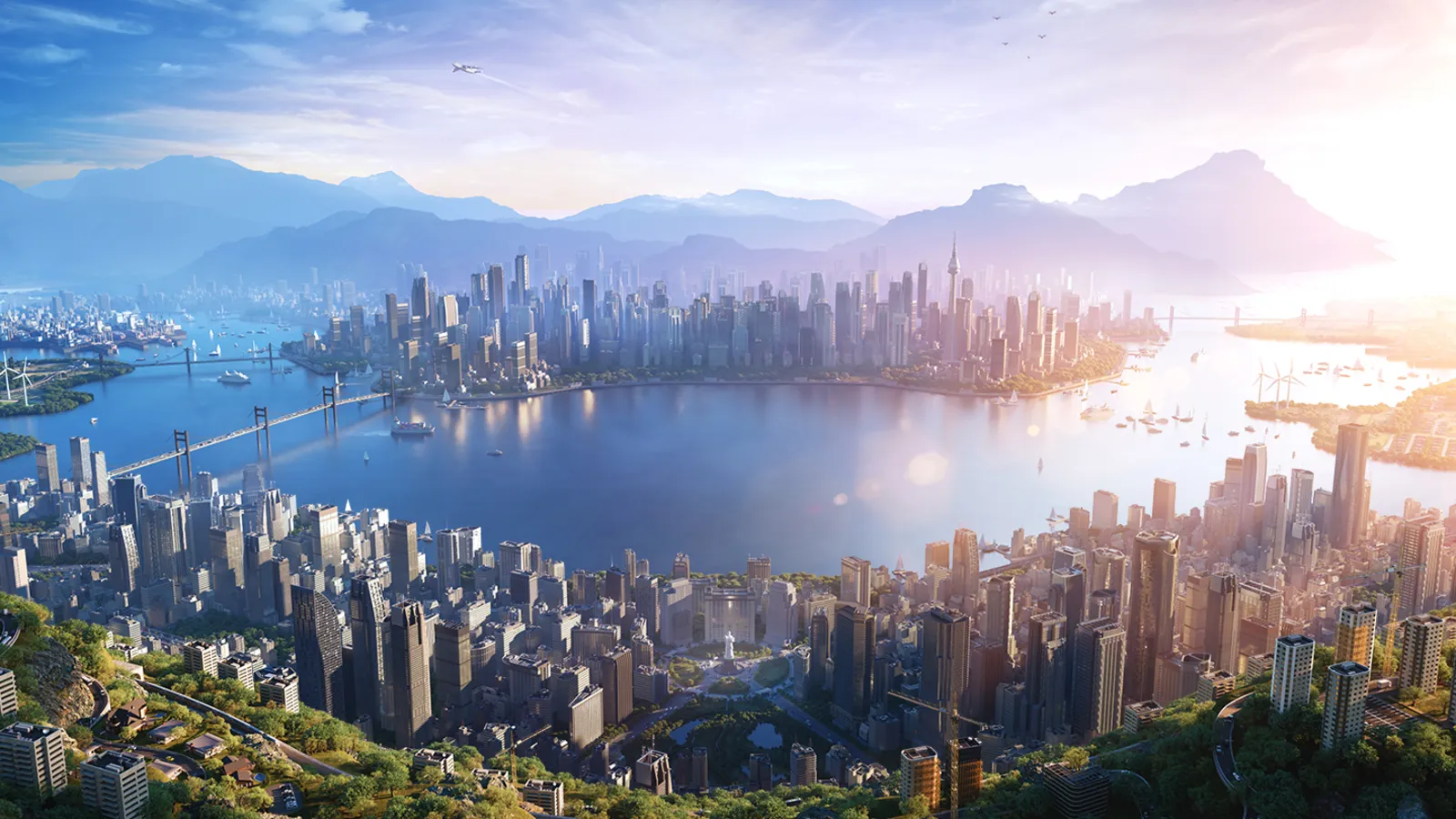
Cities: Skylines II, official artwork

Best Cities: Skylines II settings

A large, detailed city builder that is demanding on both sides: the graphics options are heavy, and a big population adds a simulation load that no graphics setting removes. Level of Detail, volumetrics and global illumination are the options that matter; frame rate is rarely smooth at high settings even on a flagship GPU.

Best Cities: Skylines II settings at 1080p for an RTX 4060 + Ryzen 5 7600: Low, lowering Level of Detail and Volumetrics Quality first. Modelled: that PC gets about 35 fps, an RTX 3060 + Ryzen 5 5600 30 fps (Low), a GTX 1650 + Core i5-10400 15 fps (Low). Calibrated against 18 measured benchmarks. How we estimate this

Updated . Game data researched November 2026.

  • PEGI 3
Genre
City builder
Developer
Colossal Order / Iceflake Studios
Released
2023
Platforms
PC
Engine
Unity (DOTS)
Researched
Nov 2026

What are the best Cities: Skylines II graphics settings?

The setting for every preset, from Low to Ultra. Save your hardware to get one tuned list.

Tell us your hardware once and every game page shows settings for it. Set up my rig

Set up your rig to see which column fits your PC, with an estimate of your frames.

Cities: Skylines II graphics settings per preset
SettingLowMediumHighUltra
Display Mode FullscreenFullscreenFullscreenFullscreen
Resolution Your monitor's native resolution; scale with the upscaler instead
VSync Off; use G-Sync or FreeSync with an FPS cap instead
Level of Detail Very LowLowMediumHigh
Volumetrics Quality DisabledDisabledLowMedium
Global Illumination DisabledDisabledLowMedium
Depth of Field DisabledDisabledDisabledDisabled
Shadow Quality LowLowMediumHigh
Ambient Occlusion DisabledLowMediumHigh
Reflections DisabledDisabledLowMedium
Clouds Quality DisabledLowMediumHigh
Fog Quality DisabledLowMediumHigh
Terrain Quality LowLowMediumHigh
Water Quality LowLowMediumHigh
Animation Quality LowLowMediumHigh
Texture Quality LowMediumHighHigh
Motion Blur DisabledDisabledDisabledDisabled
Anti-aliasing Quality SMAASMAASMAASMAA
Dynamic Resolution Scale Quality DisabledDisabledDisabledDisabled

How much FPS will I get in Cities: Skylines II?

Modelled frame rates on the High preset at native resolution, without upscaling or frame generation. Your own rig can differ: check your exact PC.

Estimated Cities: Skylines II FPS by graphics card, High preset, with a Ryzen 7 7800X3D and 16 GB RAM
Graphics card 1080p1440p4K
RTX 4090 85 fps55 fps30 fps
RTX 4070 50 fps30 fps15 fps
RTX 4060 30 fps20 fps10 fps
RTX 3060 12GB 25 fps15 fps10 fps
GTX 1650 10 fps5 fps5 fps
RX 7800 XT 50 fps30 fps15 fps
RX 7600 30 fps20 fps10 fps
RX 6600 25 fps15 fps5 fps

These are estimates from our model, not measurements; real results vary with the scene, drivers and background load. Orange numbers are below 60 fps. How we estimate this

What are the best Cities: Skylines II tips for more FPS?

How do I show FPS in Cities: Skylines II?

  1. In Cities: Skylines II, in Steam open Settings > In Game and set a position for "In-game FPS counter".
  2. In Cities: Skylines II, alternatively use the NVIDIA app or AMD Software overlay for frame rate and frame time.
  3. In Cities: Skylines II, judge it with a large city loaded and the simulation running, not in an empty map.
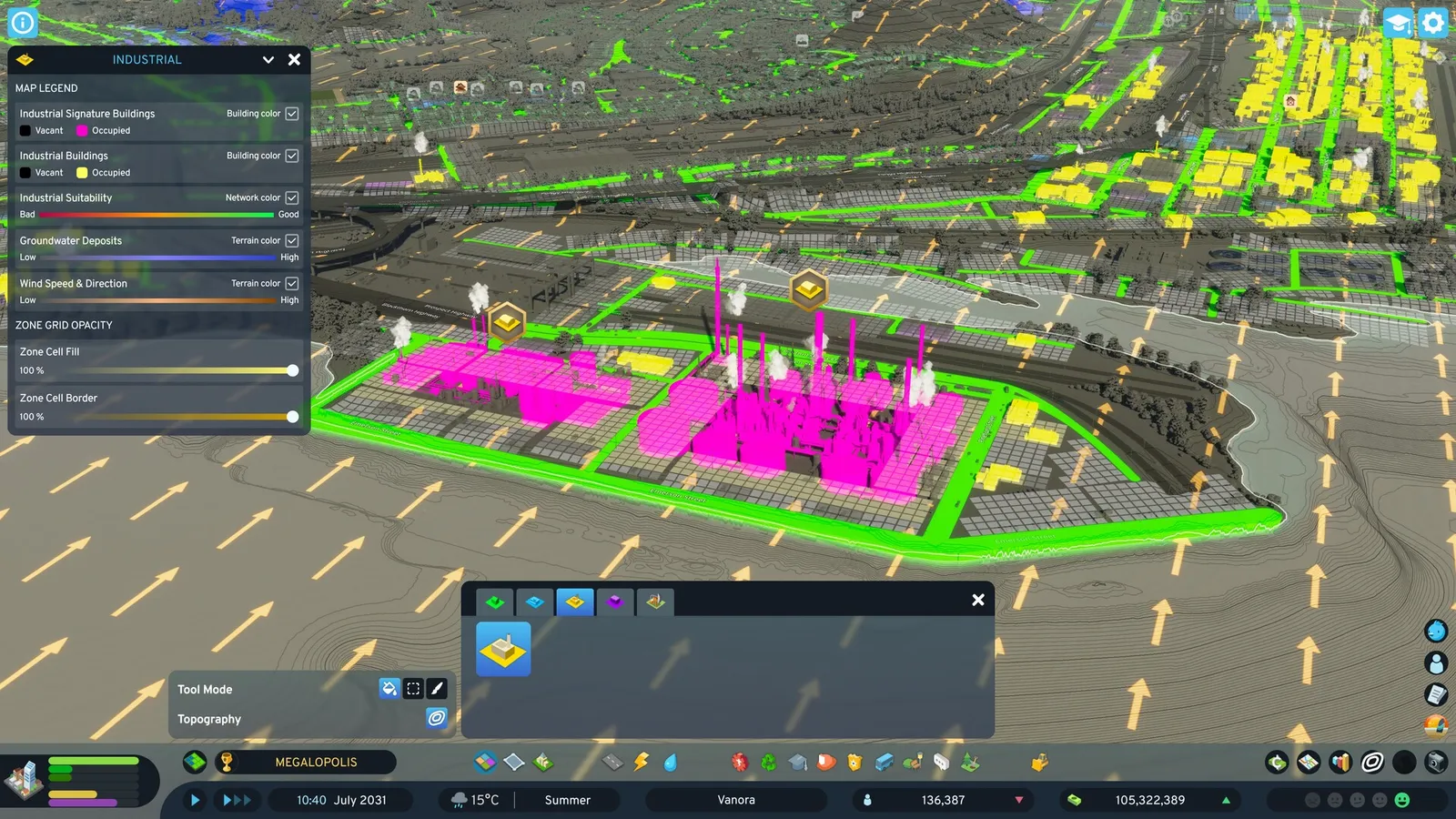
Cities: Skylines II: A big city is CPU-bound

  1. In Cities: Skylines II, the simulation (citizens, vehicles, economy) runs on the CPU, and once the city is large, lowering graphics options stops helping.
  2. In Cities: Skylines II, A fast cache CPU, fast RAM and 16 GB or more matter more than another GPU step.
  3. In Cities: Skylines II, stay at 1080p/60 Hz as the developers advise if your frame rate falls below 30 in a large city.

Cities: Skylines II: Let Virtual Texturing finish

  1. In Cities: Skylines II, after loading a save the game streams textures in. Wait until the blurry textures sharpen before you judge performance.
  2. In Cities: Skylines II, do not change settings while it is still loading: you will measure the loading, not the game.

Cities: Skylines II: The three options to turn off first

  1. In Cities: Skylines II, set Volumetrics Quality, Global Illumination and Depth of Field to Disabled.
  2. In Cities: Skylines II, then lower Level of Detail one step at a time while watching your counter.
  3. In Cities: Skylines II, PC Games Hardware finds these changes have the largest effect; the remaining options matter little.

News from Steam

All news

City Corner #15 - The Road So Far

Howdy, Mayors! On today’s City Corner, we are sitting down and gathering around the fire to talk about the overall development of Cities: Skylines II. Since we took over, we have been working on improving the nooks and crannies of every…

Read on Steam (opens in a new tab): City Corner #15 - The Road So Far

Park Adventures is coming Dec 2, 2026!

Hello Mayors! Every great city needs somewhere to escape the hustle and bustle. Somewhere to relax, enjoy the scenery, or perhaps take a ride on a rollercoaster to get that excitement going! With the ‘Park Adventures’ Expansion for Cities…

Read on Steam (opens in a new tab): Park Adventures is coming Dec 2, 2026!

Patch 1.6.4f1 - Seasonal Shift

Hello Mayors! We are happy to share our latest update, Patch 1.6.4f1, with you! This update acts as groundwork for the upcoming Park Adventures DLC and brings the improvements seen in our latest Open Beta to the live version, with the…

Read on Steam (opens in a new tab): Patch 1.6.4f1 - Seasonal Shift

Guides